![[2주차 - K8S Deploy] Ansible 기초 (26.01.11)](https://img1.daumcdn.net/thumb/R750x0/?scode=mtistory2&fname=https%3A%2F%2Fblog.kakaocdn.net%2Fdna%2FbbQuKT%2FdJMcaiWkCf7%2FAAAAAAAAAAAAAAAAAAAAAHulSRzWnNLMXOeOmjfQz0bf4IPRQOYSfaKnqV8cyh5I%2Fimg.png%3Fcredential%3DyqXZFxpELC7KVnFOS48ylbz2pIh7yKj8%26expires%3D1788188399%26allow_ip%3D%26allow_referer%3D%26signature%3DQjxnte62W1cRJi5wZL%252F%252BEw4JA3o%253D)

들어가며
안녕하세요! Devlos입니다.
이번 포스팅은 CloudNet@ 커뮤니티에서 주최하는 K8S Deploy 2주 차 주제인 "Ansible 기초"에 대해서 정리한 내용입니다.
1주차에서는 Kubernetes The Hard Way를 통해 쿠버네티스 클러스터를 수동으로 구축하는 과정을 배웠다면, 이번 2주차에서는 Ansible을 사용하여 인프라 자동화의 기초를 배워봅니다.
Ansible은 에이전트 없이 SSH를 통해 여러 서버를 관리할 수 있는 오픈소스 자동화 도구입니다. 플레이북을 작성하여 반복적인 작업을 자동화하고, 롤을 통해 재사용 가능한 구성 요소를 만들어 효율적으로 인프라를 관리할 수 있습니다.
이번 스터디를 통해 Ansible의 기본 개념부터 플레이북 작성, 변수 사용, 조건문과 반복문, 핸들러와 오류 처리, 롤 구조, 그리고 Ansible Galaxy를 활용하는 방법까지 전반적인 내용을 다뤄봅니다.
실습환경 구성
| Node | OS | Kernel | vCPU | Memory | Disk | NIC2 IP | 관리자 계정 | (기본) 일반 계정 |
|---|---|---|---|---|---|---|---|---|
| server | Ubuntu 24.04 | 6.8.0 | 2 | 1.5GB | 30GB | 10.10.1.10 | root / qwe123 | vagrant / qwe123 |
| tnode1 | 상동 | 상동 | 2 | 1.5GB | 30GB | 10.10.1.11 | root / qwe123 | vagrant / qwe123 |
| tnode2 | 상동 | 상동 | 2 | 1.5GB | 30GB | 10.10.1.12 | root / qwe123 | vagrant / qwe123 |
| tnode3 | Rocky Linux 9 | 5.14.0 | 2 | 1.5GB | 60GB | 10.10.1.13 | root / qwe123 | vagrant / qwe123 |
mkdir ansible
cd ansible
curl -O https://raw.githubusercontent.com/gasida/vagrant-lab/refs/heads/main/ansible/Vagrantfile
curl -O https://raw.githubusercontent.com/gasida/vagrant-lab/refs/heads/main/ansible/init_cfg.sh
curl -O https://raw.githubusercontent.com/gasida/vagrant-lab/refs/heads/main/ansible/init_cfg2.sh
vagrant up
다운로드한 파일들의 역할은 다음과 같습니다:
Vagrantfile: Vagrant 가상머신 설정 파일server(Ubuntu 24.04, IP: 10.10.1.10): Ansible 제어 노드tnode1,tnode2(Ubuntu 24.04, IP: 10.10.1.11, 10.10.1.12): 테스트 노드tnode3(Rocky Linux 9, IP: 10.10.1.13): 테스트 노드- 각 가상머신의 리소스 할당(CPU, 메모리, 디스크), 네트워크 설정, 초기화 스크립트 지정
init_cfg.sh: Ubuntu 기반 가상머신 초기 설정 스크립트 (server,tnode1,tnode2용)- 프로필 및 타임존 설정 (Asia/Seoul)
- 방화벽(AppArmor, ufw) 비활성화
- 필수 패키지 설치 (tree, sshpass, unzip)
- 계정 비밀번호 설정 (vagrant/root: qwe123)
- SSH 설정 (패스워드 인증, root 로그인 허용)
- 로컬 DNS 설정 (/etc/hosts 파일에 노드 정보 추가)
init_cfg2.sh: Rocky Linux 기반 가상머신 초기 설정 스크립트 (tnode3용)- 프로필 및 타임존 설정 (Asia/Seoul)
- 방화벽(firewalld) 및 SELinux 비활성화
- 필수 패키지 설치 (yum, sshpass, jq, git)
- 계정 비밀번호 설정 (vagrant/root: qwe123)
- SSH 설정 (패스워드 인증, root 로그인 허용)
- 로컬 DNS 설정 (/etc/hosts 파일에 노드 정보 추가)
vagrant up: Vagrant를 사용하여 위에서 정의한 모든 가상머신을 생성하고 시작하며, 각 노드에 해당하는 초기화 스크립트를 자동으로 실행합니다.
정상적으로 생성이 완료되면 다음과 같이 VirtualBox에 가상머신들이 실행됩니다.
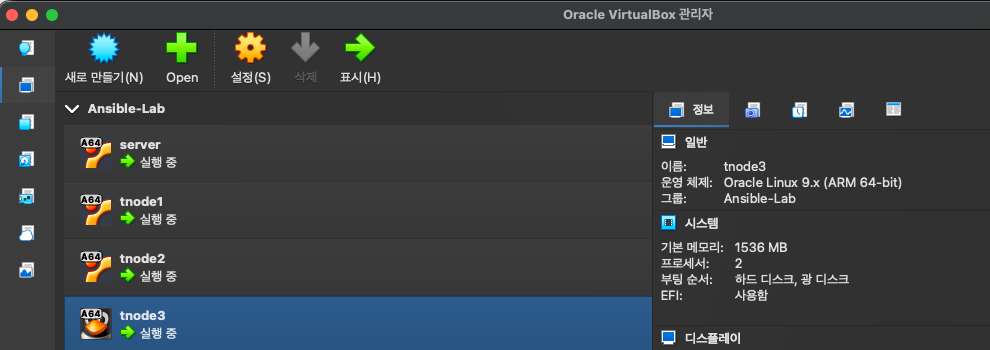
# server 기본 정보 확인
whoami
# root (현재 사용자 확인)

id
# uid=0(root) gid=0(root) groups=0(root) (root 권한 확인)

# Kernel, CPU, Mem, Disk, NIC 확인
uname -r
# 6.8.0-86-generic (커널 버전 확인)

hostnamectl
# Static hostname: server
# Operating System: Ubuntu 24.04.3 LTS
# Kernel: Linux 6.8.0-86-generic
# Architecture: arm64 (호스트명 및 시스템 정보 확인)

htop
# 대화형 프로세스 모니터 (종료: q)

free -h
# total: 1.3Gi, used: 226Mi, free: 515Mi, available: 1.1Gi
# Swap: 3.7Gi (메모리 사용량 확인)

lsblk
# sda (64G) - 디스크 정보
# ├─ sda1 (1G) /boot/efi
# ├─ sda2 (2G) /boot
# └─ sda3 (60.9G) → ubuntu--vg-ubuntu--lv (30.5G) / (블록 디바이스 정보 확인)

df -hT /
# Filesystem: /dev/mapper/ubuntu--vg-ubuntu--lv
# Type: ext4, Size: 30G, Used: 5.3G, Avail: 24G, Use%: 19%
# (루트 파일시스템 사용량 확인)

ip -c addr
# lo: 127.0.0.1/8 (루프백 인터페이스)
# eth0: 10.0.2.15/24 (NAT 네트워크)
# eth1: 10.10.1.10/24 (프라이빗 네트워크 - 관리용 IP)
# (네트워크 인터페이스 및 IP 주소 확인)

# /etc/hosts 확인
cat /etc/hosts
# 127.0.0.1 localhost
# 10.10.1.10 server
# 10.10.1.11 tnode1
# 10.10.1.12 tnode2
# 10.10.1.13 tnode3
# (로컬 DNS 설정 확인 - 모든 노드의 호스트명-IP 매핑)

# 노드간 통신 확인
for i in {1..3}; do ping -c 1 tnode$i; done
# tnode1: 64 bytes from 10.10.1.11, time=4.83ms, 0% packet loss ✓
# tnode2: 64 bytes from 10.10.1.12, time=1.10ms, 0% packet loss ✓
# tnode3: 64 bytes from 10.10.1.13, time=1.99ms, 0% packet loss ✓
# (모든 테스트 노드와 정상 통신 확인)
Ansible 소개

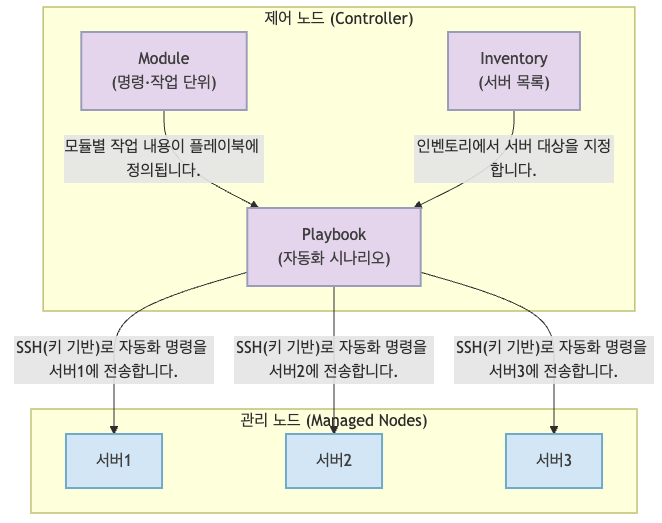
이 다이어그램은 Ansible의 기본 구조를 나타냅니다. 제어 노드(Controller)에는 인벤토리(서버 목록), 모듈(명령·작업 단위), 플레이북(자동화 시나리오)이 존재하며, 사용자는 플레이북에서 어떤 작업을 어떤 서버에 할지 정의합니다.
각 작업은 모듈로 구성되며, 플레이북은 인벤토리 정보와 함께 여러 명령을 순차적으로 실행합니다. 이때 제어 노드는 SSH, 특히 키 기반 인증을 통해 관리 노드(Managed Nodes)에 직접 접속하여 자동화 명령을 실행하게 됩니다.
관리 노드는 별도의 에이전트 설치 없이 SSH 접속만 허용하면 되므로 운영이 간편합니다.
주요 특성
- 에이전트 설치 불필요(Agentless). SSH로만 관리 가능.
- 멱등성(Idempotent): 같은 작업을 여러 번 실행해도 결과가 변하지 않음.
- 플레이북(Playbook): YAML 문법으로 작업 절차를 쉽게 작성·적용.
- 다양한 모듈 제공(시스템, 클라우드 등).
실행 구조
- 제어 노드(Controller): Ansible(코어)와 플레이북·인벤토리 파일 설치
- 관리 노드(Managed Node): 별도 설치 불필요, SSH로만 접근
구분
- 커뮤니티 버전: 누구나 설치·사용 가능(리눅스 등)
- Red Hat Ansible Automation Platform: 기업용, 구독 필요
커뮤니티 버전

인벤토리(Inventory)
인벤토리는 제어 노드가 관리할 노드 목록을 제공하는 파일(혹은 여러 소스)입니다. 각 노드별로 IP 주소 같은 정보를 지정할 수 있으며,
그룹으로 묶어 관리 대상 서버 집합을 논리적으로 구분하고, 플레이에서 노드 선택 및 변수 일괄 할당 등에 사용됩니다.
인벤토리 자체를 ‘호스트 파일(hostfile)’이라고 부르기도 합니다.
- 예시:
[WebServers]
web1.example.com
web2.example.com

[DBServers]
db1.example.com
db2.example.com
플레이북(Playbooks)
플레이북은 Ansible 작업의 실행 단위인 ‘플레이(Play)’ 집합을 담는 파일로, ansible-playbook 명령이 처리하는 핵심 실행 문서입니다.
- 플레이(Plays)
- 플레이는 Ansible 실행의 중심 단위로, 특정 노드(호스트)에 대한 작업(태스크)들의 순서를 선언합니다.
- 변수, 역할(roles), 순서가 있는 작업 목록(Tasks)을 포함하며 반복 실행이 가능합니다.
- 사실상 플레이는 ‘호스트와 태스크에 대한 반복 루프 컨텍스트’이기도 하며, 반복에 대한 정의를 내포하고 있습니다.
- 롤(Roles)
- 롤은 재사용 가능한 작업/핸들러/변수/플러그인/템플릿/파일 묶음으로, 플레이 내부에서
roles항목으로 가져와 사용하는 Ansible의 모듈화 단위입니다. - 롤을 사용하려면 반드시 플레이에 명시적으로 import 해야 합니다.
- 롤은 재사용 가능한 작업/핸들러/변수/플러그인/템플릿/파일 묶음으로, 플레이 내부에서
- 태스크(Tasks)
- 태스크는 관리 노드에 적용할 ‘행동’을 정의합니다.
- 태스크 하나만 ad-hoc 명령으로
ansible이나ansible-console에서 바로 실행할 수도 있습니다(실행 시 내부적으로 가상 플레이 생성).
- 핸들러(Handlers)
- 핸들러는 특정 태스크가 ‘changed’를 반환한 경우에만 호출되는 특별한 태스크입니다.
- 예: 설정 파일 변경 후 서비스 재시작 등.
- 예시:
- hosts: webservers
    serial: 5
    roles:
    - common
    - webapp

- hosts: dbservers
    roles:
    - common
    - db
모듈(Modules)
- 모듈은 태스크 실행을 위해 관리 노드로 복사되어 실행하는 코드(혹은 바이너리)입니다.
- 사용자/데이터베이스/VLAN 등 다양한 환경에 맞는 관리 작업 세부 기능을 제공합니다.
- 단일 태스크에서 특정 모듈만 사용할 수도 있고, 플레이북에서 여러 모듈 조합도 지원합니다.
플러그인(Plugins)
- 플러그인은 Ansible의 기능을 확장하는 코드로, 연결(예: connection plugin), 데이터 변환(filter), 출력(콜백) 등 다양한 분야에 관한 플러그인을 사용할 수 있습니다.
컬렉션(Collections)
- 컬렉션은 플레이북/롤/모듈/플러그인 등 다양한 Ansible 콘텐츠를 패키징해서 배포하는 공식 단위입니다.
- Ansible Galaxy를 통해 다양한 컬렉션을 설치·활용할 수 있습니다.
- 컬렉션 리소스들은 서로 독립적으로, 그리고 필요에 따라 조합해서 사용할 수 있습니다.
Ansible 설치
Ansible 설치
# 작업 기본 디렉터리 확인
whoami
# root (현재 사용자 확인)

pwd
# /root (현재 작업 디렉터리 확인)

# 파이썬 버전 확인
python3 --version
# Python 3.12.3 (파이썬 버전 확인)

# 설치
apt install software-properties-common -y
# software-properties-common is already the newest version (0.99.49.3)
# (PPA 저장소 관리 도구, 이미 설치되어 있음)

add-apt-repository --yes --update ppa:ansible/ansible
# Ansible PPA 저장소 추가 및 패키지 목록 업데이트
# Repository: 'https://ppa.launchpadcontent.net/ansible/ansible/ubuntu/'
# 패키지 목록 다운로드 완료 (Fetched 11.0 MB)

apt install ansible -y
# 10개 패키지 설치 (ansible, ansible-core, 의존성 패키지들)
# ansible-core: 2.19.5-1ppa~noble
# ansible: 12.3.0-1ppa~noble
# 총 20.8 MB 다운로드, 231 MB 디스크 공간 사용

# 확인
ansible --version
# ansible [core 2.19.5]
#   config file = /etc/ansible/ansible.cfg
#   configured module search path = ['/root/.ansible/plugins/modules', '/usr/share/ansible/plugins/modules']
#   ansible python module location = /usr/lib/python3/dist-packages/ansible
#   ansible collection location = /root/.ansible/collections:/usr/share/ansible/collections
#   executable location = /usr/bin/ansible
#   python version = 3.12.3 (main, Aug 14 2025, 17:47:21) [GCC 13.3.0] (/usr/bin/python3)
#   jinja version = 3.1.2
#   pyyaml version = 6.0.1 (with libyaml v0.2.5)
# (Ansible 설치 정보 확인)

cat /etc/ansible/ansible.cfg
# 기본 설정 파일은 주석으로만 구성되어 있음
# 실제 설정은 ansible-config init 명령으로 생성 가능

ansible-config list
# 모든 Ansible 설정 옵션 목록 출력 (매우 긴 목록)
# ACTION_WARNINGS, AGNOSTIC_BECOME_PROMPT 등 다양한 설정 항목 표시

which ansible
# /usr/bin/ansible (Ansible 실행 파일 위치 확인)

# 작업 디렉터리 생성
mkdir my-ansible
# my-ansible 디렉터리 생성

cd my-ansible
# my-ansible 디렉터리로 이동
앤서블 접근을 위한 SSH 인증 구성
# SSH 키 생성
tree ~/.ssh

watch -d 'tree ~/.ssh' #모니터링
# /root/.ssh
# ├── authorized_keys      # 접속 허용 공개키 목록 (외부에서 이 서버로 접속할 수 있게 함. ssh-copy-id로 갱신)
# ├── id_rsa               # 개인키 (내가 다른 서버에 SSH로 접속할 때 사용)
# ├── id_rsa.pub           # 공개키 (다른 서버의 authorized_keys에 복사해서 무비밀번호 접속 허용)
# ├── known_hosts          # 접속해 본 서버들 공개키가 저장됨 (새 서버에 처음 접속하면 fingerprint 저장)
# └── known_hosts.old      # 이전 known_hosts 백업파일 (host 키 갱신 등으로 변경시 보존)
# (→ 각각: 내 키, 타 서버의 키, 접속 허용 공개키 목록 등 SSH 인증 및 기록 목적)

# Create SSH Keypair
ssh-keygen -t rsa -N "" -f /root/.ssh/id_rsa
# Generating public/private rsa key pair.
# Your identification has been saved in /root/.ssh/id_rsa
# Your public key has been saved in /root/.ssh/id_rsa.pub
# The key fingerprint is:
# SHA256:cfq5F0jAlJEb20DqHk6ZWF9hh7csBpK9VN5I6HOpvbU root@server
# (RSA 3072비트 키 쌍 생성 완료, 패스프레이즈 없음)

# 공개 키를 관리 노드에 복사
for i in {1..3}; do sshpass -p 'qwe123' ssh-copy-id -o StrictHostKeyChecking=no root@tnode$i; done
# 각 노드에 공개 키 복사:
# tnode1: Number of key(s) added: 1
# tnode2: Number of key(s) added: 1
# tnode3: Number of key(s) added: 1
# (모든 관리 노드에 공개 키 복사 완료)

# 복사 확인
for i in {1..3}; do echo ">> tnode$i <<"; ssh tnode$i cat ~/.ssh/authorized_keys; echo; done
# >> tnode1 <<
# ssh-rsa AAAAB3NzaC1yc2EAAAADAQABAAABgQCulr2A+8TWllvGvGU/swyQQ7mYHJh48khbJUpeaDJ5twXlGEORBdyQWJeyzD5gE06VaY5EHxpf2vuFgKibzqsJXZvhqelyNeDXKzfgxlYdMSzrwb8c/38XUUFFx3s7kcugackCdoctJQtdW0ju5Bp2VsbF1ZzU3fDzltG07maLzLV4KSBnD9xmURLJ5mPhGFC3OlVSMT37CPVGGBBmsoOLLL8SmsHkA1UGvHO436+CTDYSzFmParHIpsGU4mX9COrcxIZdL+XWIyLb/alZBa6yaCc/lxY1zJ1BnjWIBsZf6HacCxyK3dhqxGEC0RDUtNULnNMMG2cWTzyAkF5UdsWT2G8tvfGWG3kyGGHynyt6aox1hHe0NbVvvzUjSSAtWTqXVp3dkgE39kijEyCu3JEPuJlWSBFjZ+gQPlKjENuf/f2LL7SYCVX2OJ8cBBG0TN+Myi0V2z1lLQB/1w6SYjjb4upEE66VZABvD8DVbLavINZNYOYmNY6Sn/p4/FOxYC0= root@server
#
# >> tnode2 <<
# ssh-rsa AAAAB3NzaC1yc2EAAAADAQABAAABgQCulr2A+8TWllvGvGU/swyQQ7mYHJh48khbJUpeaDJ5twXlGEORBdyQWJeyzD5gE06VaY5EHxpf2vuFgKibzqsJXZvhqelyNeDXKzfgxlYdMSzrwb8c/38XUUFFx3s7kcugackCdoctJQtdW0ju5Bp2VsbF1ZzU3fDzltG07maLzLV4KSBnD9xmURLJ5mPhGFC3OlVSMT37CPVGGBBmsoOLLL8SmsHkA1UGvHO436+CTDYSzFmParHIpsGU4mX9COrcxIZdL+XWIyLb/alZBa6yaCc/lxY1zJ1BnjWIBsZf6HacCxyK3dhqxGEC0RDUtNULnNMMG2cWTzyAkF5UdsWT2G8tvfGWG3kyGGHynyt6aox1hHe0NbVvvzUjSSAtWTqXVp3dkgE39kijEyCu3JEPuJlWSBFjZ+gQPlKjENuf/f2LL7SYCVX2OJ8cBBG0TN+Myi0V2z1lLQB/1w6SYjjb4upEE66VZABvD8DVbLavINZNYOYmNY6Sn/p4/FOxYC0= root@server
#
# >> tnode3 <<
# ssh-rsa AAAAB3NzaC1yc2EAAAADAQABAAABgQCulr2A+8TWllvGvGU/swyQQ7mYHJh48khbJUpeaDJ5twXlGEORBdyQWJeyzD5gE06VaY5EHxpf2vuFgKibzqsJXZvhqelyNeDXKzfgxlYdMSzrwb8c/38XUUFFx3s7kcugackCdoctJQtdW0ju5Bp2VsbF1ZzU3fDzltG07maLzLV4KSBnD9xmURLJ5mPhGFC3OlVSMT37CPVGGBBmsoOLLL8SmsHkA1UGvHO436+CTDYSzFmParHIpsGU4mX9COrcxIZdL+XWIyLb/alZBa6yaCc/lxY1zJ1BnjWIBsZf6HacCxyK3dhqxGEC0RDUtNULnNMMG2cWTzyAkF5UdsWT2G8tvfGWG3kyGGHynyt6aox1hHe0NbVvvzUjSSAtWTqXVp3dkgE39kijEyCu3JEPuJlWSBFjZ+gQPlKjENuf/f2LL7SYCVX2OJ8cBBG0TN+Myi0V2z1lLQB/1w6SYjjb4upEE66VZABvD8DVbLavINZNYOYmNY6Sn/p4/FOxYC0= root@server
# (모든 관리 노드에 동일한 공개 키가 authorized_keys에 등록되어 있음 확인)

# ssh 접속 테스트
for i in {1..3}; do echo ">> tnode$i <<"; ssh tnode$i hostname; echo; done
# >> tnode1 <<
# tnode1
#
# >> tnode2 <<
# tnode2
#
# >> tnode3 <<
# tnode3
# (모든 관리 노드에 패스워드 없이 SSH 접속 가능 확인)

# python 정보 확인
for i in {1..3}; do echo ">> tnode$i <<"; ssh tnode$i python3 -V; echo; done
# >> tnode1 <<
# Python 3.12.3
#
# >> tnode2 <<
# Python 3.12.3
#
# >> tnode3 <<
# Python 3.9.21
# (모든 관리 노드에 Python 설치되어 있음 확인 - Ansible 실행 요구사항 충족)
Host 선정 (Inventory)
인벤토리(Inventory)는 Ansible이 관리할 대상 서버 목록을 정의하는 파일입니다. 텍스트 파일 형식으로 INI 스타일 또는 YAML 형식을 사용하며, 관리 호스트의 호스트명 또는 IP 주소를 지정합니다.
참고: Ansible 공식 문서
기본 인벤토리 파일
가장 간단한 형식은 호스트명 또는 IP 주소를 한 줄에 하나씩 나열하는 목록 형태입니다.
web1.example.com
web2.example.com
db1.example.com
db2.example.com
192.0.2.42
IP 주소를 이용한 인벤토리 파일 생성
# inventory 파일 생성
cat <<EOT > inventory
10.10.1.11
10.10.1.12
10.10.1.13
EOT

# inventory 검증 (JSON 형식으로 출력)
ansible-inventory -i ./inventory --list | jq
호스트명을 이용한 인벤토리 파일 생성
# /etc/hosts 파일 확인 (호스트명-IP 매핑 확인)
cat /etc/hosts

# inventory 파일 생성
cat <<EOT > inventory
tnode1
tnode2
tnode3
EOT

# inventory 검증
ansible-inventory -i ./inventory --list | jq
그룹별 호스트 설정
호스트별로 역할(Role)을 부여하고 역할별로 특정 작업을 수행해야 하는 경우, 그룹으로 묶어 관리합니다. 그룹명을 대괄호 [] 안에 작성하고 해당 그룹에 속하는 호스트명이나 IP를 한 줄에 하나씩 나열합니다.
[webservers]
web1.example.com
web2.example.com

[db-servers]
db01.example.com
db02.example.com
여러 그룹에 속하는 호스트
호스트는 여러 그룹에 포함될 수 있습니다. 역할, 위치, 환경(프로덕션/개발) 등에 따라 다양한 방식으로 구성할 수 있습니다.
[webservers]
web1.example.com
web2.example.com
192.0.2.42

[db-servers]
db01.example.com
db02.example.com

[east-datacenter]
web1.example.com
db01.example.com

[west-datacenter]
web2.example.com
db02.example.com

[production]
web1.example.com
web2.example.com
db01.example.com
db02.example.com

[development]
192.168.0.42
중첩 그룹 (Nested Groups)
기존에 정의한 호스트 그룹을 포함하는 상위 그룹을 만들 수 있습니다. 그룹명에 :children 접미사를 추가하면 됩니다.
[webservers]
web1.example.com
web2.example.com

[db-servers]
db01.example.com
db02.example.com

[datacenter:children]
webservers
db-servers
실제 사례: Kubespray 인벤토리 예시
[all]
master01 ansible_host=192.168.10.10 ip=192.168.10.10 ansible_user=root
worker01 ansible_host=192.168.10.11 ip=192.168.10.11 ansible_user=root
worker02 ansible_host=192.168.10.12 ip=192.168.10.12 ansible_user=root

[kube_control_plane]
master01

[etcd]
master01

[kube_node]
worker01
worker02

[k8s_cluster:children]
kube_control_plane
kube_node
범위를 사용한 호스트 지정
호스트 이름이나 IP 주소를 설정할 때 범위를 지정하여 인벤토리를 간소화할 수 있습니다. 숫자 또는 영문자로 범위를 지정하며, 대괄호 [start:end] 형식을 사용합니다.
# 호스트명 범위
[webservers]
web[1:2].example.com

[db-servers]
db[01:02].example.com

# IP 주소 범위 (192.168.4.0 ~ 192.168.4.255)
[defaults]
192.168.4.[0:255]

# 호스트명 범위 (com01.example.com ~ com20.example.com)
[compute]
com[01:20].example.com

# DNS 범위 (a.dns.example.com, b.dns.example.com, c.dns.example.com)
[dns]
[a:c].dns.example.com

# IPv6 범위 (2001:db8::a ~ 2001:db8::f)
[ipv6]
2001:db8::[a:f]
실습을 위한 인벤토리 그룹 구성
실습 환경에서 사용할 인벤토리 파일을 생성하고 검증하는 예시입니다.
# 인벤토리 파일 생성 (web 그룹: tnode1, tnode2 / db 그룹: tnode3)
cat <<EOT > inventory
[web]
tnode1
tnode2

[db]
tnode3

[all:children]
web
db
EOT

# JSON 형식으로 인벤토리 목록 확인
ansible-inventory -i ./inventory --list | jq
# {
#   "_meta": {
#     "hostvars": {},
#     "profile": "inventory_legacy"
#   },
#   "all": {
#     "children": [
#       "ungrouped",
#       "web",
#       "db"
#     ]
#   },
#   "db": {
#     "hosts": [
#       "tnode3"
#     ]
#   },
#   "web": {
#     "hosts": [
#       "tnode1",
#       "tnode2"
#     ]
#   }
# }

# 트리 구조로 인벤토리 계층 확인
ansible-inventory -i ./inventory --graph
# @all:
#   |--@ungrouped:
#   |--@web:
#   |  |--tnode1
#   |  |--tnode2
#   |--@db:
#   |  |--tnode3

# 현재 프로젝트 디렉터리에 ansible.cfg 라는 엔서블 환경 설정 파일 구성시, -i 옵션을 쓰지 않아도 호스트 정보 알 수 있음
## 적용전
ansible-inventory --list | jq
# {
#   "_meta": {
#     "hostvars": {},
#     "profile": "inventory_legacy"
#   },
#   "all": {
#     "children": [
#       "ungrouped"
#     ]
#   }
# }

ansible-inventory -i ./inventory --list | jq
# {
#   "_meta": {
#     "hostvars": {},
#     "profile": "inventory_legacy"
#   },
#   "all": {
#     "children": [
#       "ungrouped",
#       "web",
#       "db"
#     ]
#   },
#   "db": {
#     "hosts": [
#       "tnode3"
#     ]
#   },
#   "web": {
#     "hosts": [
#       "tnode1",
#       "tnode2"
#     ]
#   }
# }

## 적용 후
# ansible.cfg 파일 생성
cat <<EOT > ansible.cfg
[defaults]
inventory = ./inventory
EOT
# (현재 디렉터리에 ansible.cfg 파일 생성, inventory 경로를 ./inventory로 설정)

# inventory 목록 확인 (-i 옵션 없이도 인벤토리 자동 인식)
ansible-inventory --list | jq
# {
#   "_meta": {
#     "hostvars": {},
#     "profile": "inventory_legacy"
#   },
#   "all": {
#     "children": ["ungrouped", "web", "db"]
#   },
#   "db": {"hosts": ["tnode3"]},
#   "web": {"hosts": ["tnode1", "tnode2"]}
# }
# (ansible.cfg에서 inventory 경로를 지정했으므로 -i 옵션 없이도 인벤토리 인식)

# ansible config 적용 우선 순위 확인
echo $ANSIBLE_CONFIG
# (빈 출력 - ANSIBLE_CONFIG 환경변수가 설정되지 않음)
# (환경변수가 설정되면 해당 파일이 최우선으로 적용됨)

cat $PWD/ansible.cfg
# [defaults]
# inventory = ./inventory
# (현재 작업 디렉터리의 ansible.cfg 파일 내용 확인)
# (kubespray 실행 시 디렉터리 위치 고정 이유: 현재 디렉터리의 ansible.cfg가 우선 적용됨)

ls ~/.ansible.cfg
# ls: cannot access '/root/.ansible.cfg': No such file or directory
# (사용자 홈 디렉터리에 .ansible.cfg 파일 없음)

tree ~/.ansible
# /root/.ansible
# ├── ansible.cfg
# ├── inventory
# └── tmp
# 2 directories, 2 files
# (사용자 홈 디렉터리의 .ansible 디렉터리 구조 확인)

cat /etc/ansible/ansible.cfg
# (주석만 포함된 기본 설정 파일, 실제 설정 항목은 없음)
# (시스템 전역 설정 파일 위치, 최저 우선순위)

# ansible-config dump: 현재 적용된 모든 설정값 출력 (환경변수/ini 파일에서 로드된 값)
ansible-config dump
# ACTION_WARNINGS(default) = True
# AGNOSTIC_BECOME_PROMPT(default) = True
# ...
# (현재 적용된 모든 Ansible 설정값을 출력, 매우 긴 목록)
# (설정값 옆에 (default), (env), (ini: ...) 등 출처 표시)

# ansible-config list: 사용 가능한 모든 설정 옵션 목록 및 설명 출력
ansible-config list
# ACTION_WARNINGS:
#   default: true
#   description: ...
#   env: ...
#   ini: ...
# ...
# (사용 가능한 모든 설정 옵션의 상세 정보 출력)
# (각 옵션의 기본값, 설명, 환경변수명, ini 파일 위치 등 표시)
Ansible config 적용 우선순위
Ansible 설정 파일 적용 우선순위는 다음과 같습니다:
ANSIBLE_CONFIG환경변수로 지정한 파일이 있으면 최우선 적용- 현재 작업 디렉터리의
ansible.cfg파일 - 홈 디렉터리(
~/.ansible.cfg) 파일 - 시스템 전역 설정 파일(
/etc/ansible/ansible.cfg)
위 순서 중 가장 우선순위가 높은 파일이 적용됩니다.
플레이북 작성
환경 설정
- 앤서블 프로젝트 디렉터리에 ansible.cfg 파일을 생성하면 다양한 앤서블 설정을 적용할 수 있습니다.
- 앤서블 환경 설정 파일은 여러 개의 섹션으로 구성되며, 각 섹션에는 키-값 쌍으로 정의된 설정이 포함됩니다.
- 섹션 제목은 대괄호로 묶여 있으며, 기본적인 실행을 위해 [defaults]와 [privilege_escalation] 두 개의 섹션으로 구성합니다.
[defaults]
inventory = ./inventory
remote_user = root
ask_pass = false

[privilege_escalation]
become = true
become_method = sudo
become_user = root
become_ask_pass = false
[defaults] 섹션 : 앤서블 작업을 위한 기본값 설정
| 매개 변수 | 설명 |
|---|---|
inventory |
인벤토리 파일의 경로를 지정합니다. |
remote_user |
앤서블이 관리 호스트에 연결할 때 사용하는 사용자 이름을 지정합니다. 사용자 이름을 지정하지 않으면 현재 사용자 이름으로 지정됩니다. |
ask_pass |
SSH 암호를 묻는 메시지 표시 여부를 지정합니다. SSH 공개 키 인증을 사용하는 경우 기본값은 false입니다. |
[privilege_escalation] 섹션 : 보안/감사로 인해 원격 호스트에 권한 없는 사용자로 연결한 후, 관리 액세스 권한을 에스컬레이션하여 루트 사용자로 전환할 때 사용합니다.
| 매개 변수 | 설명 |
|---|---|
become |
권한 에스컬레이션을 활성화할지 여부를 지정합니다. 연결 후 관리 호스트에서 자동으로 사용자를 전환할지 여부를 결정합니다. 일반적으로 root로 전환되며, 플레이북에서도 지정할 수 있습니다. |
become_method |
권한을 에스컬레이션하는 사용자 전환 방식을 지정합니다. 일반적으로 기본값은 sudo이며, su는 옵션으로 설정할 수 있습니다. |
become_user |
관리 호스트에서 전환할 사용자를 지정합니다. 일반적으로 기본값은 root입니다. |
become_ask_pass |
become_method 매개 변수에 대한 암호를 묻는 메시지 표시 여부를 지정합니다. 기본값은 false입니다. 권한을 에스컬레이션하기 위해 사용자가 암호를 입력해야 하는 경우, 구성 파일에 become_ask_pass = true를 설정하면 됩니다. |
SSH 연결 관련
- 앤서블은 리눅스에서 기본적으로 SSH 프로토콜을 사용하여 관리 호스트에 연결합니다.
- 앤서블에서 관리 호스트에 연결하는 방법을 제어하는 가장 중요한 매개 변수는 [defaults] 섹션에 설정되어 있습니다.
- 별도로 설정되어 있지 않으면 앤서블은 실행 시 로컬 사용자와 같은 사용자 이름을 사용하여 관리 호스트에 연결합니다.
- 다른 사용자를 지정하려면 remote_user 매개 변수를 사용하여 해당 사용자 이름으로 설정할 수 있습니다.
ad hoc commands
ad hoc 명령은 앤서블을 사용하여 단일 작업을 빠르게 실행하는 방법입니다. 플레이북을 작성하지 않고도 간단한 작업을 수행할 수 있습니다.
ping 모듈은 앤서블이 관리 호스트에 연결할 수 있는지 테스트하는 모듈입니다. 주의할 점은 이 ping은 ICMP ping이 아니라 Python 테스트 모듈이라는 것입니다. 정상적으로 연결되면 "ping": "pong"을 반환하고 SUCCESS 상태를 출력합니다.
실습 예제
- ansible.cfg 파일 생성 후 초기 ping 테스트
cat <<EOT > ansible.cfg
[defaults]
inventory = ./inventory
remote_user = root
ask_pass = false

[privilege_escalation]
become = true
become_method = sudo
become_user = root
become_ask_pass = false
EOT

root@server:~/my-ansible# ansible -m ping web
# [WARNING]: Unable to parse /root/my-ansible/inventory as an inventory source
# [WARNING]: No inventory was parsed, only implicit localhost is available
# [WARNING]: provided hosts list is empty, only localhost is available. Note that the implicit localhost does not match 'all'
# [WARNING]: Could not match supplied host pattern, ignoring: web

# inventory 파일이 아직 생성되지 않아서 경고가 발생합니다. 다음 단계에서 inventory 파일을 생성합니다.
Ansible이 '지금은 잘 동작하지만 미래에 예기치 않게 Python 인터프리터가 바뀔 수 있다'는 점을 알려주는 예방용 경고를 방지하기 위해, 암묵적 Python 자동 선택을 지양하고 명시적 설정을 권장합니다. 기본값은 ansible_python_interpreter=auto입니다.
root@server:~/my-ansible# cat <<EOT > inventory
[web]
# 이 부분은 Ansible 인벤토리의 [web] 그룹에 속한 호스트 목록을 정의하는 곳입니다.
# Ansible이 해당 서버에 접속할 때 사용할 Python 인터프리터 경로를 명시적으로 지정하고 있습니다.
# (보통 다양한 리눅스 배포판에서 기본 python 위치가 달라 오류 예방 차원에서 지정)
tnode1 ansible_python_interpreter=/usr/bin/python3
tnode2 ansible_python_interpreter=/usr/bin/python3

[db]
tnode3 ansible_python_interpreter=/usr/bin/python3

[all:children]
web
db
EOT

ansible-inventory -i ./inventory --list | jq
# {
#   "_meta": {
#     "hostvars": {
#       "tnode1": {
#         "ansible_python_interpreter": "/usr/bin/python3"
#       },
#       "tnode2": {
#         "ansible_python_interpreter": "/usr/bin/python3"
#       },
#       "tnode3": {
#         "ansible_python_interpreter": "/usr/bin/python3"
#       }
#     },
#     "profile": "inventory_legacy"
#   },
#   "all": {
#     "children": [
#       "ungrouped",
#       "web",
#       "db"
#     ]
#   },
#   "db": {
#     "hosts": [
#       "tnode3"
#     ]
#   },
#   "web": {
#     "hosts": [
#       "tnode1",
#       "tnode2"
#     ]
#   }
# }

ansible -m ping web
# tnode2 | SUCCESS => {
#     "changed": false,
#     "ping": "pong"
# }
# tnode1 | SUCCESS => {
#     "changed": false,
#     "ping": "pong"
# }
# web 그룹의 두 호스트(tnode1, tnode2)에 모두 정상적으로 연결됨
ansible -m ping db
# tnode3 | SUCCESS => {
#     "changed": false,
#     "ping": "pong"
# }
다른 사용자 계정 테스트
앤서블은 기본적으로 ansible.cfg에 설정된 remote_user(기본값: root)로 연결합니다. 다른 사용자 계정으로 연결하려면 -u 옵션을 사용합니다.
단, SSH 키 인증이 설정되지 않은 경우 --ask-pass 옵션을 함께 사용하여 비밀번호를 입력해야 합니다.
1. root 계정으로 비밀번호 인증 테스트
ansible -m ping --ask-pass web
# SSH password: qwe123
2. vagrant 계정으로 연결 시도 (비밀번호 없이)
root@server:~/my-ansible# ansible -m ping web -u vagrant
# [ERROR]: Task failed: Failed to connect to the host via ssh: vagrant@tnode1: Permission denied (publickey,password).
# Origin: <adhoc 'ping' task>
#
# {'action': 'ping', 'args': {}, 'timeout': 0, 'async_val': 0, 'poll': 15}
#
# tnode1 | UNREACHABLE! => {
#     "changed": false,
#     "msg": "Task failed: Failed to connect to the host via ssh: vagrant@tnode1: Permission denied (publickey,password).",
#     "unreachable": true
# }
# [ERROR]: Task failed: Failed to connect to the host via ssh: vagrant@tnode2: Permission denied (publickey,password).
# Origin: <adhoc 'ping' task>
#
# {'action': 'ping', 'args': {}, 'timeout': 0, 'async_val': 0, 'poll': 15}
#
# tnode2 | UNREACHABLE! => {
#     "changed": false,
#     "msg": "Task failed: Failed to connect to the host via ssh: vagrant@tnode2: Permission denied (publickey,password).",
#     "unreachable": true
# }
# -u vagrant 옵션으로 vagrant 사용자로 연결을 시도했지만, SSH 공개 키 인증이 설정되지 않았고 비밀번호 입력 옵션(--ask-pass)도 없어서 연결에 실패
# Permission denied (publickey,password) 메시지는 공개 키 인증과 비밀번호 인증 모두 실패했음을 의미
3. vagrant 계정으로 비밀번호 인증하여 연결
root@server:~/my-ansible# ansible -m ping web -u vagrant --ask-pass
# SSH password:
# tnode1 | SUCCESS => {
#     "changed": false,
#     "ping": "pong"
# }
# tnode2 | SUCCESS => {
#     "changed": false,
#     "ping": "pong"
# }
# --ask-pass 옵션을 추가하여 비밀번호 입력 프롬프트가 나타나고, 비밀번호를 입력하면 vagrant 계정으로 정상적으로 연결됨
# 두 호스트(tnode1, tnode2) 모두 성공적으로 연결됨
ad-hoc | ansible shell 모듈
shell 모듈은 관리 호스트에서 쉘 명령을 실행하는 모듈입니다.
-a 옵션으로 실행할 명령을 지정하며, 파이프(|), 리다이렉션(>, >>), 변수 등 쉘 기능을 사용할 수 있습니다.
단순 명령 실행에는 command 모듈을 사용하는 것이 권장되지만, 쉘 기능이 필요한 경우 shell 모듈을 사용합니다.
ansible -m shell -a uptime db
# tnode3 | CHANGED | rc=0 >>
#  00:04:22 up  1:54,  1 user,  load average: 0.00, 0.00, 0.00

ansible -m shell -a "free -h" web
# tnode2 | CHANGED | rc=0 >>
#                total        used        free      shared  buff/cache   available
# Mem:           1.3Gi       236Mi       903Mi       4.8Mi       265Mi       1.1Gi
# Swap:          3.7Gi          0B       3.7Gi
# tnode1 | CHANGED | rc=0 >>
#                total        used        free      shared  buff/cache   available
# Mem:           1.3Gi       230Mi       909Mi       4.8Mi       266Mi       1.1Gi
# Swap:          3.7Gi          0B       3.7Gi

ansible -m shell -a "tail -n 3 /etc/passwd" all
# tnode1 | CHANGED | rc=0 >>
# sshd:x:107:65534::/run/sshd:/usr/sbin/nologin
# vagrant:x:1000:1000:vagrant:/home/vagrant:/bin/bash
# vboxadd:x:999:1::/var/run/vboxadd:/bin/false
# tnode2 | CHANGED | rc=0 >>
# sshd:x:107:65534::/run/sshd:/usr/sbin/nologin
# vagrant:x:1000:1000:vagrant:/home/vagrant:/bin/bash
# vboxadd:x:999:1::/var/run/vboxadd:/bin/false
# tnode3 | CHANGED | rc=0 >>
# tcpdump:x:72:72::/:/sbin/nologin
# vagrant:x:1000:1000::/home/vagrant:/bin/bash
# vboxadd:x:991:1::/var/run/vboxadd:/bin/false
첫번째 플레이북 작성하기
플레이북은 YAML 포맷으로 작성된 텍스트 파일이며, 일반적으로 .yml이라는 확장자를 사용하여 저장됩니다.
플레이북은 대상 호스트나 호스트 집합에 수행할 작업을 정의하고 이를 실행합니다. 이때 특정 작업 단위를 수행하기 위해 모듈을 적용합니다.
cat > first-playbook.yml <<'EOF'
---
- hosts: all
  tasks:
    - name: Print message
      debug:
        msg: Hello CloudNet@ Ansible Study
EOF

cat > first-playbook-with-error.yml <<'EOF'
---
- hosts: all
  tasks:
    - name: Print message
      debug:
      msg: Hello CloudNet@ Ansible Study
EOF

# 플레이북 자체 문법 체크(구문 검사) : 실행은 하지 않고 YAML/플레이북 구조만 검사
ansible-playbook --syntax-check first-playbook.yml
# playbook: first-playbook.yml

ansible-playbook --syntax-check first-playbook-with-error.yml
# [ERROR]: conflicting action statements: debug, msg
# Origin: /root/my-ansible/first-playbook-with-error.yml:4:7
#
# 2 - hosts: all
# 3   tasks:
# 4     - name: Print message
#         ^ column 7

# 플레이북 실행
ansible-playbook first-playbook.yml
#
# PLAY [all] ************************************************************************************************************************
#
# TASK [Gathering Facts] ************************************************************************************************************
# ok: [tnode1]
# ok: [tnode2]
# ok: [tnode3]
#
# TASK [Print message] **************************************************************************************************************
# ok: [tnode1] => {
#     "msg": "Hello CloudNet@ Ansible Study"
# }
# ok: [tnode2] => {
#     "msg": "Hello CloudNet@ Ansible Study"
# }
# ok: [tnode3] => {
#     "msg": "Hello CloudNet@ Ansible Study"
# }
#
# PLAY RECAP ************************************************************************************************************************
# tnode1                     : ok=2    changed=0    unreachable=0    failed=0    skipped=0    rescued=0    ignored=0
# tnode2                     : ok=2    changed=0    unreachable=0    failed=0    skipped=0    rescued=0    ignored=0
# tnode3                     : ok=2    changed=0    unreachable=0    failed=0    skipped=0    rescued=0    ignored=0

cat > restart-sshd.yml <<'EOF'
---
- hosts: all
  tasks:
    - name: Restart sshd service
      ansible.builtin.service:
        name: ssh # sshd
        state: restarted
EOF

# 오류 발생: Debian 계열(Ubuntu)은 ssh 서비스명을 사용하지만, RedHat 계열(Rocky)은 sshd 서비스명을 사용
ansible-playbook --check restart-sshd.yml
# PLAY [all] *********************************************************************
#
# TASK [Gathering Facts] *********************************************************
# ok: [tnode1]
# ok: [tnode2]
# ok: [tnode3]
#
# TASK [Restart sshd service] ****************************************************
# [ERROR]: Task failed: Module failed: Could not find the requested service ssh: host
# Origin: /root/my-ansible/restart-sshd.yml:4:7
#
# 2 - hosts: all
# 3   tasks:
# 4     - name: Restart sshd service
#         ^ column 7
#
# fatal: [tnode3]: FAILED! => {"changed": false, "msg": "Could not find the requested service ssh: host"}
# changed: [tnode1]
# changed: [tnode2]
#
# PLAY RECAP *********************************************************************
# tnode1                     : ok=2    changed=1    unreachable=0    failed=0    skipped=0    rescued=0    ignored=0
# tnode2                     : ok=2    changed=1    unreachable=0    failed=0    skipped=0    rescued=0    ignored=0
# tnode3                     : ok=1    changed=0    unreachable=0    failed=1    skipped=0    rescued=0    ignored=0
# tnode3(Rocky Linux)에서 ssh 서비스를 찾을 수 없어 실패, tnode1, tnode2(Ubuntu)는 성공

# 오류 로그 확인
ssh tnode1 tail -f /var/log/syslog

# 2026-01-15T00:31:15.164375+09:00 tnode1 systemd[3765]: Reached target basic.target - Basic System.
# 2026-01-15T00:31:15.164406+09:00 tnode1 systemd[3765]: Reached target default.target - Main User Target.
# 2026-01-15T00:31:15.164428+09:00 tnode1 systemd[3765]: Startup finished in 61ms.
# 2026-01-15T00:31:15.164448+09:00 tnode1 systemd[1]: Started user@0.service - User Manager for UID 0.
# 2026-01-15T00:31:15.165376+09:00 tnode1 systemd[1]: Started session-41.scope - Session 41 of User root.
# 2026-01-15T00:31:42.550009+09:00 tnode1 systemd[1]: Started session-43.scope - Session 43 of User root.
# 2026-01-15T00:31:43.032342+09:00 tnode1 python3[3846]: ansible-ansible.legacy.setup Invoked with gather_subset=['all'] gather_timeout=10 filter=[] fact_path=/etc/ansible/facts.d
# 2026-01-15T00:31:43.991016+09:00 tnode1 python3[3958]: ansible-ansible.legacy.systemd Invoked with name=ssh state=restarted daemon_reload=False daemon_reexec=False scope=system no_block=False enabled=None force=None masked=None
# → Ansible이 파이썬으로 systemd 모듈을 실행. 'ssh' 서비스(state=restarted)를 재시작 시도함. (여기서 name=ssh였기 때문에, Ubuntu에서는 문제 없으나, sshd가 아닌 OS에서는 실패가 발생)

ansible-playbook restart-sshd.yml
# PLAY [all] *********************************************************************
#
# TASK [Gathering Facts] *********************************************************
# ok: [tnode2]
# ok: [tnode1]
# ok: [tnode3]
#
# TASK [Restart sshd service] ****************************************************
# [ERROR]: Task failed: Module failed: Could not find the requested service ssh: host
# Origin: /root/my-ansible/restart-sshd.yml:4:7
#
# 2 - hosts: all
# 3   tasks:
# 4     - name: Restart sshd service
#         ^ column 7
#
# fatal: [tnode3]: FAILED! => {"changed": false, "msg": "Could not find the requested service ssh: host"}
# changed: [tnode1]
# changed: [tnode2]
#
# PLAY RECAP *********************************************************************
# tnode1                     : ok=2    changed=1    unreachable=0    failed=0    skipped=0    rescued=0    ignored=0
# tnode2                     : ok=2    changed=1    unreachable=0    failed=0    skipped=0    rescued=0    ignored=0
# tnode3                     : ok=1    changed=0    unreachable=0    failed=1    skipped=0    rescued=0    ignored=0
# 실제 실행 시에도 동일한 오류 발생

# OS별 서비스명 확인: ansible_facts를 사용하여 OS 패밀리 정보 확인
ansible tnode1 -m ansible.builtin.setup | grep -iE 'os_family|ansible_distribution'
#         "ansible_distribution": "Ubuntu",
#         "ansible_distribution_file_parsed": true,
#         "ansible_distribution_file_path": "/etc/os-release",
#         "ansible_distribution_file_variety": "Debian",
#         "ansible_distribution_major_version": "24",
#         "ansible_distribution_release": "noble",
#         "ansible_distribution_version": "24.04",
#         "ansible_os_family": "Debian",
# tnode1은 Debian 계열(Ubuntu)

ansible tnode3 -m ansible.builtin.setup | grep -iE 'os_family|ansible_distribution'
#         "ansible_distribution": "Rocky",
#         "ansible_distribution_file_parsed": true,
#         "ansible_distribution_file_path": "/etc/redhat-release",
#         "ansible_distribution_file_variety": "RedHat",
#         "ansible_distribution_major_version": "9",
#         "ansible_distribution_release": "Blue Onyx",
#         "ansible_distribution_version": "9.6",
#         "ansible_os_family": "RedHat",
# tnode3은 RedHat 계열(Rocky Linux)

# OS별 조건 분기 추가: when 조건을 사용하여 OS 패밀리에 따라 다른 서비스명 사용
cat > restart-sshd.yml <<'EOF'
---
- hosts: all
  tasks:
    - name: Restart SSH on Debian
      ansible.builtin.service:
        name: ssh
        state: restarted
      when: ansible_facts['os_family'] == 'Debian'

    - name: Restart SSH on RedHat
      ansible.builtin.service:
        name: sshd
        state: restarted
      when: ansible_facts['os_family'] == 'RedHat'
EOF

ansible-playbook --check restart-sshd.yml
# PLAY [all] *********************************************************************
#
# TASK [Gathering Facts] *********************************************************
# ok: [tnode1]
# ok: [tnode3]
# ok: [tnode2]
#
# TASK [Restart SSH on Debian] ***************************************************
# skipping: [tnode3]
# changed: [tnode2]
# changed: [tnode1]
#
# TASK [Restart SSH on RedHat] ***************************************************
# skipping: [tnode1]
# skipping: [tnode2]
# changed: [tnode3]
#
# PLAY RECAP *********************************************************************
# tnode1                     : ok=2    changed=1    unreachable=0    failed=0    skipped=1    rescued=0    ignored=0
# tnode2                     : ok=2    changed=1    unreachable=0    failed=0    skipped=1    rescued=0    ignored=0
# tnode3                     : ok=2    changed=1    unreachable=0    failed=0    skipped=1    rescued=0    ignored=0
# Debian 계열은 ssh 서비스명으로, RedHat 계열은 sshd 서비스명으로 각각 실행됨

ansible-playbook restart-sshd.yml
# PLAY [all] *********************************************************************
#
# TASK [Gathering Facts] *********************************************************
# ok: [tnode2]
# ok: [tnode1]
# ok: [tnode3]
#
# TASK [Restart SSH on Debian] ***************************************************
# skipping: [tnode3]
# changed: [tnode2]
# changed: [tnode1]
#
# TASK [Restart SSH on RedHat] ***************************************************
# skipping: [tnode1]
# skipping: [tnode2]
# changed: [tnode3]
#
# PLAY RECAP *********************************************************************
# tnode1                     : ok=2    changed=1    unreachable=0    failed=0    skipped=1    rescued=0    ignored=0
# tnode2                     : ok=2    changed=1    unreachable=0    failed=0    skipped=1    rescued=0    ignored=0
# tnode3                     : ok=2    changed=1    unreachable=0    failed=0    skipped=1    rescued=0    ignored=0
# 모든 호스트에서 정상적으로 SSH 서비스 재시작 완료
변수
앤서블에서 변수는 자동화 작업의 유연성과 재사용성을 높여줍니다.
변수에는 사용자 계정, 설치할 패키지 이름, 재시작할 서비스명, 생성/삭제할 파일명 등 다양한 값을 저장할 수 있습니다.
주요 변수의 종류는 다음과 같습니다.
- 그룹 변수(group vars): 인벤토리의 그룹에 적용.
- 호스트 변수(host vars): 특정 호스트에만 적용.
- 플레이 변수(play vars): 특정 플레이에서만 유효.
- 추가 변수(extra vars): 커맨드라인에서 추가로 지정.
- 작업 변수(registered vars): 작업 결과를 변수에 저장할 때 사용.
앤서블에서 변수의 우선순위는 다음과 같이 적용됩니다.
추가변수(실행 시 파라미터) > 플레이 변수 > 호스트 변수 > 그룹 변수
그룹 변수
인벤토리에 정의된 호스트 그룹에 적용하는 변수입니다.
1. inventory 파일에 그룹 변수 선언
[all:vars] 섹션을 사용하여 all 그룹에 속한 모든 호스트에서 사용할 수 있는 변수를 선언합니다.
이렇게 하면 web 그룹과 db 그룹의 모든 호스트에서 user 변수를 사용할 수 있습니다.
# inventory 파일 수정
cat >> inventory <<'EOF'

[all:vars]
user=ansible
EOF

# inventory 파일 확인
cat inventory
# [web]
# tnode1 ansible_python_interpreter=/usr/bin/python3
# tnode2 ansible_python_interpreter=/usr/bin/python3
#
# [db]
# tnode3 ansible_python_interpreter=/usr/bin/python3
#
# [all:children]
# web
# db
#
# [all:vars]
# user=ansible
2. 사용자 생성 플레이북 작성
ansible.builtin.user 모듈을 사용하여 시스템 사용자를 생성합니다. 인벤토리에서 선언한 변수는 {{ 변수명 }} 형식으로 사용하며, 중괄호와 변수명 사이는 한 칸 띄워야 합니다.
cat > create-user.yml <<'EOF'
---
- hosts: all
  tasks:
    - name: Create User {{ user }}
      ansible.builtin.user:
        name: "{{ user }}"
        state: present
EOF
3. 플레이북 실행 및 멱등성 확인
플레이북을 실행하면 태스크명에 변수 값인 "ansible"이 표시됩니다.
멱등성을 확인하기 위해 두 번 실행해도 동일한 결과를 얻을 수 있습니다.
# (터미널2) 모니터링용
watch -d "ssh tnode1 tail -n 3 /etc/passwd"

# 실행 전과 실행 후의 /etc/passwd 마지막 줄들을 비교해보면 다음과 같은 차이가 있습니다.

# 실행 전 (/etc/passwd 마지막 3줄)
# sshd:x:107:65534::/run/sshd:/usr/sbin/nologin
# vagrant:x:1000:1000:vagrant:/home/vagrant:/bi
# n/bash
# vboxadd:x:999:1::/var/run/vboxadd:/bin/false

# 실행 후 (/etc/passwd 마지막 3줄)
# vagrant:x:1000:1000:vagrant:/home/vagrant:/bi
# n/bash
# vboxadd:x:999:1::/var/run/vboxadd:/bin/false
# ansible:x:1001:1001::/home/ansible:/bin/sh

# -> "ansible:x:1001:1001::/home/ansible:/bin/sh" 라는 항목이 새로 생겼습니다.
# 즉, ansible 사용자가 정상적으로 신규 생성된 것을 확인할 수 있습니다. 이 줄이 실행 전에는 없었다가, 플레이북 실행 후에 추가된 것이 차이점입니다.

# 플레이북 실행
ansible-playbook create-user.yml
# PLAY [all] *********************************************************************
#
# TASK [Gathering Facts] *********************************************************
# ok: [tnode1]
# ok: [tnode2]
# ok: [tnode3]
#
# TASK [Create User ansible] *****************************************************
# changed: [tnode1]
# changed: [tnode2]
# changed: [tnode3]
#
# PLAY RECAP *********************************************************************
# tnode1                     : ok=2    changed=1    unreachable=0    failed=0    skipped=0    rescued=0    ignored=0
# tnode2                     : ok=2    changed=1    unreachable=0    failed=0    skipped=0    rescued=0    ignored=0
# tnode3                     : ok=2    changed=1    unreachable=0    failed=0    skipped=0    rescued=0    ignored=0
# 태스크명에 변수 값 "ansible"이 표시됨

# 멱등성 확인: 한번 더 실행
ansible-playbook create-user.yml
# PLAY [all] *********************************************************************
#
# TASK [Gathering Facts] *********************************************************
# ok: [tnode1]
# ok: [tnode2]
# ok: [tnode3]
#
# TASK [Create User ansible] *****************************************************
# ok: [tnode1]
# ok: [tnode2]
# ok: [tnode3]
#
# PLAY RECAP *********************************************************************
# tnode1                     : ok=2    changed=0    unreachable=0    failed=0    skipped=0    rescued=0    ignored=0
# tnode2                     : ok=2    changed=0    unreachable=0    failed=0    skipped=0    rescued=0    ignored=0
# tnode3                     : ok=2    changed=0    unreachable=0    failed=0    skipped=0    rescued=0    ignored=0
# changed=0으로 표시되어 이미 사용자가 존재하므로 변경사항 없음 (멱등성 확인)
4. 대상 호스트에서 사용자 생성 확인
모든 호스트에서 ansible 사용자가 생성되었는지 확인합니다.
# tnode1~3에서 ansible 사용자 생성 확인
for i in {1..3}; do echo ">> tnode$i <<"; ssh tnode$i tail -n 3 /etc/passwd; echo; done
echo ">> tnode$i <<"; ssh tnode$i tail -n 3 /etc/passwd; echo; done
# >> tnode1 <<
# vagrant:x:1000:1000:vagrant:/home/vagrant:/bin/bash
# vboxadd:x:999:1::/var/run/vboxadd:/bin/false
# ansible:x:1001:1001::/home/ansible:/bin/sh

# >> tnode2 <<
# vagrant:x:1000:1000:vagrant:/home/vagrant:/bin/bash
# vboxadd:x:999:1::/var/run/vboxadd:/bin/false
# ansible:x:1001:1001::/home/ansible:/bin/sh

# >> tnode3 <<
# vagrant:x:1000:1000::/home/vagrant:/bin/bash
# vboxadd:x:991:1::/var/run/vboxadd:/bin/false
# ansible:x:1001:1001::/home/ansible:/bin/bash

for i in {1..3}; do echo ">> tnode$i <<"; ssh tnode$i ls -l /home; echo; done
# >> tnode1 <<
# total 8
# drwxr-x--- 2 ansible ansible 4096 Jan 15 00:54 ansible
# drwxr-x--- 5 vagrant vagrant 4096 Jan 14 23:58 vagrant

# >> tnode2 <<
# total 8
# drwxr-x--- 2 ansible ansible 4096 Jan 15 00:54 ansible
# drwxr-x--- 5 vagrant vagrant 4096 Jan 14 23:58 vagrant

# >> tnode3 <<
# total 0
# drwx------. 2 ansible ansible 62 Jan 15 00:54 ansible
# drwx------. 3 vagrant vagrant 95 Oct 24 06:49 vagrant
5. 사용자 삭제 후 플레이북 재실행 확인
수동으로 사용자를 삭제한 후 플레이북을 다시 실행하여 사용자가 다시 생성되는지 확인합니다.
# tnode1에서 ansible 사용자 삭제
ssh tnode1 userdel -r ansible
ssh tnode1 tail -n 2 /etc/passwd
# sshd:x:107:65534::/run/sshd:/usr/sbin/nologin
# vagrant:x:1000:1000:vagrant:/home/vagrant:/bi
# n/bash
# vboxadd:x:999:1::/var/run/vboxadd:/bin/false
# ansible 사용자 삭제 확인

# 플레이북 재실행
ansible-playbook create-user.yml
# PLAY [all] *********************************************************************
#
# TASK [Gathering Facts] *********************************************************
# ok: [tnode1]
# ok: [tnode2]
# ok: [tnode3]
#
# TASK [Create User ansible] *****************************************************
# changed: [tnode1]
# ok: [tnode2]
# ok: [tnode3]
#
# PLAY RECAP *********************************************************************
# tnode1                     : ok=2    changed=1    unreachable=0    failed=0    skipped=0    rescued=0    ignored=0
# tnode2                     : ok=2    changed=0    unreachable=0    failed=0    skipped=0    rescued=0    ignored=0
# tnode3                     : ok=2    changed=0    unreachable=0    failed=0    skipped=0    rescued=0    ignored=0
# tnode1에서만 changed=1로 표시되어 사용자가 다시 생성됨
호스트 변수
호스트 변수는 특정 호스트에만 적용되는 변수로, 그룹 변수보다 우선순위가 높습니다. 호스트 옆에 직접 변수를 선언하여 사용할 수 있습니다.
1. inventory 파일에 호스트 변수 선언
db 그룹의 tnode3 호스트 옆에 user=ansible1 변수를 선언합니다. 이 변수는 [all:vars]에 선언된 user=ansible보다 우선순위가 높습니다.
# inventory 파일 수정
cat > inventory <<'EOF'
[web]
tnode1 ansible_python_interpreter=/usr/bin/python3
tnode2 ansible_python_interpreter=/usr/bin/python3

[db]
tnode3 ansible_python_interpreter=/usr/bin/python3 user=ansible1

[all:children]
web
db

[all:vars]
user=ansible
EOF

# inventory 파일 확인
cat inventory
# [web]
# tnode1 ansible_python_interpreter=/usr/bin/python3
# tnode2 ansible_python_interpreter=/usr/bin/python3
#
# [db]
# tnode3 ansible_python_interpreter=/usr/bin/python3 user=ansible1
#
# [all:children]
# web
# db
#
# [all:vars]
# user=ansible
# tnode3에 호스트 변수 user=ansible1이 선언됨
2. 플레이북 파일 작성
db 그룹에만 적용되는 플레이북을 작성합니다.
cat > create-user1.yml <<'EOF'
---
- hosts: db
  tasks:
    - name: Create User {{ user }}
      ansible.builtin.user:
        name: "{{ user }}"
        state: present
EOF
3. 플레이북 실행 및 변수 우선순위 확인
플레이북을 실행하면 호스트 변수(user=ansible1)가 그룹 변수(user=ansible)보다 우선순위가 높아 "ansible1" 사용자가 생성됩니다.
# (터미널2) 모니터링용
watch -d "ssh tnode3 tail -n 3 /etc/passwd"
# 변경전
# vagrant:x:1000:1000::/home/vagrant:/bin/bash
# vboxadd:x:991:1::/var/run/vboxadd:/bin/false
# ansible:x:1001:1001::/home/ansible:/bin/bash

# 변경후
# vboxadd:x:991:1::/var/run/vboxadd:/bin/false
# ansible:x:1001:1001::/home/ansible:/bin/bash
# ansible1:x:1002:1002::/home/ansible1:/bin/bash


# 플레이북 실행
ansible-playbook create-user1.yml
# PLAY [db] *********************************************************************
#
# TASK [Gathering Facts] *********************************************************
# ok: [tnode3]
#
# TASK [Create User ansible1] ****************************************************
# changed: [tnode3]
#
# PLAY RECAP *********************************************************************
# tnode3                     : ok=2    changed=1    unreachable=0    failed=0    skipped=0    rescued=0    ignored=0
# 태스크명에 "ansible1"이 표시되어 호스트 변수가 그룹 변수보다 우선순위가 높음을 확인

# 모든 호스트에서 사용자 확인
for i in {1..3}; do echo ">> tnode$i <<"; ssh tnode$i tail -n 3 /etc/passwd; echo; done
# >> tnode1 <<
# vagrant:x:1000:1000:vagrant:/home/vagrant:/bin/bash
# vboxadd:x:999:1::/var/run/vboxadd:/bin/false
# ansible:x:1001:1001::/home/ansible:/bin/sh

# >> tnode2 <<
# vagrant:x:1000:1000:vagrant:/home/vagrant:/bin/bash
# vboxadd:x:999:1::/var/run/vboxadd:/bin/false
# ansible:x:1001:1001::/home/ansible:/bin/sh

# >> tnode3 <<
# vboxadd:x:991:1::/var/run/vboxadd:/bin/false
# ansible:x:1001:1001::/home/ansible:/bin/bash
# ansible1:x:1002:1002::/home/ansible1:/bin/bash

# tnode3에만 ansible1 사용자가 생성되어 호스트 변수가 적용됨을 확인
플레이 변수
플레이 변수는 플레이북 내부에서 vars: 섹션을 사용하여 선언하거나, 별도 파일에 정의한 후 vars_files:로 불러올 수 있습니다.
플레이 변수는 호스트 변수와 그룹 변수보다 우선순위가 높습니다.
1. 플레이북에 플레이 변수 선언
플레이북의 hosts: 아래에 vars: 섹션을 추가하여 변수를 선언합니다.
cat > create-user2.yml <<'EOF'
---
- hosts: all
  vars:
    user: ansible2

  tasks:
    - name: Create User {{ user }}
      ansible.builtin.user:
        name: "{{ user }}"
        state: present
EOF
2. 플레이북 실행 및 변수 우선순위 확인
플레이 변수가 호스트 변수와 그룹 변수보다 우선순위가 높아 모든 호스트에 "ansible2" 사용자가 생성됩니다.
# (터미널2) 모니터링용
watch -d "ssh tnode3 tail -n 3 /etc/passwd"
# 적용전
# vboxadd:x:991:1::/var/run/vboxadd:/bin/false
# ansible:x:1001:1001::/home/ansible:/bin/bash
# ansible1:x:1002:1002::/home/ansible1:/bin/bash

# 적용후
# ansible:x:1001:1001::/home/ansible:/bin/bash
# ansible1:x:1002:1002::/home/ansible1:/bin/bash
# ansible2:x:1003:1003::/home/ansible2:/bin/bash

# 인벤토리에 선언한 그룹 변수와 호스트 변수 확인
cat inventory
# [web]
# tnode1 ansible_python_interpreter=/usr/bin/python3
# tnode2 ansible_python_interpreter=/usr/bin/python3
#
# [db]
# tnode3 ansible_python_interpreter=/usr/bin/python3 user=ansible1
#
# [all:children]
# web
# db
#
# [all:vars]
# user=ansible
# 그룹 변수(user=ansible)와 호스트 변수(tnode3: user=ansible1)가 선언되어 있음

# 플레이북 실행
ansible-playbook create-user2.yml
# PLAY [all] *********************************************************************
#
# TASK [Gathering Facts] *********************************************************
# ok: [tnode1]
# ok: [tnode2]
# ok: [tnode3]
#
# TASK [Create User ansible2] ****************************************************
# changed: [tnode1]
# changed: [tnode2]
# changed: [tnode3]
#
# PLAY RECAP *********************************************************************
# tnode1                     : ok=2    changed=1    unreachable=0    failed=0    skipped=0    rescued=0    rescued=0    ignored=0
# tnode2                     : ok=2    changed=1    unreachable=0    failed=0    skipped=0    rescued=0    ignored=0
# tnode3                     : ok=2    changed=1    unreachable=0    failed=0    skipped=0    rescued=0    ignored=0
# 태스크명에 "ansible2"가 표시되어 플레이 변수가 그룹 변수와 호스트 변수보다 우선순위가 높음을 확인

# 모든 호스트에서 사용자 확인
for i in {1..3}; do echo ">> tnode$i <<"; ssh tnode$i tail -n 3 /etc/passwd; echo; done
# >> tnode1 <<
# vboxadd:x:999:1::/var/run/vboxadd:/bin/false
# ansible:x:1001:1001::/home/ansible:/bin/sh
# ansible2:x:1002:1002::/home/ansible2:/bin/sh

# >> tnode2 <<
# vboxadd:x:999:1::/var/run/vboxadd:/bin/false
# ansible:x:1001:1001::/home/ansible:/bin/sh
# ansible2:x:1002:1002::/home/ansible2:/bin/sh

# >> tnode3 <<
# ansible:x:1001:1001::/home/ansible:/bin/bash
# ansible1:x:1002:1002::/home/ansible1:/bin/bash
# ansible2:x:1003:1003::/home/ansible2:/bin/bash

# 모든 호스트에 ansible2 사용자가 생성되어 플레이 변수가 적용됨을 확인
3. 플레이 변수를 별도 파일로 분리
변수를 별도 파일에 정의하고 vars_files:로 불러오는 방법입니다. 이렇게 하면 변수 관리가 용이하고 재사용성이 높아집니다.
# vars 디렉터리 생성 및 변수 파일 작성
mkdir -p vars
cat > vars/users.yml <<'EOF'
user: ansible3
EOF

# 플레이북 작성
cat > create-user3.yml <<'EOF'
---
- hosts: all
  vars_files:
    - vars/users.yml

  tasks:
    - name: Create User {{ user }}
      ansible.builtin.user:
        name: "{{ user }}"
        state: present
EOF
4. 플레이북 실행
별도 파일에서 변수를 불러온 플레이북을 실행합니다.
# (터미널2) 모니터링용
watch -d "ssh tnode3 tail -n 3 /etc/passwd"

# 적용후
# ansible1:x:1002:1002::/home/ansible1:/bin/bash
# ansible2:x:1003:1003::/home/ansible2:/bin/bash
# ansible3:x:1004:1004::/home/ansible3:/bin/bash

# 플레이 변수 파일 확인
cat vars/users.yml
# user: ansible3

# 플레이북 실행
ansible-playbook create-user3.yml
# PLAY [all] *********************************************************************
#
# TASK [Gathering Facts] *********************************************************
# ok: [tnode1]
# ok: [tnode2]
# ok: [tnode3]
#
# TASK [Create User ansible3] *****************************************************
# changed: [tnode1]
# changed: [tnode2]
# changed: [tnode3]
#
# PLAY RECAP *********************************************************************
# tnode1                     : ok=2    changed=1    unreachable=0    failed=0    skipped=0    rescued=0    ignored=0
# tnode2                     : ok=2    changed=1    unreachable=0    failed=0    skipped=0    rescued=0    ignored=0
# tnode3                     : ok=2    changed=1    unreachable=0    failed=0    skipped=0    rescued=0    ignored=0
# 태스크명에 "ansible3"이 표시되어 vars_files로 불러온 변수가 적용됨을 확인

# 모든 호스트에서 사용자 확인
for i in {1..3}; do echo ">> tnode$i <<"; ssh tnode$i tail -n 4 /etc/passwd; echo; done
# >> tnode1 <<
# vboxadd:x:999:1::/var/run/vboxadd:/bin/false
# ansible:x:1001:1001::/home/ansible:/bin/sh
# ansible2:x:1002:1002::/home/ansible2:/bin/sh
# ansible3:x:1003:1003::/home/ansible3:/bin/sh

# >> tnode2 <<
# vboxadd:x:999:1::/var/run/vboxadd:/bin/false
# ansible:x:1001:1001::/home/ansible:/bin/sh
# ansible2:x:1002:1002::/home/ansible2:/bin/sh
# ansible3:x:1003:1003::/home/ansible3:/bin/sh

# >> tnode3 <<
# ansible:x:1001:1001::/home/ansible:/bin/bash
# ansible1:x:1002:1002::/home/ansible1:/bin/bash
# ansible2:x:1003:1003::/home/ansible2:/bin/bash
# ansible3:x:1004:1004::/home/ansible3:/bin/bash

# 모든 호스트에 ansible3 사용자가 생성되어 vars_files로 불러온 변수가 적용됨을 확인
추가 변수
추가 변수(extra_vars)는 ansible-playbook 실행 시 -e 옵션으로 전달하는 변수입니다. 모든 변수 중 우선순위가 가장 높아 플레이 변수, 호스트 변수, 그룹 변수를 모두 덮어씁니다.
실행 시 -e 옵션으로 추가 변수 선언
이전에 작성한 create-user3.yml 플레이북을 사용하여 -e 옵션으로 변수를 전달합니다.
# (터미널2) 모니터링용
watch -d "ssh tnode3 tail -n 3 /etc/passwd"
# 적용후
# ansible2:x:1003:1003::/home/ansible2:/bin/bash
# ansible3:x:1004:1004::/home/ansible3:/bin/bash
# ansible4:x:1005:1005::/home/ansible4:/bin/bash

# -e 옵션으로 추가 변수 전달
ansible-playbook -e user=ansible4 create-user3.yml
# PLAY [all] *********************************************************************
#
# TASK [Gathering Facts] *********************************************************
# ok: [tnode1]
# ok: [tnode2]
# ok: [tnode3]
#
# TASK [Create User ansible4] ****************************************************
# changed: [tnode1]
# changed: [tnode2]
# changed: [tnode3]
#
# PLAY RECAP *********************************************************************
# tnode1                     : ok=2    changed=1    unreachable=0    failed=0    skipped=0    rescued=0    ignored=0
# tnode2                     : ok=2    changed=1    unreachable=0    failed=0    skipped=0    rescued=0    ignored=0
# tnode3                     : ok=2    changed=1    unreachable=0    failed=0    skipped=0    rescued=0    ignored=0
# 태스크명에 "ansible4"가 표시되어 추가 변수가 플레이 변수(vars/users.yml의 ansible3)보다 우선순위가 높음을 확인

# 모든 호스트에서 사용자 확인
for i in {1..3}; do echo ">> tnode$i <<"; ssh tnode$i tail -n 5 /etc/passwd; echo; done
# >> tnode1 <<
# vboxadd:x:999:1::/var/run/vboxadd:/bin/false
# ansible:x:1001:1001::/home/ansible:/bin/sh
# ansible2:x:1002:1002::/home/ansible2:/bin/sh
# ansible3:x:1003:1003::/home/ansible3:/bin/sh
# ansible4:x:1004:1004::/home/ansible4:/bin/sh

# >> tnode2 <<
# vboxadd:x:999:1::/var/run/vboxadd:/bin/false
# ansible:x:1001:1001::/home/ansible:/bin/sh
# ansible2:x:1002:1002::/home/ansible2:/bin/sh
# ansible3:x:1003:1003::/home/ansible3:/bin/sh
# ansible4:x:1004:1004::/home/ansible4:/bin/sh

# >> tnode3 <<
# ansible:x:1001:1001::/home/ansible:/bin/bash
# ansible1:x:1002:1002::/home/ansible1:/bin/bash
# ansible2:x:1003:1003::/home/ansible2:/bin/bash
# ansible3:x:1004:1004::/home/ansible3:/bin/bash
# ansible4:x:1005:1005::/home/ansible4:/bin/bash

# 모든 호스트에 ansible4 사용자가 생성되어 추가 변수가 가장 높은 우선순위를 가짐을 확인
작업 변수
작업 변수는 register를 사용하여 태스크의 수행 결과를 변수에 저장하는 방법입니다. 특정 작업 수행 후 그 결과를 후속 작업에서 사용할 때 주로 사용됩니다. 예를 들어, 클라우드 시스템에서 가상 자원을 조회한 결과를 저장하고, 그 결과를 사용하여 VM을 생성하는 경우에 유용합니다.
1. register를 사용한 작업 변수 선언
register: result를 선언하면 태스크 실행 결과를 result 변수에 저장합니다. 저장된 결과는 debug 모듈을 통해 출력할 수 있습니다.
cat > create-user4.yml <<'EOF'
---
- hosts: db
  tasks:
    - name: Create User {{ user }}
      ansible.builtin.user:
        name: "{{ user }}"
        state: present
      register: result

    - name: Display result
      ansible.builtin.debug:
        var: result
EOF
2. 플레이북 실행 및 작업 변수 확인
추가 변수와 함께 플레이북을 실행하면 작업 변수에 저장된 결과를 확인할 수 있습니다.
# (터미널2) 모니터링용
watch -d "ssh tnode3 tail -n 3 /etc/passwd"
# 적용 후
# ansible3:x:1004:1004::/home/ansible3:/bin/bash
# ansible4:x:1005:1005::/home/ansible4:/bin/bash
# ansible5:x:1006:1006::/home/ansible5:/bin/bash

# 추가 변수와 함께 플레이북 실행
ansible-playbook -e user=ansible5 create-user4.yml
# PLAY [db] *********************************************************************
#
# TASK [Gathering Facts] *********************************************************
# ok: [tnode3]
#
# TASK [Create User ansible5] ****************************************************
# changed: [tnode3]
#
# TASK [Display result] *********************************************************
# ok: [tnode3] => {
#     "result": {
#         "changed": true,
#         "comment": "",
#         "create_home": true,
#         "failed": false,
#         "group": 1006,
#         "home": "/home/ansible5",
#         "name": "ansible5",
#         "shell": "/bin/sh",
#         "state": "present",
#         "system": false,
#         "uid": 1006
#     }
# }
#
# PLAY RECAP *********************************************************************
# tnode3                     : ok=3    changed=1    unreachable=0    failed=0    skipped=0    rescued=0    ignored=0
# ok=3의 의미: Gathering Facts(1) + Create User(1) + Display result(1) = 총 3개의 태스크가 성공적으로 실행됨
# result 변수에 사용자 생성 작업의 상세 정보가 저장되어 출력됨을 확인
Facts
Facts는 앤서블이 관리 호스트에서 자동으로 검색한 변수(자동 예약 변수)입니다.
팩트에는 플레이, 조건문, 반복문 또는 관리 호스트에서 수집한 값에 의존하는 기타 명령문의 일반 변수처럼 사용 가능한 호스트별 정보가 포함되어 있습니다.
수집되는 주요 팩트 정보:
- 호스트 이름
- 커널 버전
- 네트워크 인터페이스 이름
- 운영체제 버전
- CPU 개수
- 사용 가능한 메모리
- 스토리지 장치의 크기 및 여유 공간
- 등등…
참고 자료:
- kubespray Facts playbook 예시: Code, Role
- Discovering variables: facts and magic variables: https://docs.ansible.com/ansible/latest/playbook_guide/playbooks_vars_facts.html
팩트 사용하기
기본적으로 플레이북을 실행할 때 자동으로 팩트가 수집됩니다. ansible_facts 변수로 사용할 수 있습니다.
1. 전체 팩트 출력 플레이북 작성
cat > facts.yml <<'EOF'
---
- hosts: db
  tasks:
    - name: Print all facts
      ansible.builtin.debug:
        var: ansible_facts
EOF
2. 플레이북 실행
ansible-playbook facts.yml
# PLAY [db] *********************************************************************
#
# TASK [Gathering Facts] *********************************************************
# ok: [tnode3]
#
# TASK [Print all facts] *********************************************************
# ok: [tnode3] => {
#     "ansible_facts": {
#         "hostname": "tnode3",
#         "default_ipv4": {
#             "address": "10.10.1.13",
#             ...
#         },
#         "os_family": "RedHat",
#         ...
#     }
# }
#
# PLAY RECAP *********************************************************************
# tnode3                     : ok=2    changed=0    unreachable=0    failed=0    skipped=0    rescued=0    ignored=0
3. 팩트를 통해 수집된 변수 중 특정 값만 추출
전체 팩트 대신 필요한 특정 값만 추출하여 사용할 수 있습니다.
cat > facts1.yml <<'EOF'
---
- hosts: db
  tasks:
    - name: Print specific facts
      ansible.builtin.debug:
        msg: >
          The default IPv4 address of {{ ansible_facts.hostname }}
          is {{ ansible_facts.default_ipv4.address }}
EOF

ansible-playbook facts1.yml
# PLAY [db] *********************************************************************
#
# TASK [Gathering Facts] *********************************************************
# ok: [tnode3]
#
# TASK [Print specific facts] ****************************************************
# ok: [tnode3] => {
#     "msg": "The default IPv4 address of tnode3 is 10.10.1.13"
# }
#
# PLAY RECAP *********************************************************************
# tnode3                     : ok=2    changed=0    unreachable=0    failed=0    skipped=0    rescued=0    ignored=0
변수로 사용할 수 있는 앤서블 팩트
앤서블 2.* 버전에서는 ansible_facts.* 네임스페이스 표기법을 사용하는 것이 권장됩니다. 구 표기법인 ansible_*는 비권장입니다(변수와 충돌 위험, 팩트는 우선순위가 매우 높음).
주요 팩트 표기법 비교:
| 팩트 | ansible_facts.* 표기법 (권장) | ansible_* 표기법 (구, 비권장) |
|---|---|---|
| 호스트명 | ansible_facts.hostname |
ansible_hostname |
| 도메인 기반 호스트명 | ansible_facts.fqdn |
ansible_fqdn |
| 기본 IPv4 주소 | ansible_facts.default_ipv4.address |
ansible_default_ipv4.address |
| 네트워크 인터페이스 이름 목록 | ansible_facts.interfaces |
ansible_interfaces |
| /dev/vda1 디스크 파티션 크기 | ansible_facts.device.vda.partitions.vda1.size |
ansible_device.vda.partitions.vda1.size |
| DNS 서버 목록 | ansible_facts.dns.nameservers |
ansible_dns.nameservers |
| 현재 실행 중인 커널 버전 | ansible_facts.kernel |
ansible_kernel |
| 운영체제 종류 | ansible_facts.distribution |
ansible_distribution |
참고: 현재 두 표기법 모두 인식됩니다. 이는
ansible.cfg의[defaults]섹션에 있는inject_facts_as_vars매개 변수 기본값이true이기 때문입니다.false로 설정하면ansible_*표기법을 비활성화할 수 있습니다. 다만, 대부분의 플레이북에서 이전 표기법을 사용하므로 기본값인true를 그대로 사용하는 것이 좋습니다.
구 표기법 사용 예시:
cat > facts2.yml <<'EOF'
---
- hosts: db
  tasks:
    - name: Print facts using old notation
      ansible.builtin.debug:
        msg: >
          The node's host name is {{ ansible_hostname }}
          and the ip is {{ ansible_default_ipv4.address }}
EOF

ansible-playbook facts2.yml
# PLAY [db] *********************************************************************
#
# TASK [Gathering Facts] *********************************************************
# ok: [tnode3]
#
# TASK [Print facts using old notation] ******************************************
# ok: [tnode3] => {
#     "msg": "The node's host name is tnode3 and the ip is 10.10.1.13"
# }
#
# PLAY RECAP *********************************************************************
# tnode3                     : ok=2    changed=0    unreachable=0    failed=0    skipped=0    rescued=0    ignored=0
# 구 표기법도 정상 작동함

# ansible.cfg 파일 수정하여 구 표기법 비활성화
cat > ansible.cfg <<'EOF'
[defaults]
inventory = ./inventory
remote_user = root
ask_pass = false
inject_facts_as_vars = false

[privilege_escalation]
become = true
become_method = sudo
become_user = root
become_ask_pass = false
EOF

# inject_facts_as_vars = false 설정 후 실행 시 구 표기법 사용 불가
# ansible-playbook facts2.yml
# 오류 발생: ansible_hostname 변수를 찾을 수 없음
팩트 수집 끄기
팩트 수집을 위해 특정 패키지 설치가 필요하거나, 팩트 수집으로 인한 부하를 피하고 싶은 경우 팩트 수집 기능을 비활성화할 수 있습니다.
1. 팩트 수집 프로세스 모니터링
# (터미널2) tnode3에 SSH 접속 후 모니터링
ssh tnode3
watch -d -n 1 pstree -a

# [ansible-server]에서 플레이북 실행
ansible-playbook facts.yml
ansible-playbook facts.yml
ansible-playbook facts.yml
# 각 실행마다 Gathering Facts 프로세스가 생성됨을 확인
2. gather_facts: no로 팩트 수집 비활성화
팩트를 수집하지 않은 상태에서 팩트 변수를 사용하면 오류가 발생합니다.
cat > facts3.yml <<'EOF'
---
- hosts: db
  gather_facts: no
  tasks:
    - name: Print all facts
      ansible.builtin.debug:
        msg: >
          The default IPv4 address of {{ ansible_facts.hostname }}
          is {{ ansible_facts.default_ipv4.address }}
EOF

ansible-playbook facts3.yml
# PLAY [db] **********************************************************************
#
# TASK [Print all facts] *********************************************************
# [ERROR]: Task failed: Finalization of task args for 'ansible.builtin.debug' failed: Error while resolving value for 'msg': object of type 'dict' has no attribute 'hostname'
#
# Task failed.
# Origin: /root/my-ansible/facts3.yml:5:7
#
# 3   gather_facts: no
# 4   tasks:
# 5     - name: Print all facts
#         ^ column 7
#
# <<< caused by >>>
#
# Finalization of task args for 'ansible.builtin.debug' failed.
# Origin: /root/my-ansible/facts3.yml:6:7
#
# 4   tasks:
# 5     - name: Print all facts
# 6       ansible.builtin.debug:
#         ^ column 7
#
# <<< caused by >>>
#
# Error while resolving value for 'msg': object of type 'dict' has no attribute 'hostname'
# Origin: /root/my-ansible/facts3.yml:7:14
#
# 5     - name: Print all facts
# 6       ansible.builtin.debug:
# 7         msg: >
#               ^ column 14
#
# fatal: [tnode3]: FAILED! => {"msg": "Task failed: Finalization of task args for 'ansible.builtin.debug' failed: Error while resolving value for 'msg': object of type 'dict' has no attribute 'hostname'"}
#
# PLAY RECAP *********************************************************************
# tnode3                     : ok=0    changed=0    unreachable=0    failed=1    skipped=0    rescued=0    ignored=0
# 오류 발생: 팩트를 수집하지 않았는데(ansible_facts가 정의되지 않음) 팩트 변수를 사용하려고 해서 에러 발생
팩트를 사용하지 않는 경우에는 정상적으로 작동합니다.
cat > facts3-2.yml <<'EOF'
---
- hosts: db
  gather_facts: no
  tasks:
    - name: Print message
      ansible.builtin.debug:
        msg: Hello Ansible World
EOF

ansible-playbook facts3-2.yml
# PLAY [db] **********************************************************************
#
# TASK [Print message] ***********************************************************
# ok: [tnode3] => {
#     "msg": "Hello Ansible World"
# }
#
# PLAY RECAP *********************************************************************
# tnode3                     : ok=1    changed=0    unreachable=0    failed=0    skipped=0    rescued=0    ignored=0
# TASK [Gathering Facts]가 없음을 확인 (gather_facts: no로 인해 팩트 수집 단계가 생략됨)
3. 수동으로 팩트 수집
gather_facts: no로 설정한 후 필요한 시점에 ansible.builtin.setup 모듈을 사용하여 수동으로 팩트를 수집할 수 있습니다.
cat > facts4.yml <<'EOF'
---
- hosts: db
  gather_facts: no
  tasks:
    - name: Manually gather facts
      ansible.builtin.setup:

    - name: Print all facts
      ansible.builtin.debug:
        msg: >
          The default IPv4 address of {{ ansible_facts.hostname }}
          is {{ ansible_facts.default_ipv4.address }}
EOF

ansible-playbook facts4.yml
# PLAY [db] **********************************************************************

# TASK [Manually gather facts] ***************************************************
# ok: [tnode3]

# TASK [Print all facts] *********************************************************
# ok: [tnode3] => {
#     "msg": "The default IPv4 address of tnode3 is 10.0.2.15\n"
# }
#
# PLAY RECAP *********************************************************************
# tnode3                     : ok=2    changed=0    unreachable=0    failed=0    skipped=0    rescued=0    ignored=0
# 수동으로 팩트를 수집한 후 정상적으로 사용 가능
Gathering Facts 캐싱
Facts 정보와 inventory 정보는 기본적으로 memory 캐시 플러그인을 사용합니다. 영구 저장을 위해 파일이나 데이터베이스를 사용할 수 있습니다.
캐싱 설정:
cat > ansible.cfg <<'EOF'
[defaults]
inventory = ./inventory
remote_user = root
ask_pass = false
gathering = smart
fact_caching = jsonfile
fact_caching_connection = myfacts

[privilege_escalation]
become = true
become_method = sudo
become_user = root
become_ask_pass = false
EOF
설명:
gathering = smart: 수집 정책 설정 (implicit(기본값), explicit, smart)fact_caching = jsonfile: JSON 파일로 캐싱fact_caching_connection = myfacts: 캐싱 경로 또는 연결 정의
사용자 지정 팩트 만들기
사용자가 정의한 팩트를 사용하여 환경 설정 파일의 일부 항목을 구성하거나 조건부 작업을 진행할 수 있습니다. 사용자 지정 팩트는 관리 호스트의 /etc/ansible/facts.d 디렉터리 내에 *.fact 파일로 저장되어야 앤서블이 플레이북 실행 시 자동으로 수집할 수 있습니다.
1. 사용자 지정 팩트 파일 생성
# ansible-server에 디렉터리 생성 후 파일 생성
mkdir -p /etc/ansible/facts.d

cat > /etc/ansible/facts.d/my-custom.fact <<'EOF'
[packages]
web_package = httpd
db_package = mariadb-server

[users]
user1 = ansible
user2 = devlos
EOF

cat /etc/ansible/facts.d/my-custom.fact
# [packages]
# web_package = httpd
# db_package = mariadb-server
#
# [users]
# user1 = ansible
# user2 = devlos
2. 사용자 지정 팩트 확인 플레이북 작성
cat > facts5.yml <<'EOF'
---
- hosts: localhost
  tasks:
    - name: Print custom facts
      ansible.builtin.debug:
        var: ansible_local
EOF
3. 플레이북 실행
ansible-playbook facts5.yml
# PLAY [localhost] ***************************************************************
#
# TASK [Gathering Facts] *********************************************************
# ok: [localhost]
#
# TASK [Print custom facts] ******************************************************
# ok: [localhost] => {
#     "ansible_local": {
#         "my-custom": {
#             "packages": {
#                 "db_package": "mariadb-server",
#                 "web_package": "httpd"
#             },
#             "users": {
#                 "user1": "ansible",
#                 "user2": "devlos"
#             }
#         }
#     }
# }
#
# PLAY RECAP *********************************************************************
# localhost                  : ok=2    changed=0    unreachable=0    failed=0    skipped=0    rescued=0    ignored=0
# 커스텀으로 생성한 팩트 내용이 출력됨
4. 실습 완료 후 정리
# 작성한 yml 파일 삭제
rm -f facts*.yml
반복문
반복문을 사용하면 동일한 모듈을 사용하는 작업을 여러 번 작성하지 않아도 됩니다. 예를 들어 서비스에 필요한 포트를 방화벽에 추가할 때, 포트를 추가하는 작업을 여러 개 작성하는 대신 loop 반복문을 이용해 작업 하나로 여러 개의 포트를 추가할 수 있습니다.
참고 자료:
- Ansible Loops: https://docs.ansible.com/ansible/latest/playbook_guide/playbooks_loops.html
- ansible.builtin.service 모듈: https://docs.ansible.com/ansible/latest/collections/ansible/builtin/service_module.html
단순 반복문
loop 키워드를 작업에 추가하면 작업을 반복해야 하는 항목의 목록을 값으로 사용합니다. 해당 값을 사용하려면 item 변수를 이용할 수 있습니다.
*1. 반복문 없이 서비스 시작 *
cat > check-services.yml <<'EOF'
---
- hosts: all
  tasks:
    - name: Check sshd state on Debian
      ansible.builtin.service:
        name: ssh
        state: started
      when: ansible_facts['os_family'] == 'Debian'

    - name: Check sshd state on RedHat
      ansible.builtin.service:
        name: sshd
        state: started
      when: ansible_facts['os_family'] == 'RedHat'

    - name: Check rsyslog state
      ansible.builtin.service:
        name: rsyslog
        state: started
EOF

# 프로세스 동작 확인
ansible -m shell -a "pstree |grep sshd" all
# tnode3 | CHANGED | rc=0 >>
#         |-sshd-+-sshd---sshd---bash---watch
#         |      `-sshd---sshd---sh---python3---sh-+-grep
# tnode1 | CHANGED | rc=0 >>
#         |-sshd---sshd---sh---python3---sh-+-grep
# tnode2 | CHANGED | rc=0 >>
#         |-sshd---sshd---sh---python3---sh-+-grep
# 모든 호스트에서 sshd 프로세스 실행 중

ansible -m shell -a "pstree |grep rsyslog" all
# tnode2 | CHANGED | rc=0 >>
#         |-rsyslogd---3*[{rsyslogd}]
# tnode1 | CHANGED | rc=0 >>
#         |-rsyslogd---3*[{rsyslogd}]
# tnode3 | CHANGED | rc=0 >>
#         |-rsyslogd---2*[{rsyslogd}]
# 모든 호스트에서 rsyslog 프로세스 실행 중

# 플레이북 실행
ansible-playbook check-services.yml
# PLAY [all] *********************************************************************
#
# TASK [Gathering Facts] *********************************************************
# ok: [tnode2]
# ok: [tnode1]
# ok: [tnode3]
#
# TASK [Check sshd state on Debian] **********************************************
# skipping: [tnode3]
# ok: [tnode1]
# ok: [tnode2]
#
# TASK [Check sshd state on RedHat] **********************************************
# skipping: [tnode1]
# skipping: [tnode2]
# ok: [tnode3]
#
# TASK [Check rsyslog state] *****************************************************
# ok: [tnode1]
# ok: [tnode2]
# ok: [tnode3]
#
# PLAY RECAP *********************************************************************
# tnode1                     : ok=3    changed=0    unreachable=0    failed=0    skipped=1    rescued=0    ignored=0
# tnode2                     : ok=3    changed=0    unreachable=0    failed=0    skipped=1    rescued=0    ignored=0
# tnode3                     : ok=3    changed=0    unreachable=0    failed=0    skipped=1    rescued=0    ignored=0
# Debian 계열(tnode1, tnode2)은 ssh 서비스, RedHat 계열(tnode3)은 sshd 서비스로 각각 처리됨
# 모든 호스트에서 rsyslog 서비스가 정상적으로 시작되어 있음 (changed=0, ok 상태)
service 모듈의 state 매개 변수:
started: 서비스가 시작되지 않았다면 시작stopped: 서비스가 시작되었다면 중지restarted: 모든 경우에 서비스 재시작reloaded: 모든 경우에 서비스 재로드
2. loop 반복문 적용
cat > check-services1.yml <<'EOF'
---
- hosts: all
  tasks:
  - name: Check sshd and rsyslog state
    ansible.builtin.service:
      name: "{{ item }}"
      state: started
    loop:
      - vboxadd-service
      - rsyslog
EOF

ansible-playbook check-services1.yml
# PLAY [all] *********************************************************************
#
# TASK [Check sshd and rsyslog state] ********************************************
# ok: [tnode2] => (item=vboxadd-service)
# ok: [tnode3] => (item=vboxadd-service)
# ok: [tnode1] => (item=vboxadd-service)
# ok: [tnode2] => (item=rsyslog)
# ok: [tnode1] => (item=rsyslog)
# ok: [tnode3] => (item=rsyslog)
#
# PLAY RECAP *********************************************************************
# tnode1                     : ok=1    changed=0    unreachable=0    failed=0    skipped=0    rescued=0    ignored=0
# tnode2                     : ok=1    changed=0    unreachable=0    failed=0    skipped=0    rescued=0    ignored=0
# tnode3                     : ok=1    changed=0    unreachable=0    failed=0    skipped=0    rescued=0    ignored=0
# loop를 사용하여 두 개의 서비스를 하나의 태스크로 처리
3. 변수를 사용한 loop 반복문
loop 문에 사용하는 아이템을 변수에 저장하면 loop 키워드에 해당 변수명을 사용할 수 있습니다. 변수 목록을 별도 파일로도 관리할 수 있습니다.
cat > check-services2.yml <<'EOF'
---
- hosts: all
  vars:
    services:
      - vboxadd-service
      - rsyslog

  tasks:
    - name: Check sshd and rsyslog state
      ansible.builtin.service:
        name: "{{ item }}"
        state: started
      loop: "{{ services }}"
EOF

ansible-playbook check-services2.yml
# PLAY [all] *********************************************************************
#
# TASK [Check sshd and rsyslog state] ********************************************
# ok: [tnode3] => (item=vboxadd-service)
# ok: [tnode1] => (item=vboxadd-service)
# ok: [tnode2] => (item=vboxadd-service)
# ok: [tnode3] => (item=rsyslog)
# ok: [tnode1] => (item=rsyslog)
# ok: [tnode2] => (item=rsyslog)
#
# PLAY RECAP *********************************************************************
# tnode1                     : ok=1    changed=0    unreachable=0    failed=0    skipped=0    rescued=0    ignored=0
# tnode2                     : ok=1    changed=0    unreachable=0    failed=0    skipped=0    rescued=0    ignored=0
# tnode3                     : ok=1    changed=0    unreachable=0    failed=0    skipped=0    rescued=0    ignored=0
# 변수를 사용하여 더 유연하게 관리 가능
사전 목록에 의한 반복문
하나의 아이템만 사용할 때도 있지만, 여러 개의 아이템이 필요한 경우가 발생합니다. 예를 들어 여러 개의 사용자 계정을 생성하는 플레이북을 작성한다면 사용자 계정을 생성하기 위해 필요한 이름과 패스워드 등의 여러 항목을 loop 문에서 사전 목록(dictionary)으로 사용할 수 있습니다.
참고: ansible.builtin.file 모듈 - https://docs.ansible.com/ansible/latest/collections/ansible/builtin/file_module.html
1. 사전 목록을 사용한 파일 생성
cat > make-file.yml <<'EOF'
---
- hosts: all
  tasks:
    - name: Create files
      ansible.builtin.file:
        path: "{{ item['log-path'] }}"
        mode: "{{ item['log-mode'] }}"
        state: touch
      loop:
        - log-path: /var/log/test1.log
          log-mode: '0644'
        - log-path: /var/log/test2.log
          log-mode: '0600'
EOF

# (터미널2) 모니터링
watch -d "ssh tnode1 ls -l /var/log/test*.log"
# 적용후
# -rw-r--r-- 1 root root 0 Jan 15 02:09 /var/lo
# g/test1.log
# -rw------- 1 root root 0 Jan 15 02:09 /var/lo
# g/test2.log


# 플레이북 실행
ansible-playbook make-file.yml
# PLAY [all] *********************************************************************
#
# TASK [Gathering Facts] *********************************************************
# ok: [tnode1]
# ok: [tnode2]
# ok: [tnode3]
#
# TASK [Create files] ************************************************************
# changed: [tnode1] => (item={'log-path': '/var/log/test1.log', 'log-mode': '0644'})
# changed: [tnode3] => (item={'log-path': '/var/log/test1.log', 'log-mode': '0644'})
# changed: [tnode2] => (item={'log-path': '/var/log/test1.log', 'log-mode': '0644'})
# changed: [tnode1] => (item={'log-path': '/var/log/test2.log', 'log-mode': '0600'})
# changed: [tnode3] => (item={'log-path': '/var/log/test2.log', 'log-mode': '0600'})
# changed: [tnode2] => (item={'log-path': '/var/log/test2.log', 'log-mode': '0600'})
#
# PLAY RECAP *********************************************************************
# tnode1                     : ok=1    changed=1    unreachable=0    failed=0    skipped=0    rescued=0    ignored=0
# tnode2                     : ok=1    changed=1    unreachable=0    failed=0    skipped=0    rescued=0    ignored=0
# tnode3                     : ok=1    changed=1    unreachable=0    failed=0    skipped=0    rescued=0    ignored=0
# 사전 목록을 사용하여 각 파일의 경로와 권한을 함께 지정

# 생성된 파일 확인
ansible -m shell -a "ls -l /var/log/test*.log" all
# tnode2 | CHANGED | rc=0 >>
# -rw-r--r-- 1 root root 0 Jan 15 02:09 /var/log/test1.log
# -rw------- 1 root root 0 Jan 15 02:09 /var/log/test2.log
# tnode1 | CHANGED | rc=0 >>
# -rw-r--r-- 1 root root 0 Jan 15 02:09 /var/log/test1.log
# -rw------- 1 root root 0 Jan 15 02:09 /var/log/test2.log
# tnode3 | CHANGED | rc=0 >>
# -rw-r--r--. 1 root root 0 Jan 15 02:09 /var/log/test1.log
# -rw-------. 1 root root 0 Jan 15 02:09 /var/log/test2.log
# 각 파일이 지정한 권한으로 생성됨을 확인 (test1.log: 0644, test2.log: 0600)
이전 앤서블 스타일 반복문 (참고용)
앤서블 2.5 버전 이전에는 with_ 접두사 뒤에 여러 개의 반복문 키워드를 제공하는 서로 다른 구문의 반복문을 사용했습니다. 현재는 loop 키워드를 사용하는 것이 권장되지만, 기존에 작성된 플레이북을 분석해야 하는 경우도 발생하니 with_ 구문으로 시작하는 반복문도 알아두면 플레이북 분석에 도움이 됩니다.
주요 with_ 키워드:
| 반복문 키워드 | 설명 |
|---|---|
with_items |
문자열 목록 또는 사전 목록과 같은 단순한 목록의 경우 loop 키워드와 동일하게 작동함. loop와 달리 목록으로 이루어진 목록이 with_items에 제공되는 경우 단일 수준의 목록으로 병합됨. |
with_file |
제어 노드의 파일 이름을 목록으로 사용할 경우 사용되며, 반복문 변수 item에는 각 반복 작업 중 파일 목록에 있는 해당 파일의 콘텐츠가 있음. |
with_sequence |
숫자로 된 순서에 따라 값 목록을 생성하는 매개 변수가 필요한 경우 사용되며, 반복문 변수 item에는 각 반복 작업 중 생성된 순서대로 생성된 항목 중 하나의 값이 있음. |
예시:
cat > old-style-loop.yml <<'EOF'
---
- hosts: localhost
  vars:
    data:
      - user0
      - user1
      - user2

  tasks:
    - name: "with_items"
      ansible.builtin.debug:
        msg: "{{ item }}"
      with_items: "{{ data }}"
EOF

ansible-playbook old-style-loop.yml
# PLAY [localhost] ***************************************************************
#
# TASK [Gathering Facts] *********************************************************
# ok: [localhost]
#
# TASK [with_items] **************************************************************
# ok: [localhost] => (item=user0) => {
#     "msg": "user0"
# }
# ok: [localhost] => (item=user1) => {
#     "msg": "user1"
# }
# ok: [localhost] => (item=user2) => {
#     "msg": "user2"
# }
#
# PLAY RECAP *********************************************************************
# localhost                  : ok=2    changed=0    unreachable=0    failed=0    skipped=0    rescued=0    ignored=0
# with_items를 사용한 이전 스타일 반복문 (현재는 loop 사용 권장)
반복문과 Register 변수 사용
Register 변수는 반복 실행되는 작업의 출력을 캡처할 수 있습니다. 이를 통해 반복 실행되는 작업들이 모두 잘 수행되었는지 확인할 수 있으며, 이 값을 이용하여 다음 작업을 수행할 수 있습니다.
참고 자료:
- ansible.builtin.shell 모듈: https://docs.ansible.com/ansible/latest/collections/ansible/builtin/shell_module.html
- Return Values: https://docs.ansible.com/ansible/latest/reference_appendices/common_return_values.html
1. loop와 register를 사용한 결과 캡처
cat > loop_register.yml <<'EOF'
---
- hosts: localhost
  tasks:
    - name: Loop echo test
      ansible.builtin.shell: "echo 'I can speak {{ item }}'"
      loop:
        - Korean
        - English
      register: result

    - name: Show result
      ansible.builtin.debug:
        var: result
EOF

ansible-playbook loop_register.yml
# PLAY [localhost] ***************************************************************
#
# TASK [Gathering Facts] *********************************************************
# ok: [localhost]
#
# TASK [Loop echo test] **********************************************************
# changed: [localhost] => (item=Korean)
# changed: [localhost] => (item=English)
#
# TASK [Show result] *************************************************************
# ok: [localhost] => {
#     "result": {
#         "changed": true,
#         "msg": "All items completed",
#         "results": [
#             {
#                 "ansible_loop_var": "item",
#                 "changed": true,
#                 "cmd": "echo 'I can speak Korean'",
#                 "delta": "0:00:00.001402",
#                 "end": "2026-01-15 02:12:53.484241",
#                 "failed": false,
#                 "invocation": {
#                     "module_args": {
#                         "_raw_params": "echo 'I can speak Korean'",
#                         "_uses_shell": true,
#                         "argv": null,
#                         "chdir": null,
#                         "cmd": null,
#                         "creates": null,
#                         "executable": null,
#                         "expand_argument_vars": true,
#                         "removes": null,
#                         "stdin": null,
#                         "stdin_add_newline": true,
#                         "strip_empty_ends": true
#                     }
#                 },
#                 "item": "Korean",
#                 "msg": "",
#                 "rc": 0,
#                 "start": "2026-01-15 02:12:53.482839",
#                 "stderr": "",
#                 "stderr_lines": [],
#                 "stdout": "I can speak Korean",
#                 "stdout_lines": [
#                     "I can speak Korean"
#                 ]
#             },
#             {
#                 "ansible_loop_var": "item",
#                 "changed": true,
#                 "cmd": "echo 'I can speak English'",
#                 "delta": "0:00:00.001694",
#                 "end": "2026-01-15 02:12:53.621977",
#                 "failed": false,
#                 "invocation": {
#                     "module_args": {
#                         "_raw_params": "echo 'I can speak English'",
#                         "_uses_shell": true,
#                         "argv": null,
#                         "chdir": null,
#                         "cmd": null,
#                         "creates": null,
#                         "executable": null,
#                         "expand_argument_vars": true,
#                         "removes": null,
#                         "stdin": null,
#                         "stdin_add_newline": true,
#                         "strip_empty_ends": true
#                     }
#                 },
#                 "item": "English",
#                 "msg": "",
#                 "rc": 0,
#                 "start": "2026-01-15 02:12:53.620283",
#                 "stderr": "",
#                 "stderr_lines": [],
#                 "stdout": "I can speak English",
#                 "stdout_lines": [
#                     "I can speak English"
#                 ]
#             }
#         ],
#         "skipped": false
#     }
# }

# PLAY RECAP *********************************************************************
# localhost                  : ok=2    changed=1    unreachable=0    failed=0    skipped=0    rescued=0    ignored=0
# register 키워드에 의해 저장된 result 내용에는 results 배열에 각 반복 작업의 결과가 Key-Value 쌍으로 저장됨
2. results 배열을 loop로 순회하여 특정 값 추출
result 내의 results는 배열 형식으로 저장됩니다. results의 특정 값을 플레이북에서 사용할 경우 loop문을 이용할 수 있습니다.
cat > loop_register1.yml <<'EOF'
---
- hosts: localhost
  tasks:
    - name: Loop echo test
      ansible.builtin.shell: "echo 'I can speak {{ item }}'"
      loop:
        - Korean
        - English
      register: result

    - name: Show result
      ansible.builtin.debug:
        msg: "Stdout: {{ item.stdout }}"
      loop: "{{ result.results }}"
EOF

ansible-playbook loop_register1.yml
# PLAY [localhost] ***************************************************************
#
# TASK [Gathering Facts] *********************************************************
# ok: [localhost]
#
# TASK [Loop echo test] **********************************************************
# changed: [localhost] => (item=Korean)
# changed: [localhost] => (item=English)
#
# TASK [Show result] *************************************************************
# ok: [localhost] => (item={'changed': True, 'stdout': 'I can speak Korean', 'stderr': '', 'rc': 0, 'cmd': "echo 'I can speak Korean'", 'start': '2026-01-15 02:13:58.029857', 'end': '2026-01-15 02:13:58.031312', 'delta': '0:00:00.001455', 'msg': '', 'invocation': {'module_args': {'_raw_params': "echo 'I can speak Korean'", '_uses_shell': True, 'expand_argument_vars': True, 'stdin_add_newline': True, 'strip_empty_ends': True, 'cmd': None, 'argv': None, 'chdir': None, 'executable': None, 'creates': None, 'removes': None, 'stdin': None}}, 'stdout_lines': ['I can speak Korean'], 'stderr_lines': [], 'failed': False, 'item': 'Korean', 'ansible_loop_var': 'item'}) => {
#     "msg": "Stdout: I can speak Korean"
# }
# ok: [localhost] => (item={'changed': True, 'stdout': 'I can speak English', 'stderr': '', 'rc': 0, 'cmd': "echo 'I can speak English'", 'start': '2026-01-15 02:13:58.169129', 'end': '2026-01-15 02:13:58.170571', 'delta': '0:00:00.001442', 'msg': '', 'invocation': {'module_args': {'_raw_params': "echo 'I can speak English'", '_uses_shell': True, 'expand_argument_vars': True, 'stdin_add_newline': True, 'strip_empty_ends': True, 'cmd': None, 'argv': None, 'chdir': None, 'executable': None, 'creates': None, 'removes': None, 'stdin': None}}, 'stdout_lines': ['I can speak English'], 'stderr_lines': [], 'failed': False, 'item': 'English', 'ansible_loop_var': 'item'}) => {
#     "msg": "Stdout: I can speak English"
# }

# PLAY RECAP *********************************************************************
# localhost                  : ok=2    changed=1    unreachable=0    failed=0    skipped=0    rescued=0    ignored=0
# result.results를 loop로 순회하여 각 항목의 stdout 값을 출력
Return Values 주요 속성:
| 속성 | 설명 |
|---|---|
stdout |
명령의 표준 출력 |
stdout_lines |
표준 출력을 행 단위로 구분한 목록 |
stderr |
명령의 표준 에러 |
stderr_lines |
표준 에러 출력을 행 단위로 구분한 목록 |
rc |
'return code' 반환 코드 |
msg |
사용자가 전달한 일반 문자열 메시지 |
반환 코드(rc) 의미:
| 반환 코드 | 의미 |
|---|---|
| 0 | 성공 |
| 1 | 일반 오류 |
| 2 | 잘못된 인자 |
| 126 | 실행 권한 없음 |
| 127 | 명령 없음 |
| 130 | Ctrl+C 종료 |
| 137 | SIGKILL |
| 139 | Segmentation fault |
# 명령 실행 후 반환 코드(return code, exit status) 예시 정리

# 0 : 명령이 성공적으로 실행됨
echo $?
# 0

# 2 : 명령은 실행됐으나 (예: ls로 없는 파일 목록 확인) 인자가 잘못되었거나 에러 발생
ls abc
# ls: cannot access 'abc': No such file or directory
echo $?
# 2

# 127 : 입력한 명령 자체가 존재하지 않음 (command not found)
aaa
# bash: aaa: command not found
echo $?
# 127
조건문
앤서블은 조건문을 사용하여 특정 조건이 충족될 때 작업 또는 플레이를 실행할 수 있습니다.
예를 들어 호스트의 운영체제 버전에 해당하는 서비스를 설치하는 경우에 사용합니다.
앤서블에서 조건문을 사용할 때는 플레이 변수, 작업 변수, 앤서블 팩트 등을 사용할 수 있습니다.
참고 자료:
- Conditionals when: https://docs.ansible.com/ansible/latest/playbook_guide/playbooks_conditionals.html
조건 작업 구문
when 문은 조건부로 작업을 실행할 때 테스트할 조건을 값으로 사용합니다.
조건이 충족되면 작업이 실행되고, 조건이 충족되지 않으면 작업을 건너뜁니다.
when 문을 테스트하는 가장 간단한 조건 중 하나는 Boolean 변수가 true인지 false인지 여부입니다.
1. Boolean 변수를 사용한 조건문 (true)
cat > when_task.yml <<'EOF'
---
- hosts: localhost
  vars:
    run_my_task: true

  tasks:
    - name: echo message
      ansible.builtin.shell: "echo test"
      when: run_my_task
      register: result

    - name: Show result
      ansible.builtin.debug:
        var: result
EOF

ansible-playbook when_task.yml
# PLAY [localhost] ***************************************************************
#
# TASK [Gathering Facts] *********************************************************
# ok: [localhost]
#
# TASK [echo message] ************************************************************
# changed: [localhost]
#
# TASK [Show result] *************************************************************
# ok: [localhost] => {
#     "result": {
#         "changed": true,
#         "cmd": "echo test",
#         "delta": "0:00:00.002153",
#         "end": "2026-01-15 02:22:47.927926",
#         "failed": false,
#         "msg": "",
#         "rc": 0,
#         "start": "2026-01-15 02:22:47.925773",
#         "stderr": "",
#         "stderr_lines": [],
#         "stdout": "test",
#         "stdout_lines": [
#             "test"
#         ]
#     }
# }

# PLAY RECAP *********************************************************************
# localhost                  : ok=2    changed=1    unreachable=0    failed=0    skipped=0    rescued=0    ignored=0
# run_my_task이 true이므로 작업이 실행됨
2. Boolean 변수를 사용한 조건문 (false)
cat > when_task.yml <<'EOF'
---
- hosts: localhost
  vars:
    run_my_task: false

  tasks:
    - name: echo message
      ansible.builtin.shell: "echo test"
      when: run_my_task
      register: result

    - name: Show result
      ansible.builtin.debug:
        var: result
EOF

ansible-playbook when_task.yml
# PLAY [localhost] ***************************************************************

# TASK [echo message] ************************************************************
# skipping: [localhost]

# TASK [Show result] *************************************************************
# ok: [localhost] => {
#     "result": {
#         "changed": false,
#         "false_condition": "run_my_task",
#         "skip_reason": "Conditional result was False",
#         "skipped": true
#     }
# }

# PLAY RECAP *********************************************************************
# localhost                  : ok=1    changed=0    unreachable=0    failed=0    skipped=1    rescued=0    ignored=0
# run_my_task이 false이므로 작업이 건너뛰어짐 (skipping)
조건 연산자
when 문에 bool 변수(true, false) 외에도 조건 연산자를 사용할 수 있습니다.
예를 들어 when 문에 ansible_facts['machine'] == "x86_64"라는 구문을 사용시 ansible_facts['machine'] 값이 x86_64일 때만 해당 태스크를 수행합니다.
주요 조건 연산자:
| 연산 예시 | 설명 |
|---|---|
ansible_facts['machine'] == "x86_64" |
값이 같으면 true |
max_memory == 512 |
값이 같으면 true |
min_memory < 128 |
값이 작으면 true |
min_memory > 256 |
값이 크면 true |
min_memory <= 256 |
값이 작거나 같으면 true |
min_memory >= 512 |
값이 크거나 같으면 true |
min_memory != 512 |
값이 같지 않으면 true |
min_memory is defined |
변수가 정의되어 있으면 true |
min_memory is not defined |
변수가 정의되어 있지 않으면 true |
memory_available |
값이 true, 1, True, yes면 true |
not memory_available |
값이 false, 0, False, no면 true |
ansible_facts['distribution'] in supported_distros |
값이 리스트에 포함되어 있으면 true |
조건 연산자 설명:
==,!=: 같음, 같지 않음>,>=,<=,<: 초과, 이상, 이하, 미만not: 조건의 부정and,or: 그리고, 또는 (여러 조건 조합)in: 값이 포함된 경우 참 (예:2 in [1, 2, 3])is defined: 변수가 정의된 경우 참
OS 종류에 따른 조건문 예제:
cat > check-os.yml <<'EOF'
---
- hosts: all
  vars:
    supported_distros:
      - Ubuntu
      - CentOS

  tasks:
    - name: Print supported os
      ansible.builtin.debug:
        msg: "This {{ ansible_facts['distribution'] }} need to use apt"
      when: ansible_facts['distribution'] in supported_distros
EOF

ansible-playbook check-os.yml
# PLAY [all] *********************************************************************

# TASK [Print supported os] ******************************************************
# skipping: [tnode3]
# ok: [tnode1] => {
#     "msg": "This Ubuntu need to use apt"
# }
# ok: [tnode2] => {
#     "msg": "This Ubuntu need to use apt"
# }

# PLAY RECAP *********************************************************************
# tnode1                     : ok=1    changed=0    unreachable=0    failed=0    skipped=0    rescued=0    ignored=0
# tnode2                     : ok=1    changed=0    unreachable=0    failed=0    skipped=0    rescued=0    ignored=0
# tnode3                     : ok=0    changed=0    unreachable=0    failed=0    skipped=1    rescued=0    ignored=0
# ansible_facts['distribution'] 값이 'Ubuntu'나 'CentOS'인 경우에만 태스크 수행
복수 조건문
when 문은 단일 조건문뿐만 아니라 복수 조건문도 사용할 수 있습니다. 예를 들어 CentOS이고 서버 타입이 x86_64일 경우에만 작업이 실행되게 구성할 수 있습니다.
1. or 연산자를 사용한 복수 조건문
cat > check-os1.yml <<'EOF'
---
- hosts: all
  tasks:
    - name: Print os type
      ansible.builtin.debug:
        msg: "OS Type {{ ansible_facts['distribution'] }}"
      when: ansible_facts['distribution'] == "Rocky" or ansible_facts['distribution'] == "Ubuntu"
EOF

ansible-playbook check-os1.yml
# PLAY [all] *********************************************************************

# TASK [Print os type] ***********************************************************
# ok: [tnode1] => {
#     "msg": "OS Type Ubuntu"
# }
# ok: [tnode2] => {
#     "msg": "OS Type Ubuntu"
# }
# ok: [tnode3] => {
#     "msg": "OS Type Rocky"
# }

# PLAY RECAP *********************************************************************
# tnode1                     : ok=1    changed=0    unreachable=0    failed=0    skipped=0    rescued=0    ignored=0
# tnode2                     : ok=1    changed=0    unreachable=0    failed=0    skipped=0    rescued=0    ignored=0
# tnode3                     : ok=1    changed=0    unreachable=0    failed=0    skipped=0    rescued=0    ignored=0
# 운영체제가 Rocky이거나 Ubuntu일 경우 작업 수행
2. and 연산자를 사용한 복수 조건문
cat > check-os2.yml <<'EOF'
---
- hosts: all
  tasks:
    - name: Print os type
      ansible.builtin.debug:
        msg: >
          OS Type: {{ ansible_facts['distribution'] }}
          OS Version: {{ ansible_facts['distribution_version'] }}
      when: ansible_facts['distribution'] == "Ubuntu" and ansible_facts['distribution_version'] == "24.04"
EOF

ansible-playbook check-os2.yml
# PLAY [all] *********************************************************************

# TASK [Print os type] ***********************************************************
# skipping: [tnode3]
# ok: [tnode1] => {
#     "msg": "OS Type: Ubuntu OS Version: 24.04\n"
# }
# ok: [tnode2] => {
#     "msg": "OS Type: Ubuntu OS Version: 24.04\n"
# }

# PLAY RECAP *********************************************************************
# tnode1                     : ok=1    changed=0    unreachable=0    failed=0    skipped=0    rescued=0    ignored=0
# tnode2                     : ok=1    changed=0    unreachable=0    failed=0    skipped=0    rescued=0    ignored=0
# tnode3                     : ok=0    changed=0    unreachable=0    failed=0    skipped=1    rescued=0    ignored=0
# Ubuntu이고 버전이 24.04인 경우에만 작업 수행
3. 리스트 형태로 and 연산자 표현
and 연산자는 조건문에서 바로 사용하거나 리스트 형태로 표현할 수 있습니다.
cat > check-os3.yml <<'EOF'
---
- hosts: all
  tasks:
    - name: Print os type
      ansible.builtin.debug:
        msg: >
          OS Type: {{ ansible_facts['distribution'] }}
          OS Version: {{ ansible_facts['distribution_version'] }}
      when:
        - ansible_facts['distribution'] == "Ubuntu"
        - ansible_facts['distribution_version'] == "24.04"
EOF

ansible-playbook check-os3.yml
# 리스트 형태로 표현한 and 연산자
# PLAY [all] *********************************************************************

# TASK [Print os type] ***********************************************************
# skipping: [tnode3]
# ok: [tnode1] => {
#     "msg": "OS Type: Ubuntu OS Version: 24.04\n"
# }
# ok: [tnode2] => {
#     "msg": "OS Type: Ubuntu OS Version: 24.04\n"
# }

# PLAY RECAP *********************************************************************
# tnode1                     : ok=1    changed=0    unreachable=0    failed=0    skipped=0    rescued=0    ignored=0
# tnode2                     : ok=1    changed=0    unreachable=0    failed=0    skipped=0    rescued=0    ignored=0
# tnode3                     : ok=0    changed=0    unreachable=0    failed=0    skipped=1    rescued=0    ignored=0
4. and와 or 연산자를 함께 사용
cat > check-os4.yml <<'EOF'
---
- hosts: all
  tasks:
    - name: Print os type
      ansible.builtin.debug:
        msg: >
          OS Type: {{ ansible_facts['distribution'] }}
          OS Version: {{ ansible_facts['distribution_version'] }}
      when: >
        ( ansible_facts['distribution'] == "Rocky" and
          ansible_facts['distribution_version'] == "9.6" )
        or
        ( ansible_facts['distribution'] == "Ubuntu" and
          ansible_facts['distribution_version'] == "24.04" )
EOF

# OS 정보 확인
ansible tnode1 -m ansible.builtin.setup | grep -iE 'os_family|ansible_distribution|fqdn'
#         "ansible_distribution": "Ubuntu",
#         "ansible_distribution_file_parsed": true,
#         "ansible_distribution_file_path": "/etc/os-release",
#         "ansible_distribution_file_variety": "Debian",
#         "ansible_distribution_major_version": "24",
#         "ansible_distribution_release": "noble",
#         "ansible_distribution_version": "24.04",
#         "ansible_os_family": "Debian",
#         "fqdn": "tnode1",

ansible tnode3 -m ansible.builtin.setup | grep -iE 'os_family|ansible_distribution|fqdn'
#         "ansible_distribution": "Rocky",
#         "ansible_distribution_file_parsed": true,
#         "ansible_distribution_file_path": "/etc/redhat-release",
#         "ansible_distribution_file_variety": "RedHat",
#         "ansible_distribution_major_version": "9",
#         "ansible_distribution_release": "Blue Onyx",
#         "ansible_distribution_version": "9.6",
# tnode3은 Rocky 9.6, RedHat 계열

ansible-playbook check-os4.yml
# PLAY [all] *********************************************************************
#
# TASK [Print os type] ***********************************************************
# ok: [tnode1] => {
#     "msg": "OS Type: Ubuntu OS Version: 24.04\n"
# }
# ok: [tnode3] => {
#     "msg": "OS Type: Rocky OS Version: 9.6\n"
# }
# ok: [tnode2] => {
#     "msg": "OS Type: Ubuntu OS Version: 24.04\n"
# }
#
# PLAY RECAP *********************************************************************
# tnode1                     : ok=1    changed=0    unreachable=0    failed=0    skipped=0    rescued=0    ignored=0
# tnode2                     : ok=1    changed=0    unreachable=0    failed=0    skipped=0    rescued=0    ignored=0
# tnode3                     : ok=1    changed=0    unreachable=0    failed=0    skipped=0    rescued=0    ignored=0
# Rocky 9.6이거나 Ubuntu 24.04인 경우에만 작업 수행 (모든 호스트가 조건에 맞아 작업 실행됨)
반복문과 조건문 사용
반복문과 조건문을 함께 사용할 수 있습니다. 조건문을 사용할 때는 반복문뿐만 아니라 register 키워드로 작업 변수도 사용할 수 있습니다.
참고: ansible.builtin.command 모듈 - https://docs.ansible.com/ansible/latest/collections/ansible/builtin/command_module.html
1. loop와 when을 함께 사용
앤서블 팩트에서 mounts라는 사전 타입의 변수값을 반복하면서 조건에 맞는 경우에만 메시지를 출력합니다.
cat > check-mount.yml <<'EOF'
---
- hosts: db
  tasks:
    - name: Print Root Directory Size
      ansible.builtin.debug:
        msg: "Directory {{ item.mount }} size is {{ item.size_available }}"
      loop: "{{ ansible_facts['mounts'] }}"
      when: item['mount'] == "/" and item['size_available'] > 300000000
EOF

ansible-playbook check-mount.yml --flush-cache
# PLAY [db] **********************************************************************

# TASK [Gathering Facts] *********************************************************
# ok: [tnode3]

# TASK [Print Root Directory Size] ***********************************************
# ok: [tnode3] => (item={'mount': '/', 'device': '/dev/sda3', 'fstype': 'xfs', 'options': 'rw,seclabel,relatime,attr2,inode64,logbufs=8,logbsize=32k,noquota', 'dump': 0, 'passno': 0, 'size_total': 63928532992, 'size_available': 61809373184, 'block_size': 4096, 'block_total': 15607552, 'block_available': 15090179, 'block_used': 517373, 'inode_total': 31247872, 'inode_available': 31209697, 'inode_used': 38175, 'uuid': '858fc44c-7093-420e-8ecd-aad817736634'}) => {
#     "msg": "Directory / size is 61809373184"
# }
# skipping: [tnode3] => (item={'mount': '/boot/efi', 'device': '/dev/sda1', 'fstype': 'vfat', 'options': 'rw,relatime,fmask=0077,dmask=0077,codepage=437,iocharset=ascii,shortname=winnt,errors=remount-ro', 'dump': 0, 'passno': 0, 'size_total': 627875840, 'size_available': 620228608, 'block_size': 4096, 'block_total': 153290, 'block_available': 151423, 'block_used': 1867, 'inode_total': 0, 'inode_available': 0, 'inode_used': 0, 'uuid': '19AA-5BCD'})

# PLAY RECAP *********************************************************************
# tnode3                     : ok=2    changed=0    unreachable=0    failed=0    skipped=0    rescued=0    ignored=0
# mount가 '/'이고 size_available이 300MB(300000000)보다 큰 경우에만 메시지 출력
2. register와 when을 함께 사용
register와 when을 함께 사용하면 단계별로 조건을 걸 수 있습니다.
systemctl 명령어로 rsyslog가 active인지 체크하여 해당 결과를 result 변수에 저장하고, result.stdout 값이 active일 경우에만 해당 값을 출력합니다.
cat > register-when.yml <<'EOF'
---
- hosts: all
  tasks:
    - name: Get rsyslog service status
      ansible.builtin.command: systemctl is-active rsyslog
      register: result

    - name: Print rsyslog status
      ansible.builtin.debug:
        msg: "Rsyslog status is {{ result.stdout }}"
      when: result.stdout == "active"
EOF

ansible-playbook register-when.yml
# PLAY [all] *********************************************************************

# TASK [Gathering Facts] *********************************************************
# ok: [tnode1]
# ok: [tnode2]

# TASK [Get rsyslog service status] **********************************************
# changed: [tnode1]
# changed: [tnode2]
# changed: [tnode3]

# TASK [Print rsyslog status] ****************************************************
# ok: [tnode1] => {
#     "msg": "Rsyslog status is active"
# }
# ok: [tnode2] => {
#     "msg": "Rsyslog status is active"
# }
# ok: [tnode3] => {
#     "msg": "Rsyslog status is active"
# }

# PLAY RECAP *********************************************************************
# tnode1                     : ok=3    changed=1    unreachable=0    failed=0    skipped=0    rescued=0    ignored=0
# tnode2                     : ok=3    changed=1    unreachable=0    failed=0    skipped=0    rescued=0    ignored=0
# tnode3                     : ok=2    changed=1    unreachable=0    failed=0    skipped=0    rescued=0    ignored=0
# 각 호스트의 rsyslog 상태를 확인하고 active인 경우에만 결과 출력
핸들러 및 작업 실패 처리
앤서블 모듈은 멱등(idempotent)이 가능하도록 설계되어 있습니다.
즉 플레이북을 여러 번 실행해도 결과는 항상 동일합니다.
또한 플레이 및 해당 작업은 여러 번 실행할 수 있지만, 해당 호스트는 원하는 상태로 만드는 데 필요한 경우에만 변경됩니다.
하지만 한 작업에서 시스템을 변경해야 하는 경우 추가 작업을 실행해야 할 수도 있습니다. 예를 들어 서비스의 구성 파일을 변경하려면 변경 내용이 적용되도록 서비스를 다시 로드해야 합니다. 이때 핸들러는 다른 작업에서 트리거한 알림에 응답하는 작업이며, 해당 호스트에서 작업이 변경될 때만 핸들러에 통지합니다.
참고 자료:
- Handlers: running operations on change - https://docs.ansible.com/ansible/latest/playbook_guide/playbooks_handlers.html
- 앤서블 핸들러: https://gruuuuu.github.io/ansible/ansible-handler/
- ansible.builtin.apt 모듈: https://docs.ansible.com/ansible/latest/collections/ansible/builtin/apt_module.html
- ansible.builtin.dnf 모듈: https://docs.ansible.com/ansible/latest/collections/ansible/builtin/dnf_module.html
앤서블 핸들러
앤서블에서 핸들러를 사용하려면 notify 문을 사용하여 명시적으로 호출해야 합니다. 또한 핸들러를 정의할 때는 같은 이름으로 여러 개의 핸들러를 정의하기보다는 각각의 고유한 이름을 사용하여 정의하는 것이 좋습니다.
1. 핸들러 사용 예제
cat > handler-sample.yml <<'EOF'
---
- hosts: tnode2
  tasks:
    - name: restart rsyslog
      ansible.builtin.service:
        name: "rsyslog"
        state: restarted
      notify:
        - print msg

  handlers:
    - name: print msg
      ansible.builtin.debug:
        msg: "rsyslog is restarted"
EOF

ansible-playbook handler-sample.yml
# PLAY [tnode2] ******************************************************************
#
# TASK [Gathering Facts] *********************************************************
# ok: [tnode2]
#
# TASK [restart rsyslog] *********************************************************
# changed: [tnode2]
#
# RUNNING HANDLER [print msg] ****************************************************
# ok: [tnode2] => {
#     "msg": "rsyslog is restarted"
# }
#
# PLAY RECAP *********************************************************************
# tnode2                     : ok=3    changed=1    unreachable=0    failed=0    skipped=0    rescued=0    ignored=0
# rsyslog 서비스가 재시작되면(changed) 핸들러가 호출됨

# 한번 더 실행 (Gathering Facts 스킵됨)
ansible-playbook handler-sample.yml
# PLAY [tnode2] ******************************************************************

# TASK [restart rsyslog] *********************************************************
# changed: [tnode2]

# RUNNING HANDLER [print msg] ****************************************************
# ok: [tnode2] => {
#     "msg": "rsyslog is restarted"
# }

# PLAY RECAP *********************************************************************
# tnode2                     : ok=2    changed=1    unreachable=0    failed=0    skipped=0    rescued=0    ignored=0
작업 실패 무시
앤서블은 플레이 시 각 작업의 반환 코드를 평가하여 작업의 성공 여부를 판단합니다.
일반적으로 작업이 실패하면 앤서블은 이후의 모든 작업을 건너뜁니다.
하지만 작업이 실패해도 플레이를 계속 실행할 수 있습니다. 이는 ignore_errors 키워드로 구현할 수 있습니다.
참고: Error handling in playbooks - https://docs.ansible.com/ansible/latest/playbook_guide/playbooks_error_handling.html
1. ignore_errors 없이 실행 (비교용)
cat > ignore-example-1.yml <<'EOF'
---
- hosts: tnode1
  tasks:
    - name: Install apache3
      ansible.builtin.apt:
        name: apache3
        state: latest

    - name: Print msg
      ansible.builtin.debug:
        msg: "Before task is ignored"
EOF

ansible-playbook ignore-example-1.yml
# apache3 패키지가 없어서 실패하고, 이후 작업이 실행되지 않음
# PLAY [tnode1] ******************************************************************

# TASK [Install apache3] *********************************************************
# [ERROR]: Task failed: Module failed: No package matching 'apache3' is available
# Origin: /root/my-ansible/ignore-example-1.yml:4:7

# 2 - hosts: tnode1
# 3   tasks:
# 4     - name: Install apache3
#         ^ column 7

# fatal: [tnode1]: FAILED! => {"changed": false, "msg": "No package matching 'apache3' is available"}

# PLAY RECAP *********************************************************************
# tnode1                     : ok=0    changed=0    unreachable=0    failed=1    skipped=0    rescued=0    ignored=0
2. ignore_errors를 사용한 실행
cat > ignore-example-2.yml <<'EOF'
---
- hosts: tnode1
  tasks:
    - name: Install apache3
      ansible.builtin.apt:
        name: apache3
        state: latest
      ignore_errors: yes

    - name: Print msg
      ansible.builtin.debug:
        msg: "Before task is ignored"
EOF

ansible-playbook ignore-example-2.yml
# PLAY [tnode1] ******************************************************************

# TASK [Install apache3] *********************************************************
# [ERROR]: Task failed: Module failed: No package matching 'apache3' is available
# Origin: /root/my-ansible/ignore-example-2.yml:4:7

# 2 - hosts: tnode1
# 3   tasks:
# 4     - name: Install apache3
#         ^ column 7

# fatal: [tnode1]: FAILED! => {"changed": false, "msg": "No package matching 'apache3' is available"}
# ...ignoring

# TASK [Print msg] ***************************************************************
# ok: [tnode1] => {
#     "msg": "Before task is ignored"
# }

# PLAY RECAP *********************************************************************
# tnode1                     : ok=2    changed=0    unreachable=0    failed=0    skipped=0    rescued=0    ignored=1   ignored=0
# ignore_errors: yes로 인해 실패한 작업을 무시하고 이후 작업이 계속 실행됨
작업 실패 후 핸들러 실행
앤서블은 일반적으로 작업이 실패하고 해당 호스트에서 플레이가 중단되면 이전 작업에서 알림을 받은 모든 핸들러가 실행되지 않습니다.
하지만 플레이북에 force_handlers: yes 키워드를 설정하면 이후 작업이 실패하여 플레이가 중단되어도 알림을 받은 핸들러가 호출됩니다.
1. force_handlers 없이 실행 (비교용)
cat > force-handler-1.yml <<'EOF'
---
- hosts: tnode2
  tasks:
    - name: restart rsyslog
      ansible.builtin.service:
        name: "rsyslog"
        state: restarted
      notify:
        - print msg

    - name: install apache3
      ansible.builtin.apt:
        name: "apache3"
        state: latest

  handlers:
    - name: print msg
      ansible.builtin.debug:
        msg: "rsyslog is restarted"
EOF

ansible-playbook force-handler-1.yml
# apache3 설치 실패로 플레이가 중단되고, 핸들러가 실행되지 않음
# PLAY [tnode2] ******************************************************************

# TASK [restart rsyslog] *********************************************************
# changed: [tnode2]

# TASK [install apache3] *********************************************************
# [ERROR]: Task failed: Module failed: No package matching 'apache3' is available
# Origin: /root/my-ansible/force-handler-1.yml:11:7

#  9         - print msg
# 10
# 11     - name: install apache3
#          ^ column 7

# fatal: [tnode2]: FAILED! => {"changed": false, "msg": "No package matching 'apache3' is available"}

# PLAY RECAP *********************************************************************
# tnode2                     : ok=1    changed=1    unreachable=0    failed=1    skipped=0    rescued=0    ignored=0
2. force_handlers를 사용한 실행
cat > force-handler-2.yml <<'EOF'
---
- hosts: tnode2
  force_handlers: yes

  tasks:
    - name: restart rsyslog
      ansible.builtin.service:
        name: "rsyslog"
        state: restarted
      notify:
        - print msg

    - name: install apache3
      ansible.builtin.apt:
        name: "apache3"
        state: latest

  handlers:
    - name: print msg
      ansible.builtin.debug:
        msg: "rsyslog is restarted"
EOF

ansible-playbook force-handler-2.yml
# PLAY [tnode2] ******************************************************************

# TASK [restart rsyslog] *********************************************************
# changed: [tnode2]

# TASK [install apache3] *********************************************************
# [ERROR]: Task failed: Module failed: No package matching 'apache3' is available
# Origin: /root/my-ansible/force-handler-2.yml:13:7

# 11         - print msg
# 12
# 13     - name: install apache3
#          ^ column 7

# fatal: [tnode2]: FAILED! => {"changed": false, "msg": "No package matching 'apache3' is available"}

# RUNNING HANDLER [print msg] ****************************************************
# ok: [tnode2] => {
#     "msg": "rsyslog is restarted"
# }

# PLAY RECAP *********************************************************************
# tnode2                     : ok=2    changed=1    unreachable=0    failed=1    skipped=0    rescued=0    ignored=0
# force_handlers: yes로 인해 작업이 실패해도 핸들러가 실행됨
작업 실패 조건 지정
앤서블에서 셸 스크립트를 실행한 뒤 결과로 실패 또는 에러 메시지를 출력해도, 앤서블에서는 작업이 성공했다고 간주합니다.
어떤 명령이라도 실행된 경우에는 태스크 실행 상태를 항상 changed로 합니다.
이런 경우 failed_when 키워드를 사용하여 작업이 실패했음을 나타내는 조건을 지정할 수 있습니다.
💡 참고: 앤서블 사용 시 셸 스크립트보다는 모듈을 사용하는 것이 권장됩니다!
참고 자료:
- Error handling in playbooks: https://docs.ansible.com/ansible/latest/playbook_guide/playbooks_error_handling.html#defining-failure
- ansible.builtin.fail 모듈: https://docs.ansible.com/ansible/latest/collections/ansible/builtin/fail_module.html
1. 스크립트 파일 준비
# 사용자 추가하는 스크립트 파일 다운로드
wget https://raw.githubusercontent.com/naleeJang/Easy-Ansible/refs/heads/main/chapter_07.3/adduser-script.sh
chmod +x adduser-script.sh
ls -l adduser-script.sh
# -rwxr-xr-x 1 root root 846 Jan 15 02:50 adduser-script.sh

# 스크립트 테스트
./adduser-script.sh
# Please input user id and password.
# Usage: adduser-script.sh "user01 user02" "pw01 pw02"

./adduser-script.sh "user1" "qwe123"
# "passwd: unrecognized option '--stdin'" 에러는 암호 적용 부분에서 발생
# passwd: unrecognized option '--stdin'

tail -n 3 /etc/passwd
# vagrant:x:1000:1000:vagrant:/home/vagrant:/bin/bash
# vboxadd:x:999:1::/var/run/vboxadd:/bin/false
# user1:x:1001:1001::/home/user1:/bin/sh
# user1 사용자 확인

sudo userdel -rf user1
# userdel: user1 mail spool (/var/mail/user1) not found
# userdel: user1 home directory (/home/user1) not found

tail -n 3 /etc/passwd
# sshd:x:107:65534::/run/sshd:/usr/sbin/nologin
# vagrant:x:1000:1000:vagrant:/home/vagrant:/bin/bash
# vboxadd:x:999:1::/var/run/vboxadd:/bin/false
# 사용자 삭제 확인
2. 스크립트 파일을 tnode1에 복사
# 스크립트 파일을 tnode1에 복사
ansible -m copy -a 'src=/root/my-ansible/adduser-script.sh dest=/root/adduser-script.sh mode=0755' tnode1
# tnode1 | CHANGED => {
#     "changed": true,
#     "checksum": "8a59d43886e1434df300a4dafe6a47836e5311fd",
#     "dest": "/root/adduser-script.sh",
#     "gid": 0,
#     "group": "root",
#     "md5sum": "cfe2f0c167cd2900e6672a5c5a1281f0",
#     "mode": "0755",
#     "owner": "root",
#     "size": 846,
#     "src": "/root/.ansible/tmp/ansible-tmp-1768413192.523201-69538-31587605045060/.source.sh",
#     "state": "file",
#     "uid": 0
# }

# 복사 확인
ssh tnode1 ls -l /root/adduser-script.sh
# -rwxr-xr-x 1 root root 846 Jan 15 02:53 /root/adduser-script.sh

# 스크립트 실행 확인
ssh tnode1 /root/adduser-script.sh
# Please input user id and password.
# Usage: adduser-script.sh "user01 user02" "pw01 pw02"
3. failed_when 없이 실행 (비교용)
cat > failed-when-1.yml <<'EOF'
---
- hosts: tnode1
  tasks:
    - name: Run user add script
      ansible.builtin.shell: /root/adduser-script.sh
      register: command_result

    - name: Print msg
      ansible.builtin.debug:
        msg: "{{ command_result.stdout }}"
EOF

ansible-playbook failed-when-1.yml
# PLAY [tnode1] ******************************************************************
#
# TASK [Run user add script] *****************************************************
# changed: [tnode1]
#
# TASK [Print msg] ***************************************************************
# ok: [tnode1] => {
#     "msg": "Please input user id and password.\nUsage: adduser-script.sh \"user01 user02\" \"pw01 pw02\""
# }
#
# PLAY RECAP *********************************************************************
# tnode1                     : ok=2    changed=1    unreachable=0    failed=0    skipped=0    rescued=0    ignored=0
# 스크립트가 에러 메시지를 출력했지만 앤서블은 성공으로 처리함

# 사용자 추가 확인
ansible -m shell -a "tail -n 3 /etc/passwd" tnode1
# tnode1 | CHANGED | rc=0 >>
# ansible2:x:1002:1002::/home/ansible2:/bin/sh
# ansible3:x:1003:1003::/home/ansible3:/bin/sh
# ansible4:x:1004:1004::/home/ansible4:/bin/sh
# 사용자가 추가되지 않았음을 확인 (스크립트가 인자 없이 실행되어 에러 메시지만 출력됨)
# 사용자가 추가되지 않았음을 확인
4. failed_when을 사용한 실행
failed_when 조건식: command_result.stdout 변수에 "Please input user id and password"라는 문자열이 있으면 작업을 실패(fail)로 처리합니다.
cat > failed-when-2.yml <<'EOF'
---
- hosts: tnode1
  tasks:
    - name: Run user add script
      ansible.builtin.shell: /root/adduser-script.sh
      register: command_result
      failed_when: "'Please input user id and password' in command_result.stdout"

    - name: Print msg
      ansible.builtin.debug:
        msg: "{{ command_result.stdout }}"
EOF

ansible-playbook failed-when-2.yml
# PLAY [tnode1] ******************************************************************

# TASK [Run user add script] *****************************************************
# [ERROR]: Task failed: Action failed.
# Origin: /root/my-ansible/failed-when-2.yml:4:7

# 2 - hosts: tnode1
# 3   tasks:
# 4     - name: Run user add script
#         ^ column 7

# fatal: [tnode1]: FAILED! => {"changed": true, "cmd": "/root/adduser-script.sh", "delta": "0:00:00.001830", "end": "2026-01-15 02:55:54.126822", "failed_when_result": true, "msg": "", "rc": 0, "start": "2026-01-15 02:55:54.124992", "stderr": "", "stderr_lines": [], "stdout": "Please input user id and password.\nUsage: adduser-script.sh \"user01 user02\" \"pw01 pw02\"", "stdout_lines": ["Please input user id and password.", "Usage: adduser-script.sh \"user01 user02\" \"pw01 pw02\""]}

# PLAY RECAP *********************************************************************
# tnode1                     : ok=0    changed=0    unreachable=0    failed=1    skipped=0    rescued=0    ignored=0
# failed_when 조건에 의해 작업이 실패로 처리되고 이후 작업이 실행되지 않음

# 사용자 추가 확인
ansible -m shell -a "tail -n 3 /etc/passwd" tnode1
# 사용자가 추가되지 않았음을 확인
# tnode1 | CHANGED | rc=0 >>
# ansible2:x:1002:1002::/home/ansible2:/bin/sh
# ansible3:x:1003:1003::/home/ansible3:/bin/sh
# ansible4:x:1004:1004::/home/ansible4:/bin/sh
5. 사용자 정의 실패 메시지 출력
ignore_errors와 fail 모듈을 함께 사용하여 사용자 정의 실패 메시지를 출력할 수 있습니다.
cat > failed-when-custom.yml <<'EOF'
---
- hosts: tnode1
  tasks:
    - name: Run user add script
      ansible.builtin.shell: /root/adduser-script.sh
      register: command_result
      ignore_errors: yes

    - name: Report script failure
      ansible.builtin.fail:
        msg: "{{ command_result.stdout }}"
      when: "'Please input user id and password' in command_result.stdout"
EOF

ansible-playbook failed-when-custom.yml
# PLAY [tnode1] ******************************************************************

# TASK [Run user add script] *****************************************************
# changed: [tnode1]

# TASK [Report script failure] ***************************************************
# [ERROR]: Task failed: Action failed: Please input user id and password.
# Usage: adduser-script.sh "user01 user02" "pw01 pw02"
# Origin: /root/my-ansible/failed-when-custom.yml:9:7

# 7       ignore_errors: yes
# 8
# 9     - name: Report script failure
#         ^ column 7

# fatal: [tnode1]: FAILED! => {"changed": false, "msg": "Please input user id and password.\nUsage: adduser-script.sh \"user01 user02\" \"pw01 pw02\""}

# PLAY RECAP *********************************************************************
# tnode1                     : ok=1    changed=1    unreachable=0    failed=1    skipped=0    rescued=0    ignored=0

# ignore_errors로 첫 번째 작업의 오류를 무시하고, fail 모듈로 사용자 정의 메시지 출력
앤서블 블록 및 오류처리
앤서블은 블록(block)이라는 오류를 제어하는 문법을 제공합니다.
블록은 작업을 논리적으로 그룹화하는 절이며, 작업 실행 방법을 제어하는 데 사용할 수 있습니다.
또한 블록을 통해 rescue 문과 always 문을 함께 사용함으로써 오류를 처리할 수 있습니다.
- block: 실행할 기본 작업을 정의합니다.
- rescue: block 절에 정의된 작업이 실패할 경우 실행할 작업을 정의합니다.
- always: block 및 rescue 절에 정의된 작업의 성공 또는 실패 여부와 관계 없이 항상 실행되는 작업을 정의합니다.
참고 자료:
- Blocks: https://docs.ansible.com/ansible/latest/playbook_guide/playbooks_blocks.html
- ansible.builtin.find 모듈: https://docs.ansible.com/ansible/latest/collections/ansible/builtin/find_module.html
블록 사용 예제
block 구문에서 failed_when 구문을 사용하여 result.msg 변수에 "Not all paths" 메시지가 발견되면 실패 처리합니다.
rescue 구문은 block 정의 작업이 실패 시 실행되며, 해당 디렉터리가 없는 경우 생성합니다. always 구문은 항상 실행되며, 여기서는 로그 파일을 생성합니다.
cat > block-example.yml <<'EOF'
---
- hosts: tnode2
  vars:
    logdir: /var/log/daily_log
    logfile: todays.log

  tasks:
    - name: Configure Log Env
      block:
        - name: Find Directory
          ansible.builtin.find:
            paths: "{{ logdir }}"
          register: result
          failed_when: "'Not all paths' in result.msg"

      rescue:
        - name: Make Directory when Not found Directory
          ansible.builtin.file:
            path: "{{ logdir }}"
            state: directory
            mode: '0755'

      always:
        - name: Create File
          ansible.builtin.file:
            path: "{{ logdir }}/{{ logfile }}"
            state: touch
            mode: '0644'
EOF

# 첫 번째 실행 (디렉터리가 없는 경우)
ansible-playbook block-example.yml
# PLAY [tnode2] ******************************************************************

# TASK [Find Directory] **********************************************************
# [WARNING]: Skipped '/var/log/daily_log' path due to this access issue: '/var/log/daily_log' is not a directory
# [ERROR]: Task failed: Action failed: Not all paths examined, check warnings for details
# Origin: /root/my-ansible/block-example.yml:10:11

#  8     - name: Configure Log Env
#  9       block:
# 10         - name: Find Directory
#              ^ column 11

# fatal: [tnode2]: FAILED! => {"changed": false, "examined": 0, "failed_when_result": true, "files": [], "matched": 0, "msg": "Not all paths examined, check warnings for details", "skipped_paths": {"/var/log/daily_log": "'/var/log/daily_log' is not a directory"}}

# TASK [Make Directory when Not found Directory] *********************************
# changed: [tnode2]

# TASK [Create File] *************************************************************
# changed: [tnode2]

# PLAY RECAP *********************************************************************
# tnode2                     : ok=2    changed=2    unreachable=0    failed=0    skipped=0    rescued=1    ignored=0
# block에서 실패 → rescue 실행 (디렉터리 생성) → always 실행 (파일 생성)

# 디렉터리와 로그 파일 생성 확인
ansible -m shell -a "ls -l /var/log/daily_log/" tnode2
# tnode2 | CHANGED | rc=0 >>
# total 0
# -rw-r--r-- 1 root root 0 Jan 15 02:58 todays.log

# 두 번째 실행 (디렉터리가 이미 있는 경우)
ansible-playbook block-example.yml
# PLAY [tnode2] ******************************************************************

# TASK [Find Directory] **********************************************************
# ok: [tnode2]

# TASK [Create File] *************************************************************
# changed: [tnode2]

# PLAY RECAP *********************************************************************
# tnode2                     : ok=2    changed=1    unreachable=0    failed=0    skipped=0    rescued=0    ignored=0
# block 성공 → rescue 실행 안 됨 → always 실행 (파일 생성)

# 디렉터리와 로그 파일 확인
ansible -m shell -a "ls -l /var/log/daily_log/" tnode2
# tnode2 | CHANGED | rc=0 >>
# total 0
# -rw-r--r-- 1 root root 0 Jan 15 02:59 todays.log
롤 구조 소개 및 사용법
롤은 "플레이북 내용을 기능 단위로 나누어 공통 부품으로 관리/재사용하기 위한 구조"입니다.
롤의 장점:
- 플레이북에서 전달된 변수를 사용할 수 있으며, 변수 미설정 시 기본값을 롤의 해당 변수에 설정할 수 있습니다.
- 콘텐츠를 그룹화하여 코드를 다른 사용자와 쉽게 공유할 수 있습니다.
- 웹 서버, 데이터베이스 서버 또는 Git 리포지터리와 같은 시스템 유형의 필수 요소를 정의할 수 있습니다.
- 대규모 프로젝트를 쉽게 관리할 수 있습니다.
- 다른 사용자와 동시에 개발할 수 있습니다.
- 잘 작성한 롤은 앤서블 갤럭시를 통해 공유하거나 다른 사람이 공유한 롤을 가져올 수도 있습니다.
참고 자료:
앤서블 롤 구조
롤은 하위 디렉터리 및 파일의 표준화된 구조에 의해 정의됩니다. 최상위 디렉터리는 롤 자체의 이름을 의미하고, 그 안은 tasks 및 handlers 등 롤에서 목적에 따라 정의된 하위 디렉터리로 구성됩니다.
| 하위 디렉터리 | 기능 |
|---|---|
| defaults | 이 디렉터리의 main.yml 파일에는 롤이 사용될 때 덮어쓸 수 있는 롤 변수의 기본값이 포함되어 있습니다. 이러한 변수는 우선순위가 낮으며 플레이에서 변경할 수 있습니다. |
| files | 이 디렉터리에는 롤 작업에서 참조한 정적 파일이 있습니다. |
| handlers | 이 디렉터리의 main.yml 파일에는 롤의 핸들러 정의가 포함되어 있습니다. |
| meta | 이 디렉터리의 main.yml 파일에는 작성자, 라이센스, 플랫폼 및 옵션, 롤 종속성을 포함한 롤에 대한 정보가 들어 있습니다. |
| tasks | 이 디렉터리의 main.yml 파일에는 롤의 작업 정의가 포함되어 있습니다. |
| templates | 이 디렉터리에는 롤 작업에서 참조할 Jinja2 템플릿이 있습니다. |
| tests | 이 디렉터리에는 롤을 테스트하는 데 사용할 수 있는 인벤토리와 test.yml 플레이북이 포함될 수 있습니다. |
| vars | 이 디렉터리의 main.yml 파일은 롤의 변수 값을 정의합니다. 종종 이러한 변수는 롤 내에서 내부 목적으로 사용됩니다. 또한 우선순위가 높으며, 플레이북에서 사용될 때 변경되지 않습니다. |
| #### 롤 생성 |
1. 롤 생성 명령어 확인
# (옵션) 이전 실습 yml 파일 삭제
rm -f *.yml

# 서브 명령어 확인: init 롤 생성 서브 명령어
ansible-galaxy role -h
# usage: ansible-galaxy role [-h] ROLE_ACTION ...
#
# positional arguments:
#   ROLE_ACTION
#     init       Initialize new role with the base structure of a role.
#     remove     Delete roles from roles_path.
#     delete     Removes the role from Galaxy. It does not remove or alter the actual GitHub repository.
#     list       Show the name and version of each role installed in the roles_path.
#     search     Search the Galaxy database by tags, platforms, author and multiple keywords.
#     import     Import a role into a galaxy server
#     setup      Manage the integration between Galaxy and the given source.
#     info       View more details about a specific role.
#     install    Install role(s) from file(s), URL(s) or Ansible Galaxy
#
# options:
#   -h, --help   show this help message and exit
2. 롤 생성 및 디렉터리 구조 확인
롤을 생성하면 다음과 같은 하위 구조가 자동으로 생성됩니다.
# 롤 생성
ansible-galaxy role init my-role
# - Role my-role was created successfully


# 디렉터리 구조 확인
tree ./my-role/
# my-role/
# ├── defaults
# │   └── main.yml
# ├── files
# ├── handlers
# │   └── main.yml
# ├── meta
# │   └── main.yml
# ├── README.md
# ├── tasks
# │   └── main.yml
# ├── templates
# ├── tests
# │   ├── inventory
# │   └── test.yml
# └── vars
#     └── main.yml
#
# 8 directories, 8 files
롤을 이용한 플레이북 개발
간단한 롤 플레이북을 개발해보겠습니다.
프로세스:
- 롤이 호출되면 현재 호스트의 운영체제 버전이 지원 운영체제 목록에 포함되는지 확인합니다.
- 운영체제가 지원 목록에 있으면 httpd 관련 패키지를 apt 모듈을 이용해 설치합니다.
- 설치가 끝나면 제어 노드의 files 디렉터리 안에 있는 index.html 파일을 관리 노드의 /var/www/html 디렉터리에 복사합니다.
- 파일 복사가 끝나면 httpd 서비스를 재시작합니다.
롤 구조 (my-role):
- tasks (메인 태스크): install service (httpd 관련 패키지 설치), copy html file (index.html 파일 복사)
- files (정적 파일): index.html
- handlers (핸들러): restart service (httpd 서비스 재시작)
- defaults (가변 변수): service_title (외부에서 재정의 가능)
- vars (불변 변수): service_name, src_file_path, dest_file_path, httpd_packages, supported_distros
1. 메인 태스크 작성
첫 번째 태스크인 install service에는 플레이북에서 변수로 정의한 서비스명을 함께 출력합니다. 그리고 ansible.builtin.apt 모듈을 이용하여 httpd 관련 패키지를 설치합니다. 이때 관련 패키지는 여러 개이며 loop 문을 사용합니다. 서비스 설치가 끝나면 ansible.builtin.copy 모듈을 이용하여 파일을 복사하고, 복사가 끝나면 restart service라는 핸들러를 호출합니다.
cd ~/my-ansible/my-role

cat > tasks/main.yml <<'EOF'
---
# tasks file for my-role

- name: install service {{ service_title }}
  ansible.builtin.apt:
    name: "{{ item }}"
    state: latest
  loop: "{{ httpd_packages }}"
  when: ansible_facts.distribution in supported_distros

- name: copy conf file
  ansible.builtin.copy:
    src: "{{ src_file_path }}"
    dest: "{{ dest_file_path }}"
  notify:
    - restart service
EOF
2. index.html 정적 파일 생성
echo "Hello! Ansible" > files/index.html
3. 핸들러 작성
특정 태스크가 끝나고 그 다음에 수행해야 하는 태스크입니다. service 모듈을 이용하여 서비스를 재시작합니다.
cat > handlers/main.yml <<'EOF'
---
# handlers file for my-role

- name: restart service
  ansible.builtin.service:
    name: "{{ service_name }}"
    state: restarted
EOF
4. defaults (가변 변수) 작성
외부로부터 재정의될 수 있는 가변 변수입니다. service_title을 외부에서 받아 수정 가능하도록 합니다.
cat > defaults/main.yml <<'EOF'
---
# defaults file for my-role
service_title: "Apache Web Server"
EOF
5. vars (불변 변수) 작성
한번 정의되면 외부로부터 변수 값을 수정할 수 없습니다. 롤 내의 플레이북에서만 사용되는 변수로 정의하는 것이 좋습니다.
cat > vars/main.yml <<'EOF'
---
# vars file for my-role

service_name: apache2
src_file_path: index.html
dest_file_path: /var/www/html/index.html
httpd_packages:
  - apache2
  - apache2-doc

supported_distros:
  - Ubuntu
EOF
플레이북에 롤 추가하기
롤 실행을 위해 롤을 호출해주는 플레이북이 필요합니다.
플레이북에 롤을 추가하려면 ansible.builtin.import_role와 ansible.builtin.include_role 모듈 2가지 방법이 있습니다. ansible.builtin.import_role은 롤을 정적으로 추가하며, ansible.builtin.include_role는 롤을 동적으로 추가합니다. 정적으로 롤을 추가한다는 건 고정된 롤을 추가하겠다는 의미이며, 동적으로 추가한다는 건 반복문이나 조건문에 의해 롤이 변경될 수 있다는 의미입니다.
참고 자료:
- ansible.builtin.import_role 모듈: https://docs.ansible.com/ansible/latest/collections/ansible/builtin/import_role_module.html
- ansible.builtin.include_role 모듈: https://docs.ansible.com/ansible/latest/collections/ansible/builtin/include_role_module.html
1. import_role을 이용한 플레이북 생성
cd ~/my-ansible

cat > role-example.yml <<'EOF'
---
- hosts: tnode1
  tasks:
    - name: Print start play
      ansible.builtin.debug:
        msg: "Let's start role play"

    - name: Install Service by role
      ansible.builtin.import_role:
        name: my-role
EOF
2. 플레이북 실행
Print 태스크 후 my-role 내의 각 태스크와 핸들러가 순차적으로 수행됩니다.
ansible-playbook role-example.yml
# PLAY [tnode1] **********************************************************************

# TASK [Gathering Facts] *************************************************************
# ok: [tnode1]

# TASK [Print start play] ************************************************************
# ok: [tnode1] => {
#     "msg": "Let's start role play"
# }

# TASK [my-role : install service Apache Web Server] *********************************
# changed: [tnode1] => (item=apache2)
# changed: [tnode1] => (item=apache2-doc)

# TASK [my-role : copy conf file] ****************************************************
# changed: [tnode1]

# RUNNING HANDLER [my-role : restart service] ****************************************
# changed: [tnode1]

# PLAY RECAP *************************************************************************
# tnode1                     : ok=5    changed=3    unreachable=0    failed=0    skipped=0    rescued=0    ignored=0

# 확인
curl tnode1
# Hello! Ansible
3. 가변 변수 재정의
defaults/main.yml 파일에 정의된 가변 변수인 service_title을 롤을 호출하는 곳에서 재정의할 수 있습니다.
cat > role-example.yml <<'EOF'
---
- hosts: tnode1
  tasks:
    - name: Print start play
      ansible.builtin.debug:
        msg: "Let's start role play"

    - name: Install Service by role
      ansible.builtin.import_role:
        name: my-role
      vars:
        service_title: Httpd
EOF

ansible-playbook role-example.yml
# PLAY [tnode1] ************************************************************************************************************************

# TASK [Gathering Facts] ***************************************************************************************************************
# ok: [tnode1]

# TASK [Print start play] **************************************************************************************************************
# ok: [tnode1] => {
#     "msg": "Let's start role play"
# }

# TASK [my-role : install service Httpd] ***********************************************************************************************
# ok: [tnode1] => (item=apache2)
# ok: [tnode1] => (item=apache2-doc)

# TASK [my-role : copy conf file] ******************************************************************************************************
# ok: [tnode1]

# PLAY RECAP ***************************************************************************************************************************
# tnode1                     : ok=4    changed=0    unreachable=0    failed=0    skipped=0    rescued=0    ignored=0
# service_title이 "Httpd"로 변경되어 출력됨

# 확인
curl tnode1
# Hello! Ansible
4. index.html 정적 파일 변경 적용
echo "Hello! CloudNet@" > my-role/files/index.html

ansible-playbook role-example.yml
# 파일 복사 태스크가 changed로 표시됨
# PLAY [tnode1] ************************************************************************************************************************

# TASK [Gathering Facts] ***************************************************************************************************************
# ok: [tnode1]

# TASK [Print start play] **************************************************************************************************************
# ok: [tnode1] => {
#     "msg": "Let's start role play"
# }

# TASK [my-role : install service Httpd] ***********************************************************************************************
# ok: [tnode1] => (item=apache2)
# ok: [tnode1] => (item=apache2-doc)

# TASK [my-role : copy conf file] ******************************************************************************************************
# changed: [tnode1]

# RUNNING HANDLER [my-role : restart service] ******************************************************************************************
# changed: [tnode1]

# PLAY RECAP ***************************************************************************************************************************
# tnode1                     : ok=5    changed=2    unreachable=0    failed=0    skipped=0    rescued=0    ignored=0
# 확인
curl tnode1
# Hello! CloudNet@
5. 다른 호스트로 변경하여 실행
한번 만들어 놓은 롤을 통해 다른 노드에서도 간편하게 배포가 가능합니다.
# 플레이북의 hosts를 tnode2로 변경
sed -i 's/tnode1/tnode2/g' role-example.yml

ansible-playbook role-example.yml
# PLAY [tnode2] ************************************************************************************************************************

# TASK [Gathering Facts] ***************************************************************************************************************
# ok: [tnode2]

# TASK [Print start play] **************************************************************************************************************
# ok: [tnode2] => {
#     "msg": "Let's start role play"
# }

# TASK [my-role : install service Httpd] ***********************************************************************************************
# changed: [tnode2] => (item=apache2)
# changed: [tnode2] => (item=apache2-doc)

# TASK [my-role : copy conf file] ******************************************************************************************************
# changed: [tnode2]

# RUNNING HANDLER [my-role : restart service] ******************************************************************************************
# changed: [tnode2]

# PLAY RECAP ***************************************************************************************************************************
# tnode2                     : ok=5    changed=3    unreachable=0    failed=0    skipped=0    rescued=0    ignored=0

# 확인
curl tnode2
# Hello! CloudNet@
플레이북에서 Roles 섹션 사용하기
롤을 추가하는 또 다른 방법은 roles 섹션에 롤을 나열하는 것입니다. roles 섹션은 tasks 섹션과 매우 유사하나 작업 목록이 아닌 롤 목록으로 구성되어 있습니다.
참고 자료:
- ansible.posix.firewalld 모듈: https://docs.ansible.com/ansible/latest/collections/ansible/posix/firewalld_module.html
1. tnode1에 firewalld 설치 및 기본 설정
# tnode1에 firewalld 설치
ansible -m apt -a "name=firewalld state=present" tnode1 --become

# 기본 정책 확인
ssh tnode1 firewall-cmd --list-all
# public (default, active)
#   target: default
#   ingress-priority: 0
#   egress-priority: 0
#   icmp-block-inversion: no
#   interfaces:
#   sources:
#   services: dhcpv6-client ssh
#   ports:
#   protocols:
#   forward: yes
#   masquerade: no
#   forward-ports:
#   source-ports:
#   icmp-blocks:
#   rich rules:

# 영구적으로 public zone에서 TCP 8080 포트 추가 설정 (실습용)
ssh tnode1 firewall-cmd --permanent --zone=public --add-port=8080/tcp
# success
# firewalld에 rule 적용 (아래 명령 실행 전까지 추가한 rule은 적용되지 않음)
ssh tnode1 firewall-cmd --reload
# success
ssh tnode1 firewall-cmd --list-all
# public
#   target: default
#   icmp-block-inversion: no
#   interfaces:
#   sources:
#   services: dhcpv6-client ssh
#   ports: 8080/tcp
#   ...

# 로컬에서 apache2 web 접속 확인
ssh tnode1 curl localhost
#   % Total    % Received % Xferd  Average Speed   Time    Time     Time  Current
#                                  Dload  Upload   Total   Spent    Left  Speed
#   0     0    0     0    0     0      0      0 --:--:-- --:--:-- --:--:--     0
# 100    17  100    17    0     0  33398      0 --:--:-- --:--:-- --:--:-- 17000
# Hello! CloudNet@
# tnode1에서 TCP 80(http) 접속 확인 (외부에서 접속 불가)
ping -c 1 tnode1
# PING tnode1 (10.10.1.11) 56(84) bytes of data.
# 64 bytes from tnode1 (10.10.1.11): icmp_seq=1 ttl=64 time=0.695 ms

# --- tnode1 ping statistics ---
# 1 packets transmitted, 1 received, 0% packet loss, time 0ms
# rtt min/avg/max/mdev = 0.695/0.695/0.695/0.000 ms
curl tnode1
# curl: (7) Failed to connect to 10.10.13.147 port 80 after 46 ms: Couldn't connect to server
# firewalld가 http 서비스를 허용하지 않아서 접속 불가
2. my-role2 롤 생성
# 롤 생성
ansible-galaxy role init my-role2
# - Role my-role2 was created successfully

# 디렉터리 구조 확인
tree my-role2
# my-role2/
# ├── defaults
# │   └── main.yml
# ├── files
# ├── handlers
# │   └── main.yml
# ...
3. 메인 태스크 작성
firewalld 방화벽 서비스에 http 서비스를 추가하는 태스크와 reload 태스크를 추가합니다.
cat > my-role2/tasks/main.yml <<'EOF'
---
# tasks file for my-role2

- name: Config firewalld
  ansible.posix.firewalld:
    service: "{{ item }}"
    permanent: true
    state: enabled
  loop: "{{ service_port }}"

- name: Reload firewalld
  ansible.builtin.service:
    name: firewalld
    state: reloaded
EOF
4. vars (불변 변수) 작성
http 포트와 https 포트를 정의합니다.
cat > my-role2/vars/main.yml <<'EOF'
---
# vars file for my-role2

service_port:
  - http
  - https
EOF
5. 플레이북 작성
cat > role-example2.yml <<'EOF'
---
- hosts: tnode1
  roles:
    - my-role
    - my-role2

  tasks:
    - name: Print finish role play
      ansible.builtin.debug:
        msg: "Finish role play"
EOF
6. 플레이북 실행
# --check 옵션 사용 시 실제 수행되기 전에 어떻게 플레이될지 미리 시뮬레이션해볼 수 있음
ansible-playbook --check role-example2.yml
# PLAY [tnode1] ******************************************************************
#
# TASK [Gathering Facts] *********************************************************
# ok: [tnode1]
#
# TASK [my-role : install service Apache Web Server] *****************************
# ok: [tnode1] => (item=apache2)
# ok: [tnode1] => (item=apache2-doc)
#
# TASK [my-role : copy conf file] ************************************************
# ok: [tnode1]
#
# TASK [my-role2 : Config firewalld] *********************************************
# changed: [tnode1] => (item=http)
# changed: [tnode1] => (item=https)
#
# TASK [my-role2 : Reload firewalld] *********************************************
# changed: [tnode1]
#
# TASK [Print finish role play] **************************************************
# ok: [tnode1] => {
#     "msg": "Finish role play"
# }
#
# PLAY RECAP *********************************************************************
# tnode1                     : ok=6    changed=3    unreachable=0    failed=0    skipped=0    rescued=0    ignored=0

# 실행
ansible-playbook role-example2.yml
# 실제로 firewalld 설정이 적용됨
# PLAY [tnode1] ************************************************************************************************************************

# TASK [Gathering Facts] ***************************************************************************************************************
# ok: [tnode1]

# TASK [my-role : install service Apache Web Server] ***********************************************************************************
# ok: [tnode1] => (item=apache2)
# ok: [tnode1] => (item=apache2-doc)

# TASK [my-role : copy conf file] ******************************************************************************************************
# ok: [tnode1]

# TASK [my-role2 : Config firewalld] ***************************************************************************************************
# changed: [tnode1] => (item=http)
# changed: [tnode1] => (item=https)

# TASK [my-role2 : Reload firewalld] ***************************************************************************************************
# changed: [tnode1]

# TASK [Print finish role play] ********************************************************************************************************
# ok: [tnode1] => {
#     "msg": "Finish role play"
# }

# PLAY RECAP ***************************************************************************************************************************
# tnode1                     : ok=6    changed=2    unreachable=0    failed=0    skipped=0    rescued=0    ignored=0

# 확인
curl tnode1
# Hello! CloudNet@
# 이제 http 서비스가 허용되어 접속 가능

# firewalld 정책 확인
ansible -m shell -a "firewall-cmd --list-all" tnode1
# tnode1 | CHANGED | rc=0 >>
# public
#   target: default
#   icmp-block-inversion: no
#   interfaces:
#   sources:
#   services: dhcpv6-client http https ssh
#   ports: 22/tcp 8080/tcp
#   protocols:
#   forward: yes
#   masquerade: no
#   forward-ports:
#   source-ports:
#   icmp-blocks:
#   rich rules:
# http와 https 서비스가 추가됨
7. 가변 변수 전달 확인
cat > role-example3.yml <<'EOF'
---
- hosts: tnode1
  roles:
    - role: my-role
      service_title: "Httpd Web"
    - role: my-role2

  tasks:
    - name: Print finish role play
      ansible.builtin.debug:
        msg: "Finish role play"
EOF

ansible-playbook role-example3.yml
# PLAY [tnode1] ************************************************************************************************************************

# TASK [Gathering Facts] ***************************************************************************************************************
# ok: [tnode1]

# TASK [my-role : install service Httpd Web] *******************************************************************************************
# ok: [tnode1] => (item=apache2)
# ok: [tnode1] => (item=apache2-doc)

# TASK [my-role : copy conf file] ******************************************************************************************************
# ok: [tnode1]

# TASK [my-role2 : Config firewalld] ***************************************************************************************************
# ok: [tnode1] => (item=http)
# ok: [tnode1] => (item=https)

# TASK [my-role2 : Reload firewalld] ***************************************************************************************************
# changed: [tnode1]

# TASK [Print finish role play] ********************************************************************************************************
# ok: [tnode1] => {
#     "msg": "Finish role play"
# }

# PLAY RECAP ***************************************************************************************************************************
# tnode1                     : ok=6    changed=1    unreachable=0    failed=0    skipped=0    rescued=0    ignored=0
# service_title이 "Httpd Web"으로 변경되어 출력됨
특수 작업 섹션
roles 섹션과 함께 자주 사용되는 특수 작업 섹션입니다.
- pre_tasks: tasks와 유사한 작업 목록이지만 roles 섹션의 롤보다 먼저 실행됩니다. 또한 pre_tasks 섹션은 작업을 핸들러에 알리면 해당 핸들러 작업이 롤 또는 일반 태스크 전에 실행됩니다.
- post_tasks: tasks 및 tasks에서 알림을 받은 핸들러 다음에 실행됩니다.
참고 자료:
- ansible.builtin.uri 모듈: https://docs.ansible.com/ansible/latest/collections/ansible/builtin/uri_module.html
1. 플레이북 작성
특수 작업 섹션인 pre_tasks, post_tasks를 포함하며 roles 섹션과 tasks 섹션(→ 호출한 handlers 섹션)을 포함합니다.
uri 모듈의 return_content가 true인 경우 응답 본문이 있으면 성공, 없을 경우 실패합니다.
참고: return_content - https://docs.ansible.com/ansible/latest/collections/ansible/builtin/uri_module.html#parameter-return_content
cat > special_role.yml <<'EOF'
---
- hosts: tnode1
  pre_tasks:
    - name: Print Start role
      ansible.builtin.debug:
        msg: "Let's start role play"

  roles:
    - role: my-role
    - role: my-role2

  tasks:
    - name: Curl test
      ansible.builtin.uri:
        url: http://tnode1
        return_content: true
      register: curl_result
      notify: Print result
      changed_when: true

  post_tasks:
    - name: Print Finish role
      ansible.builtin.debug:
        msg: "Finish role play"

  handlers:
    - name: Print result
      ansible.builtin.debug:
        msg: "{{ curl_result.content }}"
EOF
2. 플레이북 실행
어떤 순서로 태스크와 롤이 실행되는지 확인합니다. 실행 순서: pre_tasks 섹션에 태스크 → my-role → my-role2 → tasks(curl test) ⇒ notify 구문에 의해 handlers 태스크 실행 → 마지막 post_tasks 실행
ansible-playbook special_role.yml
# PLAY [tnode1] ************************************************************************************************************************

# TASK [Gathering Facts] ***************************************************************************************************************
# ok: [tnode1]

# TASK [Print Start role] **************************************************************************************************************
# ok: [tnode1] => {
#     "msg": "Let's start role play"
# }

# TASK [my-role : install service Apache Web Server] ***********************************************************************************
# ok: [tnode1] => (item=apache2)
# ok: [tnode1] => (item=apache2-doc)

# TASK [my-role : copy conf file] ******************************************************************************************************
# ok: [tnode1]

# TASK [my-role2 : Config firewalld] ***************************************************************************************************
# ok: [tnode1] => (item=http)
# ok: [tnode1] => (item=https)

# TASK [my-role2 : Reload firewalld] ***************************************************************************************************
# changed: [tnode1]

# TASK [Curl test] *********************************************************************************************************************
# changed: [tnode1]

# RUNNING HANDLER [Print result] *******************************************************************************************************
# ok: [tnode1] => {
#     "msg": "Hello! CloudNet@\n"
# }

# TASK [Print Finish role] *************************************************************************************************************
# ok: [tnode1] => {
#     "msg": "Finish role play"
# }

# PLAY RECAP ***************************************************************************************************************************
# tnode1                     : ok=9    changed=2    unreachable=0    failed=0    skipped=0    rescued=0    ignored=0
# 실행 순서: pre_tasks → roles → tasks → handlers → post_tasks
3. tnode1에 firewalld 삭제
ansible -m shell -a "systemctl stop firewalld" tnode1 --become
# tnode1 | CHANGED | rc=0 >>
ansible -m shell -a "apt remove firewalld -y" tnode1 --become
# tnode1 | CHANGED | rc=0 >>
# Reading package lists...
# Building dependency tree...
# Reading state information...
# The following packages were automatically installed and are no longer required:
#   gir1.2-nm-1.0 ipset libipset13 libnm0 python3-cap-ng python3-firewall
#   python3-nftables
# Use 'apt autoremove' to remove them.
# The following packages will be REMOVED:
#   firewalld
# 0 upgraded, 0 newly installed, 1 to remove and 89 not upgraded.
# After this operation, 2,677 kB disk space will be freed.
# (Reading database ... 57286 files and directories currently installed.)
# Removing firewalld (2.1.1-1) ...
# update-alternatives: using /usr/share/polkit-1/actions/org.fedoraproject.FirewallD1.desktop.policy.choice to provide /usr/share/polkit-1/actions/org.fedoraproject.FirewallD1.policy (org.fedoraproject.FirewallD1.policy) in auto mode
# Processing triggers for dbus (1.14.10-4ubuntu4.1) ...
# Processing triggers for man-db (2.12.0-4build2) ...
# WARNING: apt does not have a stable CLI interface. Use with caution in scripts.
(심화) changed_when vs failed_when 이해
changed_when과 failed_when은 Ansible에서 작업의 성공/실패 상태 또는 변경 여부를 사용자가 직접 제어할 수 있게 해주는 조건문입니다.
changed_when: 작업이 실제로 뭔가를 변경했는지 판단할 조건을 작성합니다. 기본적으로 Ansible은 모듈의 결과(response)로 변경 여부를 판단하지만, 조건을 추가하면 사용자가 다른 기준으로 'changed'를 지정할 수 있습니다.failed_when: 작업이 실패로 간주되는 조건을 지정합니다. 예를 들어 서비스가 정상 동작하는지 확인하거나, 출력값을 검사해서 원하는 결과가 아니면 'failed'로 처리합니다.
예시로, 아래처럼 HTTP 응답 상태가 200이 아니면 작업을 실패로 처리할 수 있습니다.
failed_when 활용 예시
cat > check-web-service.yml <<'EOF'
---
- hosts: webnode
  vars:
    web_url: http://10.10.1.100

  roles:
    - role: myrole.httpd

  post_tasks:
    - name: Check http service
      ansible.builtin.uri:
        url: "{{ web_url }}"
        return_content: true
      register: check_result
      failed_when: check_result.status != 200

    - name: Print result
      ansible.builtin.debug:
        var: check_result.status
EOF
Tags
Ansible 태그(tags)는 플레이북이 커졌을 때 전체를 실행하지 않고, 특정 작업만 선택적으로 실행하거나 건너뛰기 위해 사용하는 기능입니다.
동작 방식(2단계):
- 작업, 블록, 플레이, 역할, import 등에
tags키워드로 태그를 붙입니다. - 플레이북 실행 시
--tags,--skip-tags같은 명령줄 옵션으로 실행/건너뛸 태그를 선택합니다.
tags 키워드는 플레이북의 사전 처리(pre-processing) 단계에서 적용되며, 실제로 어떤 작업이 실행 가능한지 결정할 때 높은 우선순위를 가집니다.
참고 자료: https://docs.ansible.com/projects/ansible/latest/playbook_guide/playbooks_tags.html
개별 작업에 태그 추가
가장 기본적인 수준에서, 개별 작업에 하나 이상의 태그를 적용할 수 있습니다. playbooks, task files 또는 role 내의 작업에 태그를 추가할 수 있습니다.
1. 서로 다른 태그 지정 예제
tasks:
  - name: Install the servers
    ansible.builtin.yum:
      name:
        - httpd
        - memcached
      state: present
    tags:
      - packages
      - webservers

  - name: Configure the service
    ansible.builtin.template:
      src: templates/src.j2
      dest: /etc/foo.conf
    tags:
      - configuration
2. 여러 작업에 동일한 태그 적용
여러 작업에 동일한 태그를 적용할 수 있습니다. 이 예시에서는 여러 작업에 ntp라는 동일한 태그를 지정합니다.
---
# file: roles/common/tasks/main.yml

- name: Install ntp
  ansible.builtin.yum:
    name: ntp
    state: present
  tags: ntp

- name: Configure ntp
  ansible.builtin.template:
    src: ntp.conf.j2
    dest: /etc/ntp.conf
  notify:
    - restart ntpd
  tags: ntp

- name: Enable and run ntpd
  ansible.builtin.service:
    name: ntpd
    state: started
    enabled: true
  tags: ntp

- name: Install NFS utils
  ansible.builtin.yum:
    name:
      - nfs-utils
      - nfs-util-lib
    state: present
  tags: filesharing
만약 플레이북에서 --tags ntp로 실행한다면, Ansible은 태그가 지정된 세 가지 작업은 실행하고 태그가 없는 한 가지 작업은 건너뜁니다.
참고: 핸들러(handlers)는 알림을 받았을 때만 실행되는 특수한 작업 유형으로, 모든 태그를 무시하며 선택 대상이 될 수 없습니다.
블록에 태그 추가
플레이의 모든 작업에 태그를 적용하는 것이 아니라 일부 작업에만 태그를 적용하려면 블록을 사용하고 블록 수준에서 태그를 정의합니다.
# myrole/tasks/main.yml
- name: ntp tasks
  tags: ntp
  block:
    - name: Install ntp
      ansible.builtin.yum:
        name: ntp
        state: present

    - name: Configure ntp
      ansible.builtin.template:
        src: ntp.conf.j2
        dest: /etc/ntp.conf
      notify:
        - restart ntpd

    - name: Enable and run ntpd
      ansible.builtin.service:
        name: ntpd
        state: started
        enabled: true

- name: Install NFS utils
  ansible.builtin.yum:
    name:
      - nfs-utils
      - nfs-util-lib
    state: present
  tags: filesharing
태그 선택은 block 오류 처리를 포함한 다른 대부분의 논리보다 우선합니다. block의 작업에 태그를 설정하지만 rescue 섹션이나 always 섹션에 태그를 설정하지 않으면 해당 섹션의 작업을 포함하지 않는 태그가 트리거되는 것을 방지할 수 있습니다.
- block:
    - debug:
        msg: run with tag, but always fail
      failed_when: true
      tags: example

  rescue:
    - debug:
        msg: I always run because the block always fails, except if you select to only run 'example' tag

  always:
    - debug:
        msg: I always run, except if you select to only run 'example' tag
이 예제는 지정 없이 호출하면 3개의 작업을 모두 실행하지만, --tags example을 지정하여 실행하면 첫 번째 작업만 실행합니다.
플레이에 태그 추가
플레이에 포함된 모든 작업에 동일한 태그를 지정해야 하는 경우, 플레이 수준에서 태그를 추가할 수 있습니다.
- hosts: all
  tags: ntp

  tasks:
    - name: Install ntp
      ansible.builtin.yum:
        name: ntp
        state: present

    - name: Configure ntp
      ansible.builtin.template:
        src: ntp.conf.j2
        dest: /etc/ntp.conf
      notify:
        - restart ntpd

    - name: Enable and run ntpd
      ansible.builtin.service:
        name: ntpd
        state: started
        enabled: true

- hosts: fileservers
  tags: filesharing
  tasks:
    # ...
역할에 태그 추가
역할에 태그를 추가하는 방법은 3가지가 있습니다:
1. roles 섹션에서 태그 설정
역할 키워드와 함께 플레이북에 역할을 정적으로 통합하면 Ansible은 해당 역할의 모든 작업에 정의한 태그를 추가합니다. 역할 수준에서 태그를 추가하면 모든 작업에 태그가 지정될 뿐만 아니라 해당 역할의 종속 작업에도 태그가 지정됩니다.
roles:
  - role: webserver
    vars:
      port: 5000
    tags: [ web, foo ]

# 또는
---
- hosts: webservers
  roles:
    - role: foo
      tags:
        - bar
        - baz
2. import_role에서 태그 설정
정적 import_role 및 import_tasks 문에서 가져온 모든 작업에 태그를 적용할 수 있습니다.
---
- hosts: webservers
  tasks:
    - name: Import the foo role
      import_role:
        name: foo
      tags:
        - bar
        - baz

    - name: Import tasks from foo.yml
      import_tasks: foo.yml
      tags: [ web, foo ]
3. 역할 내부의 개별 task나 block에 태그 추가
이 접근 방식은 역할 내의 일부 작업을 선택하거나 건너뛸 수 있는 유일한 방법입니다. 역할 내의 작업을 선택하거나 건너뛸 수 있도록 하려면 개별 작업이나 블록에 태그를 설정하고 플레이북의 동적 include_role을 사용한 다음 동일한 태그를 포함 항목에 추가해야 합니다.
includes에 태그 추가
플레이북의 dynamic includes 항목에 태그를 적용할 수 있습니다. 개별 작업의 태그와 마찬가지로, include_* 작업의 태그는 include 항목 자체에만 적용되며 포함된 파일이나 역할 내의 작업에는 적용되지 않습니다.
---
# file: roles/common/tasks/main.yml

- name: Dynamic reuse of database tasks
  include_tasks: db.yml
  tags: db
태그 상속: blocks 및 apply 키워드
기본적으로 Ansible은 include_role과 include_tasks를 사용하는 dynamic reuse에 태그 상속을 적용하지 않습니다. include 항목에 태그를 추가하면 include 항목 자체에만 적용되며 포함된 파일이나 역할의 어떤 작업에도 적용되지 않습니다.
태그 상속이 필요한 경우 apply 키워드를 사용할 수 있습니다:
- name: Apply the db tag to the include and to all tasks in db.yml
  include_tasks:
    file: db.yml
    # adds 'db' tag to tasks within db.yml
    apply:
      tags: db
  # adds 'db' tag to this 'include_tasks' itself
  tags: db
또는 block을 사용할 수 있습니다:
- block:
    - name: Include tasks from db.yml
      include_tasks: db.yml
  tags: db
특수 태그
Ansible은 특별한 동작을 위해 always, never, tagged, untagged, all 등 여러 태그 이름을 예약합니다. always와 never는 작업 자체를 태그하는 데 주로 사용되며, 나머지 세 가지는 실행하거나 건너뛸 태그를 선택할 때 사용됩니다.
always와 never
always 태그를 작업이나 플레이에 할당하면, Ansible은 특정 작업을 건너뛰거나(--skip-tags always) 해당 작업에 정의된 다른 태그를 제외하고는 항상 해당 작업을 실행합니다.
tasks:
  - name: Print a message
    ansible.builtin.debug:
      msg: "Always runs"
    tags:
      - always

  - name: Print a message
    ansible.builtin.debug:
      msg: "runs when you use specify tag1, all(default) or tagged"
    tags:
      - tag1

  - name: Print a message
    ansible.builtin.debug:
      msg: "always runs unless you explicitly skip, like if you use --skip-tags tag2"
    tags:
      - always
      - tag2
내부 사실 수집 작업은 기본적으로 'always' 태그가 지정되어 있습니다. 하지만 태그를 플레이에 적용하고 직접 건너뛸 경우(--skip-tags always) 또는 태그를 사용할 때 간접적으로 건너뛸 수 있습니다.
작업이나 플레이에 never 태그를 할당하는 경우, Ansible은 특별히 요청하지 않는 한(--tags never) 또는 해당 작업에 정의된 다른 태그를 제외하고 해당 작업이나 플레이를 건너뜁니다.
tasks:
  - name: Run the rarely-used debug task, either with --tags debug or --tags never
    ansible.builtin.debug:
      msg: '{{ showmevar }}'
    tags: [ never, debug ]
플레이북 실행 시 태그 선택 또는 건너뛰기
작업에 태그를 추가한 후, Ansible-playbook을 실행할 때 태그를 기반으로 작업을 선택적으로 실행하거나 건너뛸 수 있습니다.
Ansible-playbook은 다섯 가지 태그 관련 명령줄 옵션을 제공합니다:
--tags all: 모든 작업을 실행합니다 (태그가 지정되지 않은 경우도 포함,never제외, 기본 동작)--tags tag1,tag2: tag1 또는 tag2가 있는 작업만 실행합니다 (always 태그된 작업도 포함)--skip-tags tag3,tag4: tag3 또는 tag4 또는 never 태그가 있는 작업을 제외한 모든 작업을 실행합니다--tags tagged: 태그가 하나 이상 있는 작업만 실행합니다 (never태그를 덮어쓰지 않음)--tags untagged: 태그가 없는 작업만 실행합니다 (always를 덮어씀)
예제:
# 특정 태그만 실행
ansible-playbook example.yml --tags "configuration,packages"

# 특정 태그 제외
ansible-playbook example.yml --skip-tags "packages"

# 모든 태스크 실행 (never 포함)
ansible-playbook example.yml --tags "all,never"

# tag1,tag3은 실행하고 tag4는 건너뜀
ansible-playbook example.yml --tags "tag1,tag3" --skip-tags "tag4"
태그 우선순위: 건너뛰기(--skip-tags)는 항상 명시적인 태그보다 우선합니다. --tags와 --skip-tags를 모두 지정하면 후자가 우선합니다.
태그 사용 결과 미리보기
역할이나 플레이북을 실행할 때 어떤 작업에 어떤 태그가 있는지 확인할 수 있습니다.
--list-tags: 사용 가능한 태그 목록 생성--list-tasks:--tags tagname또는--skip-tags tagname과 함께 사용할 경우 태그가 지정된 작업의 미리보기를 생성합니다
# 사용 가능한 태그 목록 확인
ansible-playbook example.yml --list-tags

# 특정 태그의 작업 목록 확인 (실행하지 않음)
ansible-playbook example.yml --tags "configuration,packages" --list-tasks
제한 사항: 동적으로 포함된 파일이나 역할 내에서 태그나 작업을 표시할 수 없습니다.
재사용 가능한 파일에서 태그가 지정된 작업을 선택적으로 실행하기
task 또는 block 수준에서 태그가 정의된 role이나 task 파일이 있는 경우, static import 대신 dynamic include를 사용하는 경우 플레이북에서 태그가 지정된 작업을 선택적으로 실행하거나 건너뛸 수 있습니다. 포함된 작업과 include 문 자체에 동일한 태그를 사용해야 합니다.
# mixed.yml
tasks:
  - name: Run the task with no tags
    ansible.builtin.debug:
      msg: this task has no tags

  - name: Run the tagged task
    ansible.builtin.debug:
      msg: this task is tagged with mytag
    tags: mytag

  - block:
      - name: Run the first block task with mytag
        # ...
      - name: Run the second block task with mytag
        # ...
    tags:
      - mytag
# myplaybook.yml
- hosts: all
tasks:
- name: Run tasks from mixed.yml
include_tasks:
name: mixed.yml
tags: mytagansible-playbook -i host myplaybook.yml --tags "mytag"로 플레이북을 실행하면 Ansible은 태그 없이 작업을 건너뛰고 태그된 개별 작업을 실행하며 블록 내 두 작업을 실행합니다.
Tags 실습
두 작업에 서로 다른 태그를 지정하고 플레이북 실행 시 선택 혹은 건너뛰어 보기
cat > tags1.yml <<'EOF'
---
- hosts: web
  tasks:
    - name: Install the servers
      ansible.builtin.apt:
        name:
          - htop
        state: present
      tags:
        - packages

    - name: Restart the service
      ansible.builtin.service:
        name: rsyslog
        state: restarted
      tags:
        - service
EOF

# 사용 가능한 태그 목록 확인
ansible-playbook tags1.yml --list-tags
# playbook: tags1.yml
#
#   play #1 (web): web    TAGS: []
#       TASK TAGS: [packages, service]

# packages 태그가 있는 작업 목록 확인
ansible-playbook tags1.yml --tags "packages" --list-tasks
# playbook: tags1.yml
#
#   play #1 (web): web    TAGS: []
#     tasks:
#       Install the servers       TAGS: [packages]

# packages 태그가 포함된 task만 실행
ansible-playbook tags1.yml --tags "packages"
# PLAY [web] ******************************************************************
#
# TASK [Gathering Facts] ******************************************************
# ok: [tnode1]
# ok: [tnode2]
#
# TASK [Install the servers] **************************************************
# ok: [tnode1]
# ok: [tnode2]
#
# PLAY RECAP ******************************************************************
# tnode1                     : ok=2    changed=0    unreachable=0    failed=0    skipped=0    rescued=0    ignored=0
# tnode2                     : ok=2    changed=0    unreachable=0    failed=0    skipped=0    rescued=0    ignored=0

# packages 태그가 포함된 task만 제외하고 실행
ansible-playbook tags1.yml --skip-tags "packages"
# PLAY [web] ******************************************************************
#
# TASK [Gathering Facts] ******************************************************
# ok: [tnode1]
# ok: [tnode2]
#
# TASK [Restart the service] **************************************************
# changed: [tnode2]
# changed: [tnode1]
#
# PLAY RECAP ******************************************************************
# tnode1                     : ok=2    changed=1    unreachable=0    failed=0    skipped=0    rescued=0    ignored=0
# tnode2                     : ok=2    changed=1    unreachable=0    failed=0    skipped=0    rescued=0    ignored=0

# 태그가 하나 이상 있는 작업 실행
ansible-playbook tags1.yml --tags tagged
# PLAY [web] ******************************************************************
#
# TASK [Gathering Facts] ******************************************************
# ok: [tnode1]
# ok: [tnode2]
#
# TASK [Install the servers] **************************************************
# ok: [tnode1]
# ok: [tnode2]
#
# TASK [Restart the service] **************************************************
# changed: [tnode2]
# changed: [tnode1]
#
# PLAY RECAP ******************************************************************
# tnode1                     : ok=3    changed=1    unreachable=0    failed=0    skipped=0    rescued=0    ignored=0
# tnode2                     : ok=3    changed=1    unreachable=0    failed=0    skipped=0    rescued=0    ignored=0
앤서블 갤럭시
롤을 생성할 때 사용했던 앤서블 갤럭시(ansible-galaxy)에 대해 알아보겠습니다.
참고 자료:
- ansible-galaxy: https://docs.ansible.com/ansible/latest/cli/ansible-galaxy.html
- Ansible Galaxy 웹사이트: https://galaxy.ansible.com/ui/
앤서블 갤럭시 소개
앤서블 갤럭시는 롤을 공유하는 플랫폼입니다. 다만 롤은 검증되지 않은 것이 대부분이기 때문에 사용 시 주의해야 합니다.
웹사이트에서 롤 검색하기:
- Ansible Galaxy에서 Roles 섹션으로 이동
- 키워드 'postgres' 검색 + 분류 'Download count'로 정렬
- 검색된 롤 확인: geerlingguy.postgresql
- 롤 설치 방법, 커밋 날짜, 다운로드 횟수, 설치 가능한 운영체제, 지원 가능한 버전 등 내용 확인 가능
명령어를 이용한 앤서블 갤럭시 활용
앤서블 갤럭시로부터 롤을 가져와 사용하는 방법을 알아보겠습니다.
1. 롤 서브 명령어 확인
ansible-galaxy role -h
# usage: ansible-galaxy role [-h] ROLE_ACTION ...
#
# positional arguments:
#   ROLE_ACTION
#     init       Initialize new role with the base structure of a role.
#     remove     Delete roles from roles_path.
#     delete     Removes the role from Galaxy. It does not remove or alter the actual GitHub repository.
#     list       Show the name and version of each role installed in the roles_path.
#     search     Search the Galaxy database by tags, platforms, author and multiple keywords.
#     import     Import a role into a galaxy server
#     setup      Manage the integration between Galaxy and the given source.
#     info       View more details about a specific role.
#     install    Install role(s) from file(s), URL(s) or Ansible Galaxy
#
# options:
#   -h, --help   show this help message and exit
2. 롤 검색
ansible-galaxy role search postgresql --platforms Ubuntu
# Found 282 roles matching your search:

#  Name                                                 Description
#  ----                                                 -----------
#  aaronpederson.postgresql                             PostgreSQL is a powerful, open source object-relational database system. It has more than 15 years of active development and a proven architecture that has earned it a strong reputation for reliability, data integrity, and correctness.
#  alainvanhoof.alpine_postgresql                       PostgreSQL for Alpine Linux
#  alikins.postgresql                                   PostgreSQL server for Linux.
#  AlphaHydrae.postgresql-dev                           Installs PostgreSQL for development.
#  ...
3. 롤 상세 정보 확인
ansible-galaxy role info geerlingguy.postgresql
# Role: geerlingguy.postgresql
#         description: PostgreSQL server for Linux.
#         commit: 1522c8081c550fdbc7a07afe38e30cbcd66d5a15
#         commit_message: Merge pull request #288 from undecaf/debian-13

# Support for Debian 13/PostgreSQL 17
#         created: 2023-05-08T20:49:59.794667Z
#         download_count: 3758702
#         github_branch: master
#         github_repo: ansible-role-postgresql
#         github_user: geerlingguy
#         id: 10986
#         imported: 2025-10-07T03:29:52.440560
#         modified: 2025-10-07T03:29:52.883018Z
#         path: ('/root/.ansible/roles', '/usr/share/ansible/roles', '/etc/ansible/roles')
#         upstream_id: None
#         username: geerlingguy
4. 롤 설치
-p 옵션으로 롤이 설치될 디렉터리 경로를 지정할 수 있습니다.
# 롤 설치
ansible-galaxy role install -p roles geerlingguy.postgresql
# Starting galaxy role install process
# - downloading role 'postgresql', owned by geerlingguy
# - downloading role from https://github.com/geerlingguy/ansible-role-postgresql/archive/4.0.2.tar.gz
# - extracting geerlingguy.postgresql to /root/my-ansible/roles/geerlingguy.postgresql
# - geerlingguy.postgresql (4.0.2) was installed successfully

# 설치 확인
tree roles
# roles
# └── geerlingguy.postgresql
#     ├── defaults
#     │   └── main.yml
#     ├── handlers
#     │   └── main.yml
#     ...

# 설치된 롤 목록 확인
ansible-galaxy role list -p roles
# # /root/my-ansible/roles
# - geerlingguy.postgresql, 4.0.2
# # /etc/ansible/roles
# [WARNING]: - the configured path /root/.ansible/roles does not exist.
# [WARNING]: - the configured path /usr/share/ansible/roles does not exist.
5. (옵션) 앤서블 환경 설정에 롤 디렉터리 설정
ansible.cfg 파일에 roles_path를 설정하면 -p 옵션 없이도 사용할 수 있습니다.
# my-ansible/ansible.cfg 파일 편집
cat >> ansible.cfg <<'EOF'
[defaults]
roles_path = ./roles
EOF

# 확인
ansible-galaxy role list
# 이제 roles 디렉터리의 롤이 자동으로 인식됨
참고: 실습에서 사용하는 롤이 예전 facts를 사용하므로 inject_facts_as_vars = false 옵션은 제거하는 것이 좋습니다.
6. 설치된 롤 구조 확인
VSCODE에서 메인 태스크 등 확인: my-ansible/roles/geerlingguy.postgresql/tasks/main.yml, my-ansible/roles/geerlingguy.postgresql/vars/Ubuntu-22.yml
# tasks/main.yml 예시
cat roles/geerlingguy.postgresql/tasks/main.yml
# ---
# # Variable configuration.
# - include_tasks: variables.yml
#
# # Setup/install tasks.
# - include_tasks: setup-Archlinux.yml
#   when: ansible_os_family == 'Archlinux'
#
# - include_tasks: setup-Debian.yml
#   when: ansible_os_family == 'Debian'
#
# - include_tasks: setup-RedHat.yml
#   when: ansible_os_family == 'RedHat'
#
# - include_tasks: initialize.yml
# - include_tasks: configure.yml
#
# - name: Ensure PostgreSQL is started and enabled on boot.
#   service:
#     name: "{{ postgresql_daemon }}"
#     state: "{{ postgresql_service_state }}"
#     enabled: "{{ postgresql_service_enabled }}"
#
# # Configure PostgreSQL.
# - import_tasks: users.yml
# - import_tasks: databases.yml
# - import_tasks: users_props.yml

# vars/Ubuntu-22.yml 예시
cat roles/geerlingguy.postgresql/vars/Ubuntu-22.yml
# ---
# __postgresql_version: "14"
# __postgresql_data_dir: "/var/lib/postgresql/{{ __postgresql_version }}/main"
# __postgresql_bin_path: "/usr/lib/postgresql/{{ __postgresql_version }}/bin"
# __postgresql_config_path: "/etc/postgresql/{{ __postgresql_version }}/main"
# __postgresql_daemon: postgresql
# __postgresql_packages:
#   - postgresql
#   - postgresql-contrib
#   - libpq-dev
# postgresql_python_library: python3-psycopg2
7. 가져온 롤을 이용하여 설치
설치 중 root 권한이 필요하므로 become: yes를 사용합니다.
cat > role-galaxy.yml <<'EOF'
---
- hosts: tnode1
  become: yes
  roles:
    - geerlingguy.postgresql
EOF

# 설치 실행
ansible-playbook role-galaxy.yml
# PLAY [tnode1] ******************************************************************
#
# TASK [Gathering Facts] *********************************************************
# ok: [tnode1]
#
# TASK [geerlingguy.postgresql : include_tasks] **********************************
# included: /root/my-ansible/roles/geerlingguy.postgresql/tasks/variables.yml for tnode1
#
# TASK [geerlingguy.postgresql : Include OS-specific variables (Debian).] *******
# ok: [tnode1]
# ...

# 설치 확인
ssh tnode1 systemctl status postgresql
# ● postgresql.service - PostgreSQL RDBMS
#     Loaded: loaded (/lib/systemd/system/postgresql.service; enabled; vendor preset: enabled)
#     Active: active (exited) since ...
8. 가져온 롤 삭제
ansible-galaxy role remove geerlingguy.postgresql

# 확인
ansible-galaxy role list

# (옵션) roles 디렉터리 전체 삭제
rm -rf roles
콘텐츠 컬렉션
앤서블이 처음 개발되었을 때는 사용되는 모듈이 모두 핵심 소프트웨어 패키지의 일부로 포함되었습니다. 그런데 모듈 수가 늘어나면서 업스트림 프로젝트에서 모듈을 관리하기가 더 어려워졌습니다. 모든 모듈에는 고유한 이름이 필요하고, 모듈 업데이트를 핵심 앤서블 코드에 대한 업데이트와 동기화해야 했습니다.
그래서 개발한 것이 바로 앤서블 콘텐츠 컬렉션입니다. 앤서블 콘텐츠 컬렉션을 사용하면 핵심 앤서블 코드 업데이트와 모듈 및 플러그인에 대한 업데이트가 분리됩니다. 그리고 플레이북에서 사용할 수 있는 일련의 관련 모듈, 역할, 기타 플러그인을 제공합니다. 그렇기 때문에 벤더와 개발자는 앤서블 릴리스와 독립적으로 컬렉션을 자신의 속도에 맞게 유지, 관리하고 배포할 수 있습니다.
앤서블 콘텐츠 컬렉션을 사용하면 유연성도 향상됩니다. 지원되는 모듈을 모두 설치하는 대신 필요한 콘텐츠만 설치할 수 있습니다. 특정 버전(이전 버전 또는 이후 버전)의 컬렉션을 선택하거나 레드햇 또는 벤더가 지원하는 컬렉션 버전 또는 커뮤니티에서 제공하는 버전 중에서 선택할 수도 있습니다.
Ansible 2.9 이상은 콘텐츠 컬렉션을 지원합니다. 업스트림 앤서블은 Ansible Base 2.10 및 Ansible Core 2.11의 코어 Ansible 코드에서 대부분의 모듈을 번들 해제하고 컬렉션에 배치했습니다. 레드햇 앤서블 오토메이션 플랫폼 2.2는 자동화 실행 기능을 상속하는 Ansible Core 2.13 기반의 자동화 실행 환경을 제공합니다.
앤서블 공식 문서의 콘텐츠 컬렉션
1. Collection Index 확인
https://docs.ansible.com/ansible/latest/collections/index.html
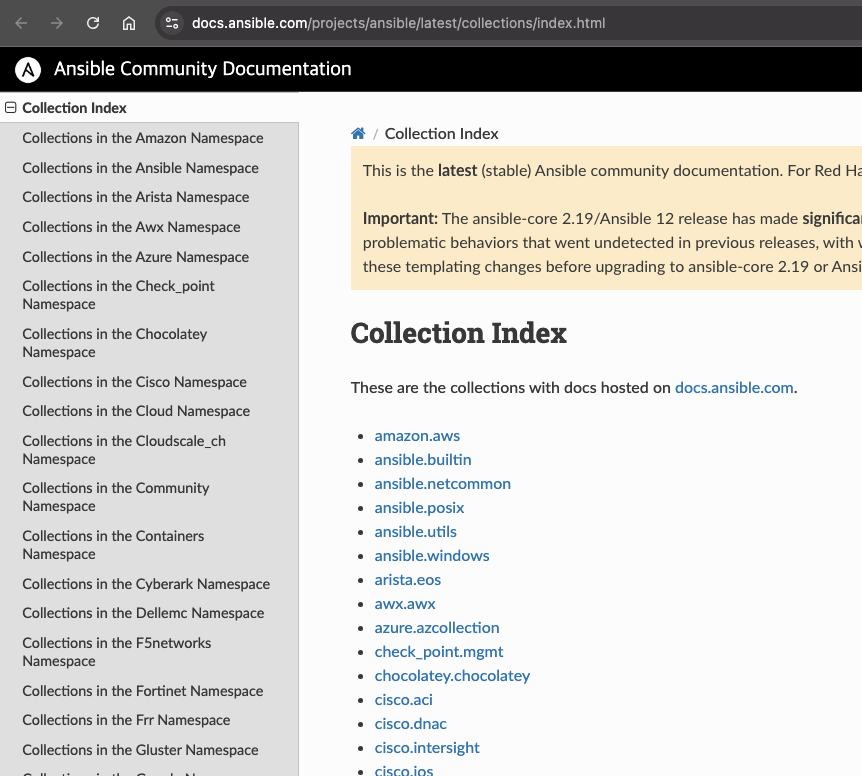
2. Openstack.cloud 컬렉션 선택
개발자 정보, 현재 지원 ansible-core 버전, 제공 모듈 목록 등 정보를 확인할 수 있습니다.
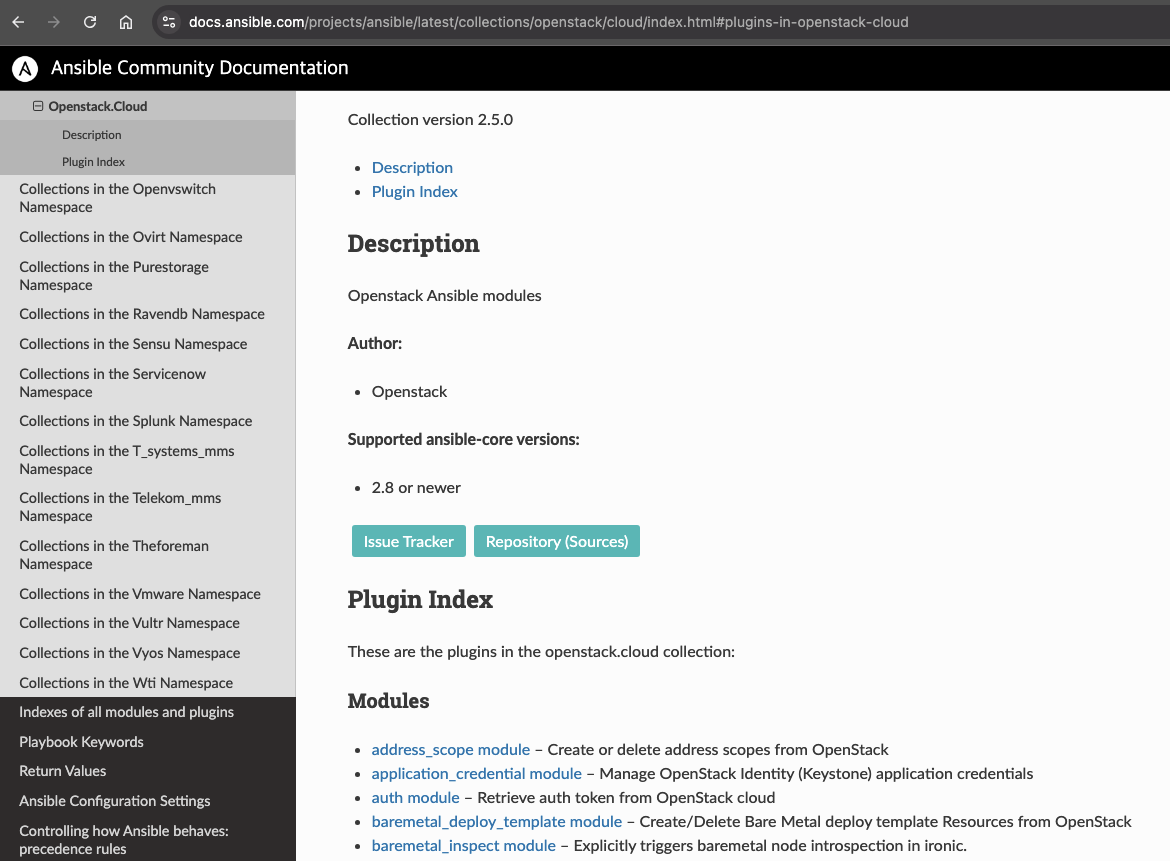
3. 제공 모듈 중 server 모듈 선택
상단에 콘텐츠 컬렉션 설치 방법이 표시됩니다. 모듈의 기능, 실행을 위해 필요한 패키지 정보와 파라미터 정보(파라미터명, 타입, 자세한 설명), 사용 예제를 확인할 수 있습니다.
명령어를 이용한 앤서블 콘텐츠 컬렉션
1. 명령어 확인
ansible-galaxy collection -h
# usage: ansible-galaxy collection [-h] COLLECTION_ACTION ...
#
# positional arguments:
#   COLLECTION_ACTION
#     download         Download collections and their dependencies as a tarball for an offline install.
#     init             Initialize new collection with the base structure of a collection.
#     build            Build an Ansible collection artifact that can be published to Ansible Galaxy.
#     publish          Publish a collection artifact to Ansible Galaxy.
#     install          Install collection(s) from file(s), URL(s) or Ansible Galaxy
#     list             Show the name and version of each collection installed in the collections_path.
#     verify           Compare checksums with the collection(s) found on the server and the installed copy. This does not verify dependencies.
#
# options:
#   -h, --help         show this help message and exit
2. 설치된 컬렉션 확인
ansible-galaxy collection list
# # /usr/lib/python3/dist-packages/ansible_collections
# Collection                    Version
# ----------------------------- -------
# amazon.aws                    6.5.0
# ansible.netcommon             5.3.0
# ansible.posix                 1.5.4
# ansible.utils                 2.12.0
# ansible.windows               1.14.0
# arista.eos                    6.2.2
# awx.awx                       22.7.0
# azure.azcollection            1.19.0
# ...

# 컬렉션 디렉터리 구조 확인
tree /usr/lib/python3/dist-packages/ansible_collections -L 1
# /usr/lib/python3/dist-packages/ansible_collections
# ├── amazon
# ├── ansible
# ├── ansible_community.py
# ├── ansible_release.py
# ├── arista
# ├── awx
# ├── azure
# ├── check_point
# ├── chocolatey
# ...
3. 컬렉션 삭제 및 설치
# 특정 컬렉션 확인
ansible-galaxy collection list openstack.cloud
# /usr/lib/python3/dist-packages/ansible_collections
# Collection      Version
# --------------- -------
# openstack.cloud 2.5.0

# 컬렉션 디렉터리 구조 확인
tree /usr/lib/python3/dist-packages/ansible_collections/openstack -L 3
# /usr/lib/python3/dist-packages/ansible_collections/openstack
# └── cloud
#     ├── bindep.txt
#     ├── CHANGELOG.rst
#     ├── COPYING
#     ├── FILES.json
#     ├── MANIFEST.json
#     ├── meta
#     │   └── runtime.yml
#     ├── plugins
#     │   ├── doc_fragments
#     │   ├── inventory
#     │   ├── modules
#     │   └── module_utils
#     ├── __pycache__
#     │   └── setup.cpython-312.pyc
#     ├── README.md
#     ├── requirements.txt
#     └── setup.py

# 9 directories, 10 files

# 삭제
sudo rm -rf /usr/lib/python3/dist-packages/ansible_collections/openstack

# 삭제 확인
ansible-galaxy collection list openstack.cloud
# (결과 없음)

ansible-galaxy collection list
# openstack.cloud가 목록에서 제거됨
4. 컬렉션 설치
특정 버전으로 설치할 수 있습니다.
# 특정 버전으로 설치
ansible-galaxy collection install openstack.cloud:2.1.0
# Starting galaxy collection install process
# Process install dependency map
# Starting collection install process
# Downloading https://galaxy.ansible.com/api/v3/plugin/ansible/content/published/collections/artifacts/openstack-cloud-2.1.0.tar.gz to /root/.ansible/tmp/ansible-local-18750j04qpr8x/tmpfe62bad2/openstack-cloud-2.1.0-l39_lyjl
# Installing 'openstack.cloud:2.1.0' to '/root/.ansible/collections/ansible_collections/openstack/cloud'
# openstack.cloud:2.1.0 was installed successfully
# 설치 확인
ansible-galaxy collection list
ansible-galaxy collection list openstack.cloud
# # /root/.ansible/collections/ansible_collections
# Collection      Version
# --------------- -------
# openstack.cloud 2.1.0

# 설치된 컬렉션 디렉터리 구조 확인
tree ~/.ansible/collections/ansible_collections -L 3
# ...
5. 오프라인 환경을 위한 컬렉션 다운로드
오프라인 환경 지원을 위해 컬렉션을 tar 파일 형태로 다운로드할 수 있습니다.
# -p 옵션으로 디렉터리 지정하여 다운로드
ansible-galaxy collection download -p ./collection openstack.cloud

# 다운로드 확인
tree collection/
# collection/
# ├── openstack-cloud-2.2.0.tar.gz
# └── requirements.yml

# tar 파일 내용 확인
tar tvf collection/openstack-cloud-2.2.0.tar.gz
# ...

# requirements.yml 확인
cat collection/requirements.yml
# collections:
# - name: openstack-cloud-2.2.0.tar.gz
#   version: 2.2.0
6. tar 파일로 컬렉션 설치
다운로드한 tar 파일로 컬렉션을 설치할 수 있습니다.
# tar 파일로 컬렉션 설치
ansible-galaxy collection install ./collection/openstack-cloud-2.2.0.tar.gz

# 설치 확인
ansible-galaxy collection list
# # /root/.ansible/collections/ansible_collections
# Collection                    Version
# ----------------------------- -------
# openstack.cloud               2.2.0
#
# # /usr/lib/python3/dist-packages/ansible_collections
# Collection                    Version
# ----------------------------- -------
# amazon.aws                    6.5.0
# ansible.netcommon             5.3.0
# ...

ansible-galaxy collection list openstack.cloud
# # /root/.ansible/collections/ansible_collections
# Collection      Version
# --------------- -------
# openstack.cloud 2.2.0
마치며
이번 스터디에서는 Ansible 기초를 통해 인프라 자동화의 기초를 배웠습니다.
매번 서버에 직접 접속하여 수동으로 설정을 변경하다 보니, 여러 서버를 일관되게 관리하고 변경 사항을 추적하기가 어려웠습니다. 또한 동일한 작업을 반복하면서 실수할 가능성도 높아졌습니다.
이번 실습을 통해 Ansible의 플레이북을 작성하여 여러 서버에 동일한 설정을 적용하는 방법을 배웠고, 변수와 조건문, 반복문을 활용하여 유연하고 재사용 가능한 플레이북을 만드는 방법을 익혔습니다.
특히 롤(Role)을 통해 기능 단위로 코드를 모듈화하고, Ansible Galaxy를 통해 커뮤니티에서 제공하는 검증된 롤을 활용하는 방법을 배운 것은 매우 유익했습니다.
이번 경험을 바탕으로 차주 주제인 kubespray를 좀 더 심도있게 이해할 수 있을 것 같네요!
다음 스터디 포스팅에서 뵙겠습니다.
긴 글 읽어주셔서 감사합니다! :)
'클라우드 컴퓨팅 & NoSQL > [K8S Deploy] K8S 디플로이 스터디' 카테고리의 다른 글
| [5주차 - K8S Deploy] Kubespray 고가용성(HA) 실습 및 클러스터 운영 (26.02.01) (0) | 2026.02.07 |
|---|---|
| [4주차 - K8S Deploy] kubespray 배포 분석 (26.01.25) (0) | 2026.01.31 |
| [3주차 - K8S Deploy] Kubeadm & K8S Upgrade 2/2 (26.01.23) (0) | 2026.01.23 |
| [3주차 - K8S Deploy] Kubeadm & K8S Upgrade 1/2 (26.01.23) (0) | 2026.01.23 |
| [1주차 - K8S Deploy] Bootstrap Kubernetes the hard way (26.01.04) (1) | 2026.01.09 |